
How-To Guides · Other how-tos
Sharing A Page
fuuz.com/help/sharing-a-page
How-To Share a Screen
Article Type: How-To / Feature
Audience: End Users, Administrators
Module: Fuuz Platform
Applies to Versions: 2025.12+
Overview
Sometimes it is helpful to share a specific page, report, dashboard, or screen with a co-worker so they can see the same thing you are. Fuuz provides a convenient Share option for this purpose, located just below the avatar menu in the upper right corner of every screen.
Important: The user you share with must have proper access to the screen and the underlying data to utilize the share feature.
How the Share Feature Works
This feature uses the industry-standard “share” icon. Clicking the icon copies a link to the exact screen you’re viewing to your clipboard. You can then send this link via email, chat, or any messaging tool.
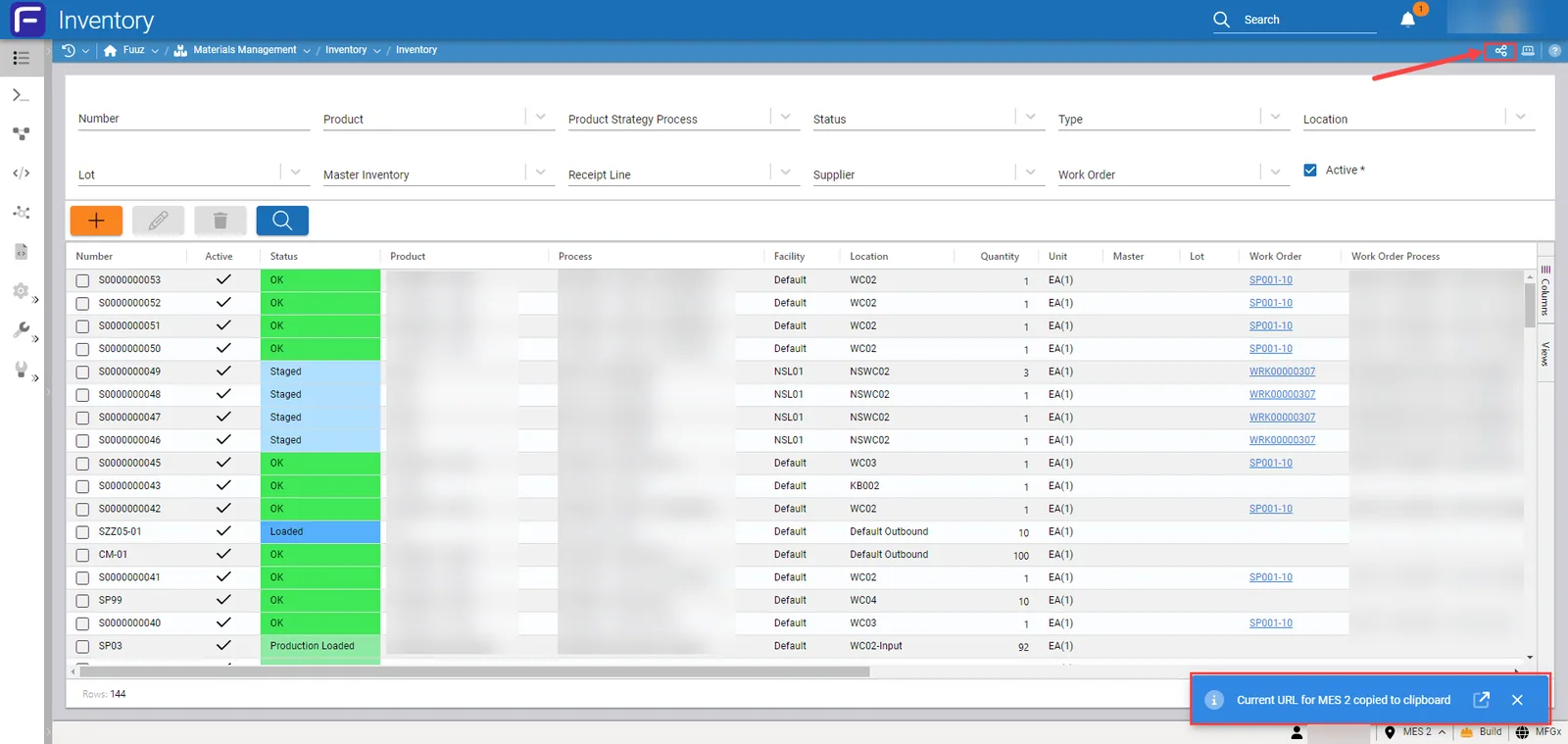
Clipboard Contents Example:https://build.mfgx.fuuz.app/materialsManagement/inventory/inventories?InventoryTable.view=Default2&tenant=MichiganLocation
Step-by-Step Instructions
- Navigate to the page, report, or dashboard you want to share.
- Locate the Share icon below the avatar menu in the upper right corner.
- Click the icon. A link to the current screen is copied to your clipboard.
- Paste the link into an email or message and send it to your colleague.
Permissions and Security Considerations
- The recipient must have access rights to the screen and data displayed.
- Links are enterprise-specific due to Fuuz’s multi-enterprise mesh architecture.
- Shared links respect role-based permissions and tenant isolation.
Best Practices
- Verify recipient permissions before sharing.
- Use secure messaging channels for sharing links.
- Do not share links outside your enterprise or tenant environment.
Revision History
| Version | Date | Editor | Description |
|---|---|---|---|
| 1.0 | 2025-12-23 | Craig Scott | Initial Release |
Need more help?
Ask the Fuuz community, or open a ticket with Fuuz support.