
Build Apps · Flows & Scripts
Script Editor
fuuz.com/help/script-editor
- Article Type
- Configuration / How-To
- Audience
- Developers, App Admins, Advanced Users
- Module
- Script Editor / Developer Tools
- Applies to Versions
- 2025.1+
1. Overview
The Fuuz Script Editor (formerly Transformation Explorer) is a comprehensive development environment for testing, validating, and executing JSONata and JavaScript functions within the Fuuz Industrial Operations Platform. This tool enables developers and authorized users to create reusable, version-controlled transformation scripts that can be deployed across data flows, screens, and integrations throughout your enterprise applications.
Saved scripts are version-controlled application components requiring deployment like data flows and screens, providing full audit trails and traceability for regulatory compliance. Scripts can execute in Local mode (browser) or Server mode (Fuuz server) with access to custom Fuuz functions. The Script Editor provides comprehensive validation for input/output payloads and schemas, plus an interactive workspace with resizable panels for efficient development.
Before You Begin: Ensure you have Developer access, App Admin access, or Web Access with proper RBAC policies. When saving scripts, payload and context data will be cleared—save these to a separate text file for reference.2. Prerequisites
- Access Level: Developer access, App Admin access, or Web Access with RBAC policies for Saved Script feature
- Permissions: Read/write access to Orchestration module and Saved Script functionality
- Knowledge: Basic understanding of JSONata or JavaScript, data transformation concepts, JSON data structures
- Resources: Sample JSON data for testing, understanding of your data models and transformation requirements
3. Procedure Steps
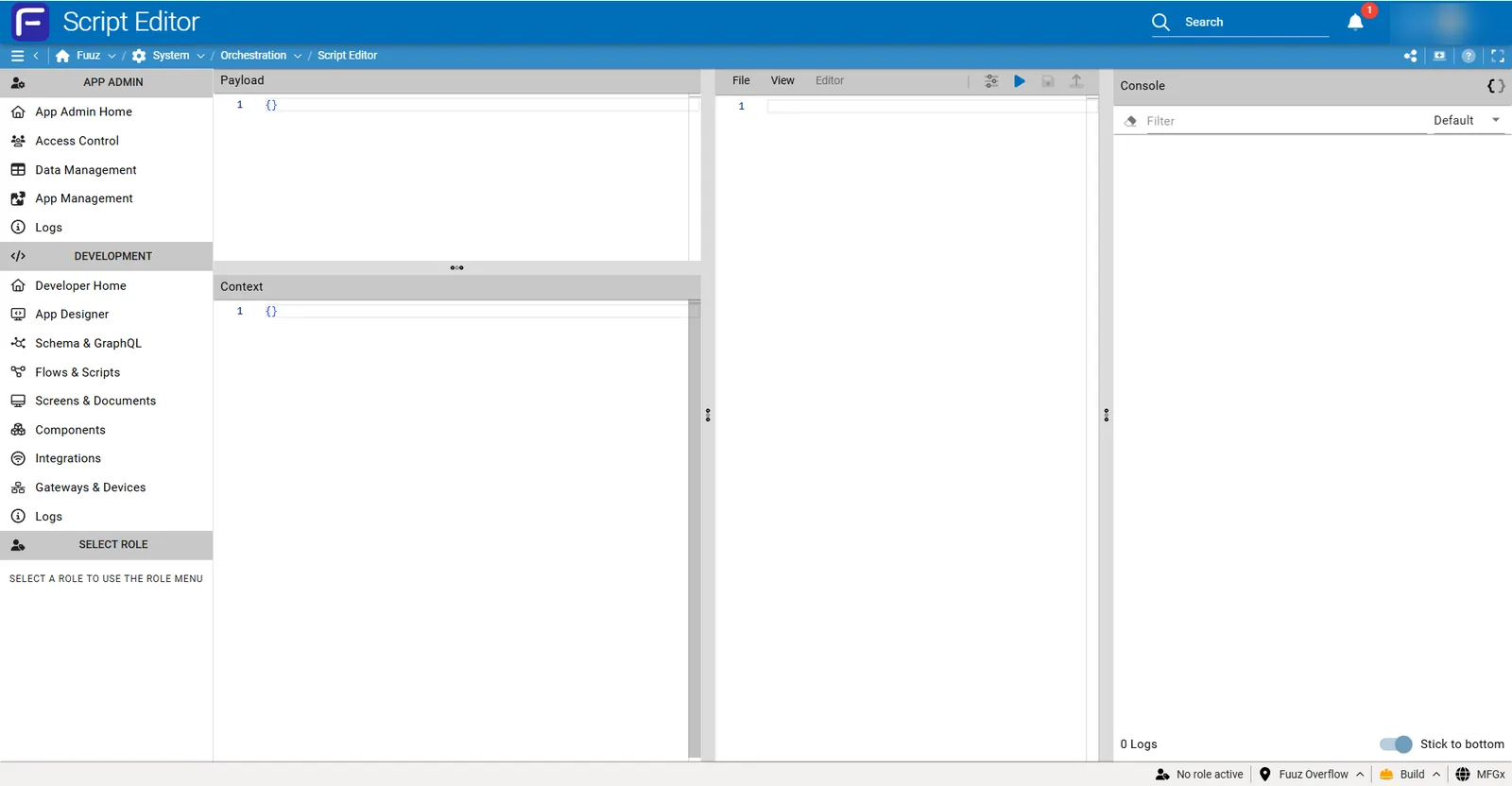
Step 1: Access the Script Editor
Navigate to the Script Editor to begin developing and testing transformation scripts.
- Log in to your Fuuz application with appropriate credentials
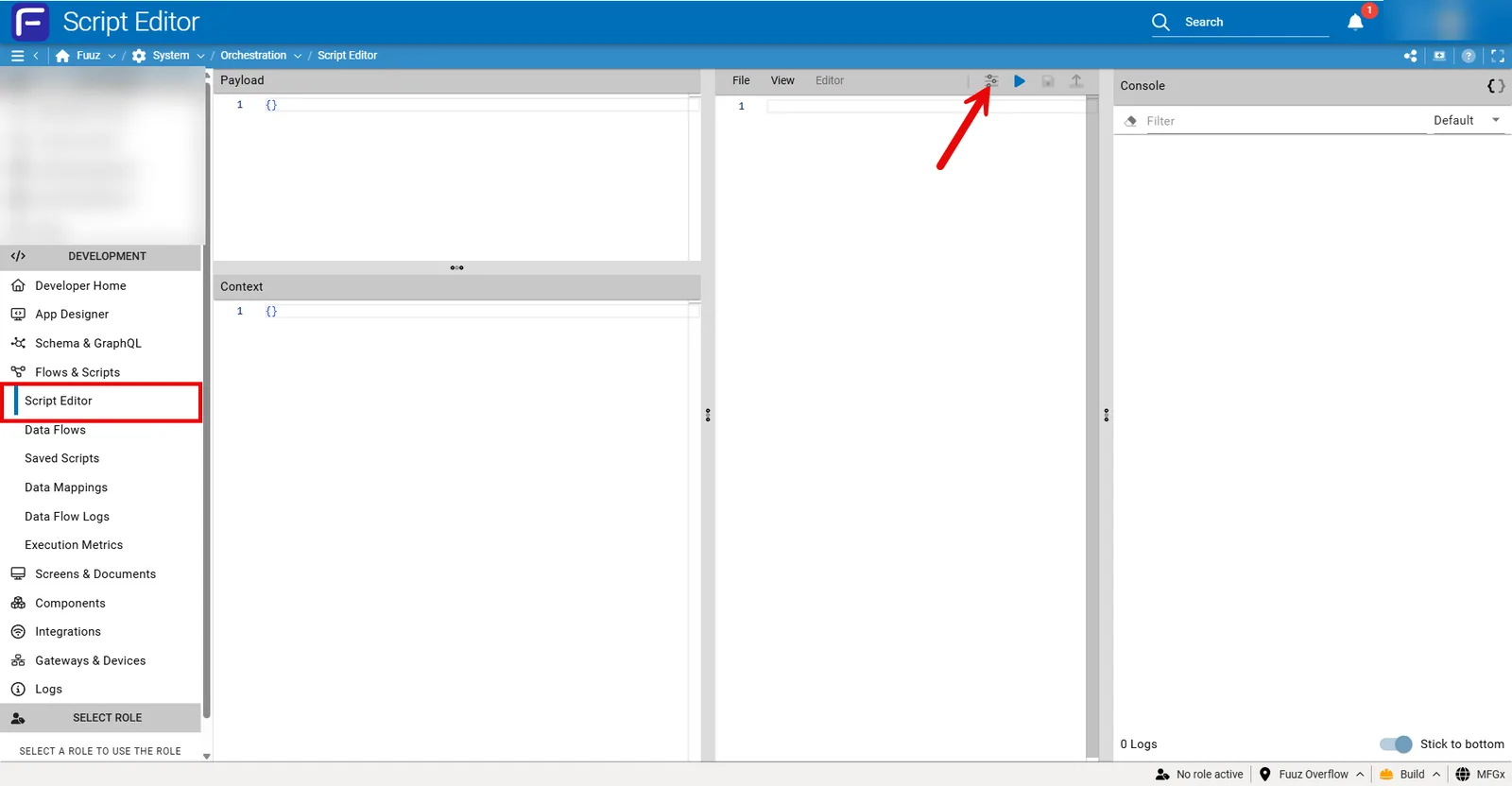
- Navigate to Orchestration in the main menu
- Select Saved Script from the navigation menu
- The Script Editor interface loads with Payload, Context, Script, Output, and Console panels
Step 2: Configure Editor Settings
Configure validation and execution settings for your development environment.
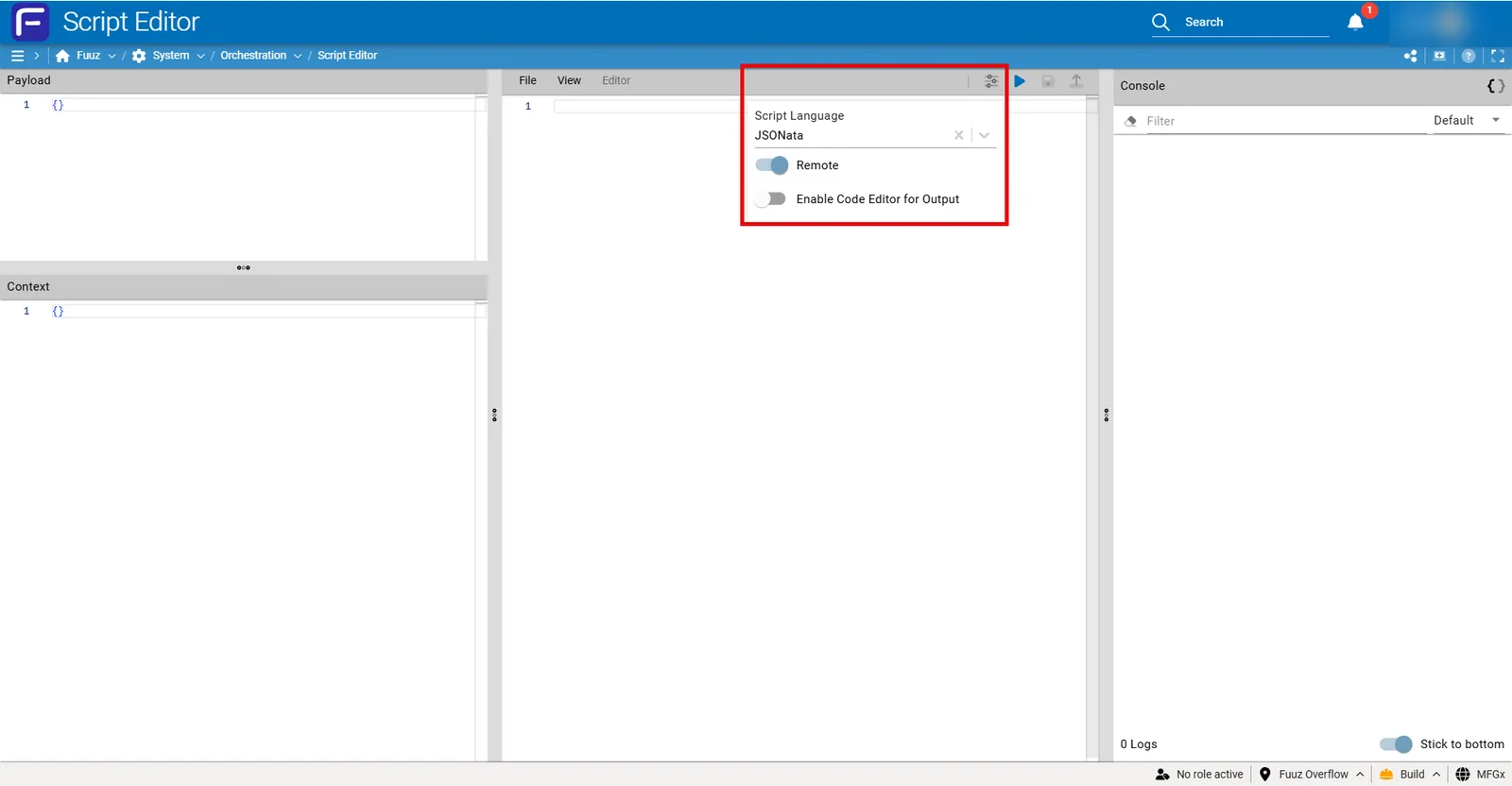
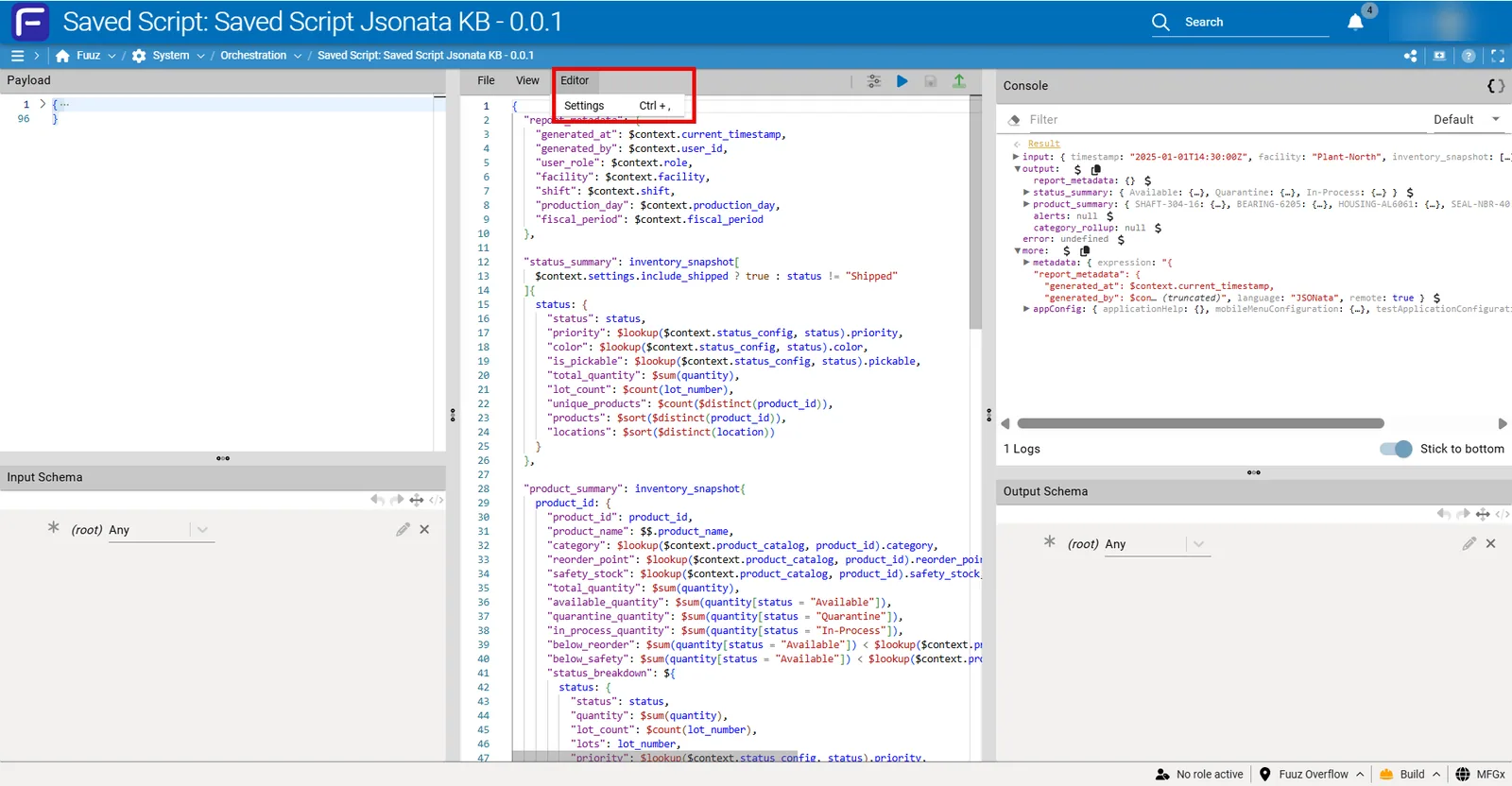
- Click the Editor menu in the toolbar
- Select Settings from the dropdown
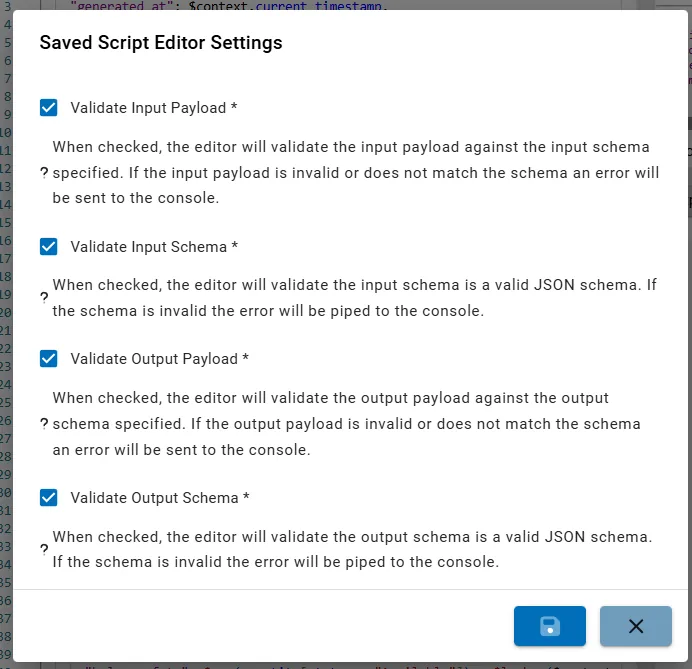
- Configure validation options:
- Validate Input Payload: Validates input against input schema (recommended: enabled)
- Validate Input Schema: Validates input schema is valid JSON schema format (recommended: enabled)
- Validate Output Payload: Validates output against output schema (recommended: enabled)
- Validate Output Schema: Validates output schema is valid JSON schema format (recommended: enabled)
- Click Save to apply settings
Step 3: Test Transformation Logic
Develop and test your JSONata or JavaScript transformation logic interactively.
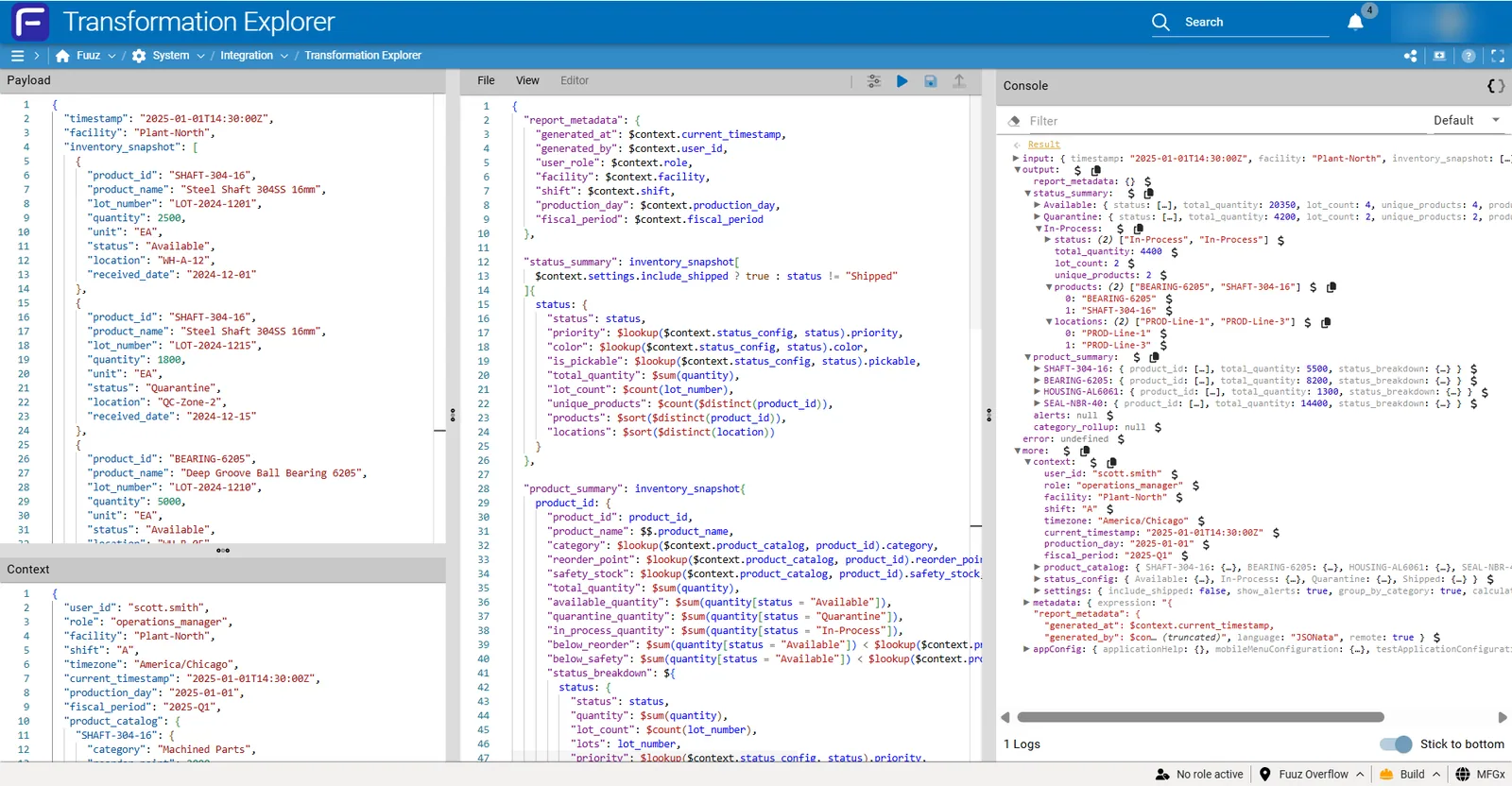
- In the Payload panel (left side), enter sample JSON data representing your input
- In the Context panel (toggle with Alt+1), add context variables like
user_id,facility,current_timestamp - In the Script panel (center), write your JSONata or JavaScript transformation logic
- Click the Play button (▶) in the toolbar to execute the script
- Review results in the Output panel (right side) and check the Console panel for validation messages
- Iterate on your script logic and re-execute as needed
Step 4: Create Saved Script
Save your script as a version-controlled, deployable application component.
- Copy your test payload and context data to a separate text file for future reference
- Click File → Save or File → Save As
- Provide a meaningful name (e.g., "Inventory Status Transform" or "Production Report Generator")
- Add a description explaining the script's purpose and usage
- Specify the script language (JSONata or JavaScript)
- Click Save to create the script
Step 5: Define Input and Output Schemas
After saving, define schemas to validate data structure and provide documentation.
- After saving, Input Schema and Output Schema panels appear at the bottom
- Use the visual schema builder to define expected input structure using JSON Schema format
- Define the expected output structure
- Save the script to preserve schema definitions
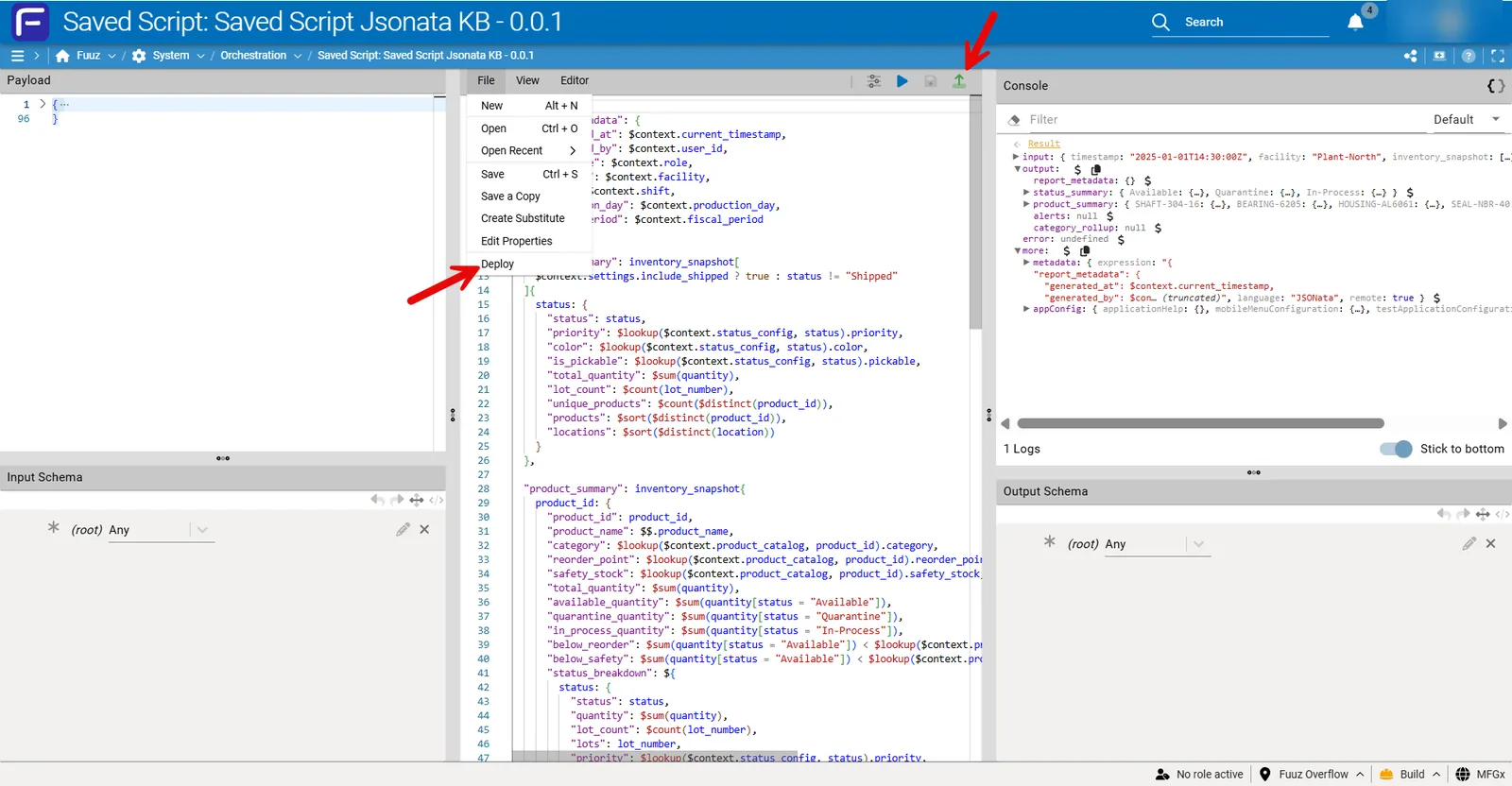
Step 6: Deploy the Script
Deploy the saved script to target environments following your organization's deployment procedures.
- Navigate to deployment management interface
- Select the saved script for deployment
- Choose target environment (Build, QA, Production)
- Execute deployment following organizational change control procedures
- Verify successful deployment in target environment
Step 7: Use Saved Scripts in Applications
Reference saved scripts anywhere JSONata transforms are used throughout Fuuz.
- Open the component where you want to use the saved script (data flow, screen, integration)
- Locate the script selector in the transformation configuration interface
- Select your saved script by name from the dropdown
- The script executes using the defined transformation logic
- Changes to the saved script propagate when redeployed without editing individual components
Saved scripts can be used in:
- Data Flow Transform nodes and Script nodes
- Screen element transformations and calculated fields
- Integration mappings and API responses
- Data Model computed fields and validation logic
4. Configuration Reference
Validation Settings
| Setting | Description | Default |
|---|---|---|
| Validate Input Payload | Validates input payload conforms to input schema. Errors sent to console. | Enabled |
| Validate Input Schema | Validates input schema is valid JSON schema format. Errors piped to console. | Enabled |
| Validate Output Payload | Validates script output matches output schema. Mismatches generate console errors. | Enabled |
| Validate Output Schema | Validates output schema is valid JSON schema format. Invalid schemas generate errors. | Enabled |
Execution Modes
| Mode | Description | Use Cases |
|---|---|---|
| Local Mode | Executes scripts in browser environment | Rapid testing, client-side transforms, limited data |
| Server Mode | Executes scripts on Fuuz server | Production testing, large datasets, custom Fuuz functions |
Interface Panels and Hotkeys
| Panel | Purpose | Hotkey |
|---|---|---|
| Context Panel | Edit context variables ($context.user_id, $context.facility, etc.) | Alt+1 |
| Script Panel | Main code editor for JSONata or JavaScript | Alt+2 |
| Payload Panel | Input JSON data for script processing | N/A |
| Output Panel | Script execution results and errors | Alt+4 |
| Console Panel | Validation messages and execution logs | N/A |
All panels are resizable—click and drag panel borders to adjust size. Use View menu or hotkeys to toggle panel visibility.
5. Use Cases & Examples
The following examples demonstrate common use cases for the Script Editor, showing both JSONata and JavaScript implementations for industrial operations scenarios. Complete example files are attached to this article for download and testing.
Example 1: Production Lot Summarization (JSONata)
Use Case: Summarize inventory snapshot data by status and product, generating management reports with aggregated quantities, lot counts, location information, and alerts for low stock or quality holds.
Attached Files:
Payload_Example_ProductLotSummaryScript.txt- Sample inventory snapshot dataContext_Example_ProductLotSummaryScript.txt- Context variables with product catalog and configurationJsonataTransform_Example_ProductLotSummaryScript.txt- Complete JSONata transformation
Input Payload (excerpt):
{
  "timestamp": "2025-01-01T14:30:00Z",
  "facility": "Plant-North",
  "inventory_snapshot": [
    {
      "product_id": "SHAFT-304-16",
      "product_name": "Steel Shaft 304SS 16mm",
      "lot_number": "LOT-2024-1201",
      "quantity": 2500,
      "unit": "EA",
      "status": "Available",
      "location": "WH-A-12",
      "received_date": "2024-12-01"
    },
    {
      "product_id": "BEARING-6205",
      "product_name": "Deep Groove Ball Bearing 6205",
      "lot_number": "LOT-2024-1210",
      "quantity": 5000,
      "unit": "EA",
      "status": "Available",
      "location": "WH-B-05",
      "received_date": "2024-12-10"
    }
    // ... 7 more inventory records (see attached file)
  ]
}
Context Variables (excerpt):
{
  "user_id": "scott.smith",
  "role": "operations_manager",
  "facility": "Plant-North",
  "shift": "A",
  "current_timestamp": "2025-01-01T14:30:00Z",
  "production_day": "2025-01-01",
  "fiscal_period": "2025-Q1",
  "product_catalog": {
    "SHAFT-304-16": {
      "category": "Machined Parts",
      "reorder_point": 2000,
      "safety_stock": 500
    }
    // ... product catalog for all products
  },
  "status_config": {
    "Available": {
      "priority": 1,
      "color": "green",
      "pickable": true
    }
    // ... configuration for all statuses
  },
  "settings": {
    "include_shipped": false,
    "show_alerts": true,
    "group_by_category": true
  }
}
JSONata Script (excerpt):
{
  "report_metadata": {
    "generated_at": $context.current_timestamp,
    "generated_by": $context.user_id,
    "user_role": $context.role,
    "facility": $context.facility,
    "shift": $context.shift,
    "production_day": $context.production_day,
    "fiscal_period": $context.fiscal_period
  },

  "status_summary": inventory_snapshot[
    $context.settings.include_shipped ? true : status != "Shipped"
  ]{
    status: {
      "status": status,
      "priority": $lookup($context.status_config, status).priority,
      "color": $lookup($context.status_config, status).color,
      "is_pickable": $lookup($context.status_config, status).pickable,
      "total_quantity": $sum(quantity),
      "lot_count": $count(lot_number),
      "unique_products": $count($distinct(product_id)),
      "products": $sort($distinct(product_id)),
      "locations": $sort($distinct(location))
    }
  },

  "product_summary": inventory_snapshot{
    product_id: {
      "product_id": product_id,
      "product_name": $$.product_name,
      "category": $lookup($context.product_catalog, product_id).category,
      "reorder_point": $lookup($context.product_catalog, product_id).reorder_point,
      "total_quantity": $sum(quantity),
      "available_quantity": $sum(quantity[status = "Available"]),
      "below_reorder": $sum(quantity[status = "Available"]) <
        $lookup($context.product_catalog, product_id).reorder_point,
      "status_breakdown": ${
        status: {
          "status": status,
          "quantity": $sum(quantity),
          "lot_count": $count(lot_number),
          "lots": lot_number
        }
      }
    }
  }
  // ... alerts and category_rollup sections (see attached file)
}
Key Features Demonstrated:
- Context variable integration with $lookup() for product catalog and status configuration
- Grouping and aggregation using JSONata grouping syntax with curly braces
- Filtering with conditional logic ($context.settings.include_shipped)
- Array functions: $sum(), $count(), $distinct(), $sort(), $merge()
- Nested data structure creation with status_summary and product_summary
- Alert generation for low stock and quality hold conditions
- Category rollup for executive reporting
Example 2: Multi-Level OEE Calculation (JavaScript)
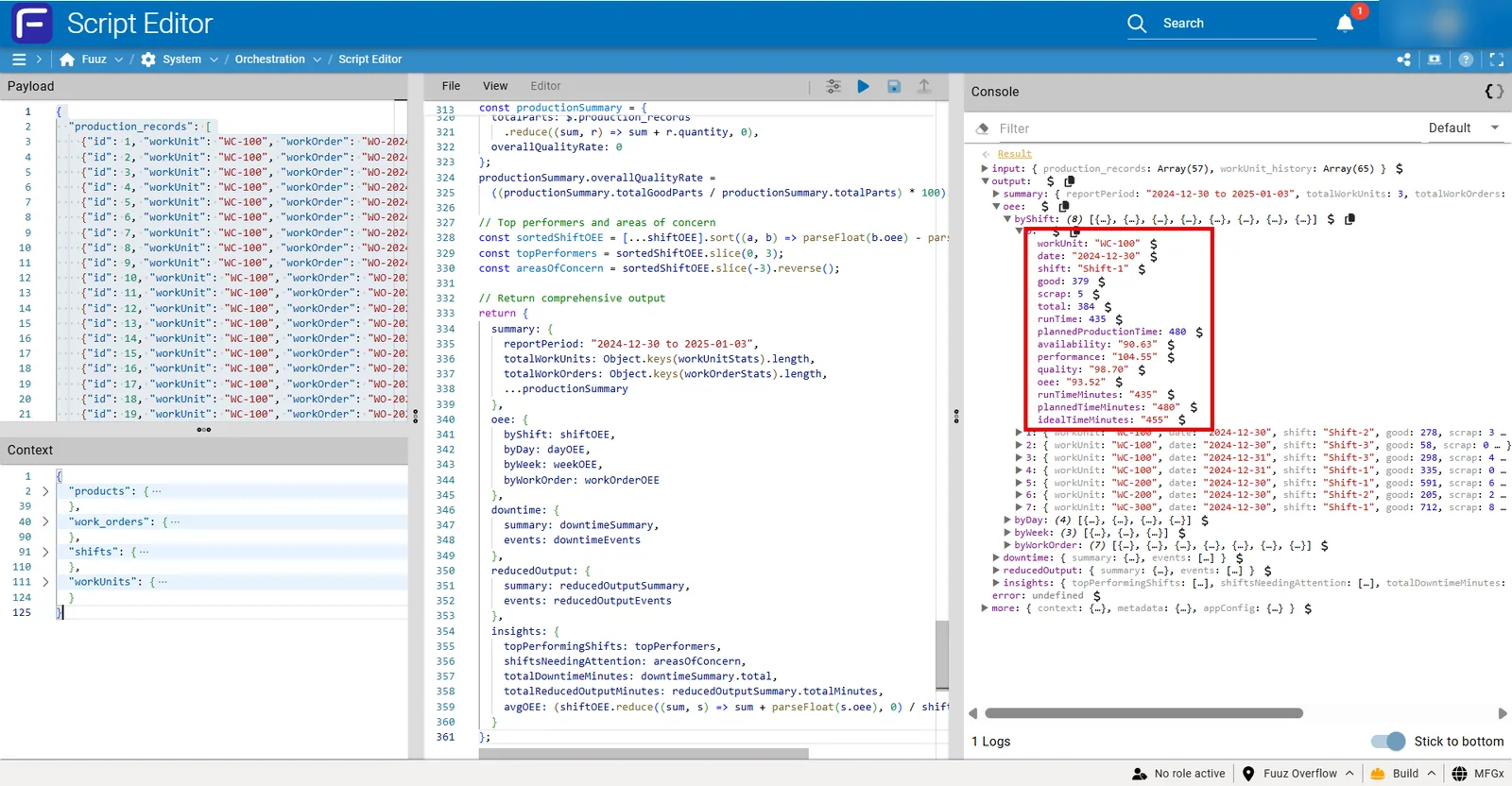
Use Case: Calculate Overall Equipment Effectiveness (OEE) at multiple levels (shift, day, week, work order) by combining production history and work unit state data. Provides comprehensive equipment performance metrics with downtime analysis and reduced output tracking.
Attached Files:
Payload_Example_OEECalculationsJavascript.txt- Production records and work unit historyContext_Example_OEECalculationsJavascript.txt- Product specifications, work orders, and work unit configurationJavascriptFunction_Example_OEECalculationsJavascript.txt- Complete JavaScript calculation function
Input Payload Structure:
{
  "production_records": [
    // 56 production records across 3 work units, 7 work orders
    {
      "id": 1,
      "workUnit": "WC-100",
      "workOrder": "WO-2024-001",
      "product": "PROD-A",
      "quantity": 45,
      "dateTime": "2024-12-30T06:15:00Z",
      "quality": "good",
      "serialNumbers": ["SN-A-001", "SN-A-002"],
      "lotNumber": "LOT-A-1230"
    }
    // ... 55 more production records
  ],
  "workUnit_history": [
    // 65 work unit state records tracking running, disabled, blocked, starved states
    {
      "id": 1,
      "workUnit": "WC-100",
      "dateTime": "2024-12-30T06:00:00Z",
      "mode": "production",
      "state": "running",
      "durationMinutes": 60
    }
    // ... 64 more state records
  ]
}
Context Variables Structure:
{
  "products": {
    "PROD-A": {
      "name": "Aluminum Housing Assembly",
      "ideal_cycle_time_seconds": 72,
      "expected_hourly_rate": 50,
      "setup_time_minutes": 60
    }
    // ... 5 more products
  },
  "work_orders": {
    "WO-2024-001": {
      "product": "PROD-A",
      "order_quantity": 500,
      "start_date": "2024-12-30T06:00:00Z",
      "end_date": "2024-12-30T14:00:00Z",
      "workUnit": "WC-100"
    }
    // ... 6 more work orders
  },
  "shifts": {
    "Shift-1": {
      "name": "Day Shift",
      "start_hour": 6,
      "end_hour": 14,
      "duration_minutes": 480
    }
    // ... 2 more shifts
  },
  "workUnits": {
    "WC-100": {
      "name": "CNC Machining Center 1",
      "department": "Machining"
    }
    // ... 2 more work units
  }
}
JavaScript Script Structure (key functions):
// Helper functions for shift/date/week calculation
function getShift(dateTime) {
  const date = new Date(dateTime);
  const hour = date.getUTCHours();
  if (hour >= 6 && hour < 14) return 'Shift-1';
  if (hour >= 14 && hour < 22) return 'Shift-2';
  return 'Shift-3';
}

// Initialize aggregation structures
const workUnitStats = {};
const shiftStats = {};
const dayStats = {};
const weekStats = {};
const workOrderStats = {};

// Process production records - aggregate by work unit, shift, day, week
$.production_records.forEach(record => {
  const shift = getShift(record.dateTime);
  const date = getDate(record.dateTime);
  const week = `Week-${getWeek(record.dateTime)}`;

  // Aggregate good and scrap quantities at each level
  // ... (see attached file for complete aggregation logic)
});

// Process work unit history for availability
$.workUnit_history.forEach(record => {
  // Track running time, downtime events, reduced output
  if (record.mode === 'disabled') {
    downtimeEvents.push({
      workUnit: record.workUnit,
      durationMinutes: record.durationMinutes,
      reason: 'Machine Disabled'
    });
  }
  // ... (see attached file for complete tracking logic)
});

// Calculate OEE: Availability × Performance × Quality
function calculateOEEMetrics(stats, isWorkOrder = false) {
  availability = stats.runTime / stats.plannedProductionTime;
  performance = totalIdealTime / stats.runTime;
  quality = stats.good / stats.total;
  oee = availability * performance * quality;

  return {
    ...stats,
    availability: (availability * 100).toFixed(2),
    performance: (performance * 100).toFixed(2),
    quality: (quality * 100).toFixed(2),
    oee: (oee * 100).toFixed(2)
  };
}

// Return comprehensive multi-level OEE analysis
return {
  summary: {
    reportPeriod: "2024-12-30 to 2025-01-03",
    totalWorkUnits: Object.keys(workUnitStats).length,
    totalWorkOrders: Object.keys(workOrderStats).length,
    totalGoodParts: /* calculated */,
    totalScrapParts: /* calculated */
  },
  oee: {
    byShift: shiftOEE,    // OEE for each shift
    byDay: dayOEE,        // OEE for each day
    byWeek: weekOEE,      // OEE for each week
    byWorkOrder: workOrderOEE  // OEE for each work order
  },
  downtime: {
    summary: downtimeSummary,  // Aggregated by shift/day/week
    events: downtimeEvents      // Individual downtime events
  },
  reducedOutput: {
    summary: reducedOutputSummary,  // Blocked/starved analysis
    events: reducedOutputEvents      // Individual events
  },
  insights: {
    topPerformingShifts: topPerformers,
    shiftsNeedingAttention: areasOfConcern,
    totalDowntimeMinutes: /* calculated */,
    avgOEE: /* calculated */
  }
};
Key Features Demonstrated:
- JavaScript array methods: forEach(), reduce(), filter(), map(), sort(), slice()
- Multi-level aggregation across shifts, days, weeks, and work orders
- Complex OEE calculations combining multiple data sources
- Date/time manipulation for shift determination and week calculation
- Downtime event tracking and categorization (disabled mode)
- Reduced output tracking (blocked and starved states)
- Context variable integration for product specifications and work order details
- Top performers and areas of concern identification
- Comprehensive reporting structure with summary, details, and insights
Common Script Patterns
When to Use JSONata:
- Data transformation and restructuring
- Filtering, sorting, and grouping operations
- Simple calculations and aggregations
- JSON-to-JSON transformations
- Context variable lookups and references
When to Use JavaScript:
- Complex mathematical calculations (OEE, statistical analysis)
- Multi-step algorithmic processing
- Date/time manipulation and calculations
- Integration with external libraries
- Iterative operations requiring loops
- Performance-critical transformations with large datasets
- Multi-level aggregation and rollup logic
6. Validation & Testing
Success Criteria:
- ✓ Script executes without errors in Script Editor
- ✓ Output payload matches expected structure and values
- ✓ All validation settings pass without console errors
- ✓ Input and output schemas defined and valid
- ✓ Script deployed successfully to target environment
- ✓ Script accessible from data flows, screens, and integrations
Testing Checklist:
- Unit Testing: Test individual transformation components with simple payloads
- Integration Testing: Test with complex, nested data representing actual application data
- Boundary Testing: Test edge cases including empty arrays, null values, missing fields
- Performance Testing: Verify acceptable execution times with large datasets
- Context Testing: Test with various context variable combinations
- Error Path Testing: Provide invalid data to ensure graceful error handling
- Deployment Testing: Test in Build environment before promoting to QA and Production
7. Troubleshooting
| Issue | Cause | Resolution |
|---|---|---|
| Script Editor not visible in menu | Insufficient access rights | Contact administrator to provision Developer, App Admin, or RBAC policies |
| Payload cleared after saving | Expected behavior | Save payload to text file before saving script. Reload when resuming work |
| Works in editor, fails in data flow | Different execution context | Use Server mode in editor. Match context variables to flow environment |
| Schema validation errors | Schema syntax error | Enable "Validate Input Schema" to check syntax. Review JSON schema docs |
| Can't see schema panels | Only appear after saving | Save script first using File → Save |
| Undefined/null errors | Missing context or payload fields | Add null checks. Use JSONata null-safe operators (?, ?:) |
| Script changes not reflected | Not deployed to environment | Deploy updated script version to target environment |
| Custom Fuuz functions unavailable | Running in Local mode | Switch to Server mode in Editor → Settings |
| Poor performance with large data | Running in Local mode | Switch to Server mode. Optimize script logic |
| Script not in selection lists | Not deployed to environment | Deploy script to current environment (Build, QA, or Production) |
8. Related Resources
- JSONata Language Reference: Complete guide to JSONata syntax and functions
- Custom Fuuz JSONata Library: Fuuz-specific JSONata extensions and functions
- Data Flow Designer: Integrating saved scripts into data transformation pipelines
- Screen Designer: Using saved scripts in screen transformations
- Data Mapping: Transform data between models using saved scripts
- Deployment Management: Deploy application components across environments
- JSON Schema Specification: Official docs for defining input/output schemas
- Context Variables Reference: Available context variables and usage
9. Revision History
| Version | Date | Editor | Description |
|---|---|---|---|
| 1.0 | 2025-01-01 | Craig Scott | Initial Release |
Need more help?
Ask the Fuuz community, or open a ticket with Fuuz support.