
How-To Guides · Screens, dashboards and reports
Screen Context Container
fuuz.com/help/screen-context-container
Screen Context: A Complete Guide
Article Type: Configuration / How-To
Audience: Application Designers, Developers, Partners
Module: Fuuz Platform - UI Builder
Applies to Versions: Fuuz 1.0+
Estimated Time: 20-30 minutes
1. Overview
Screen Context is a built-in state management feature in Fuuz that provides a convenient, session-based data store for your screens. Rather than directly accessing individual components or creating hidden form fields to persist values, Screen Context offers a first-class solution for managing shared data within a screen's lifecycle.
What is Screen Context?
Screen Context is a data object that exists at the screen level and can be accessed by all components on that screen. It serves as a centralized data store that persists for the duration of the user's session on that particular screen.
Key Characteristics
- Screen-Scoped: Context is isolated to a single screen and cannot be accessed across different screens
- Session-Only: Context data is cleared when the user navigates away from the screen
- No Limits: There are no size limits or performance concerns - using Screen Context can actually enhance screen performance
- Universal Access: All component types (forms, tables, charts, actions, etc.) can read from and write to context
- Query Integration: Query parameters can reference context values, enabling dynamic data filtering and loading
Why Use Screen Context?
Screen Context eliminates common workarounds like:
- Creating hidden form fields to persist values
- Directly querying component data across different parts of your screen
- Losing data when switching between tabs on multi-tabbed screens
- Complex component-to-component communication patterns
2. Prerequisites
- Access Level: Application Designer or Developer role
- Permissions: Screen edit permissions in the target module
- Knowledge: Basic understanding of JSONata syntax and Fuuz component structure
- Resources: Access to Fuuz App Designer & Developer Mode (when running a screen)
3. Using Screen Context
Fuuz provides four primary functions for manipulating Screen Context, all accessed through $components.Screen.fn
Step 1: Using setContext()
Purpose: Replaces the entire context with new data
Syntax:
$components.Screen.fn.setContext(dataObject)
Example:
(
  $data := $components.Form1.data;
  $components.Screen.fn.setContext($data)
)
Use When: You want to initialize or completely replace the context with a new data structure, such as loading form data into context when a screen first loads.
Note: When using setContext() with form data, context fields automatically inherit the dataPath of each input element.Step 2: Using mergeContext()
Purpose: Merges new fields into the existing context without replacing existing values
Syntax:
$components.Screen.fn.mergeContext(objectToMerge)
Example:
$components.Screen.fn.mergeContext({"mergedContext": 123})Use When: You want to add or update specific fields while preserving other context data. This is ideal for incrementally building up context as users interact with your screen.
Step 3: Using setContextValue()
Purpose: Sets a specific field in the context by name
Syntax:
$components.Screen.fn.setContextValue(fieldName, value)
Example:
$components.Screen.fn.setContextValue("test", "123SetValue")Use When: You need to set a single named field in the context. This is perfect for storing individual user selections, calculations, or state flags.
Step 4: Using deleteContextValue()
Purpose: Removes specific fields from the context
Syntax:
$components.Screen.fn.deleteContextValue([arrayOfFieldNames])
Example:
$components.Screen.fn.deleteContextValue(["test"])
Use When: You need to clean up or remove fields from context, such as clearing temporary values or resetting portions of your screen state.
Step 5: Reading Context Values
To read values from Screen Context in your JSONata transformations and component properties, use:
$components.Screen.context.fieldName
Examples:
Reading a specific field:
$components.Screen.context.test1
Using context in query parameters:
{
  "filter": {
    "workOrder": {
      "_eq": $components.Screen.context.selectedWorkOrder
    }
  }
}
Using context in component visibility:
$components.Screen.context.showAdvanced = trueImportant: The syntax
$components.Screen.context.fieldName is for JSONata transformations within Fuuz. In the browser developer console, use context.components.Screen.context.fieldName (without the $).
4. Common Use Cases
Multi-Tabbed Screens
Problem: When users switch between tabs, forms on hidden tabs are no longer accessible, making it difficult to maintain state across tab changes.
Solution: Store critical values in Screen Context when users interact with components on each tab.
// On Tab 1 - Store selection when user picks a work order
$components.Screen.fn.setContextValue("selectedWorkOrder", $$.newValue)

// On Tab 2 - Use the work order to filter a table
// Query parameters:
{
  "filter": {
    "workOrderId": {
      "_eq": $components.Screen.context.selectedWorkOrder
    }
  }
}
Cascading Filters
Problem: You have multiple dropdowns or filters where each selection should filter subsequent components.
Solution: Store each filter selection in context and reference all relevant context values in your queries.
// Store each filter selection
$components.Screen.fn.mergeContext({
  "department": $components.DepartmentMenu.value,
  "shift": $components.ShiftMenu.value,
  "date": $components.DateInput.value
})

// Use all filters in a table query
{
  "filter": {
    "department": { "_eq": $components.Screen.context.department },
    "shift": { "_eq": $components.Screen.context.shift },
    "date": { "_gte": $components.Screen.context.date }
  }
}
Conditional Component Visibility
Problem: You want to show/hide components based on user selections or calculated values.
Solution: Store state flags in context and reference them in component visibility properties.
// Store visibility state when user clicks a button
$components.Screen.fn.setContextValue("showDetails", true)

// In component visibility property:
$components.Screen.context.showDetails = true
5. Validation & Testing
Using the Developer Console
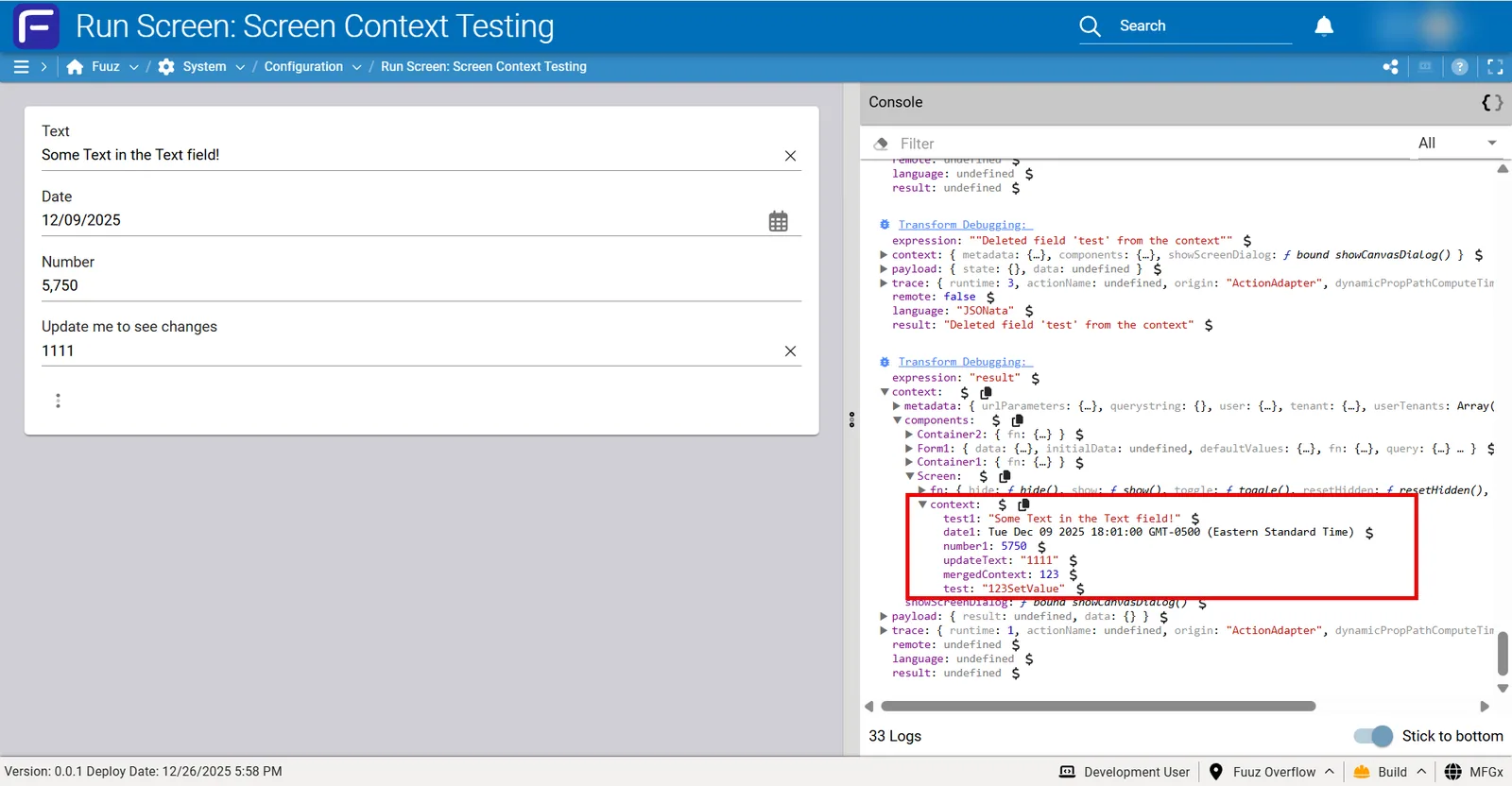
The most effective way to inspect and debug Screen Context is through your browser's developer console.
Important Distinction: In the browser console,context is a top-level debug object that provides access to metadata and components. Screen Context (the feature) is specifically located at context.components.Screen.context
Access the Console:
- Open your developer tab, by using the option in the avatar menu
- Use the screen (enter some data, click a button)
- Type
contextand press Enter to see the top-level debug object - Navigate to
context.components.Screen.contextto see your Screen Context data
Console Structure:
context:                           ← Top-level debug object (NOT Screen Context)
├── metadata:                      ← Global metadata (URL params, user, tenant)
│   ├── urlParameters: {}
│   ├── querystring: {}
│   ├── user: {}
│   ├── tenant: {}
│   └── userTenants: []
└── components:                    ← All screen components
    ├── Container1: { fn: {} }
    ├── Container2: { fn: {} }
    ├── Form1: { data: {}, fn: {} }
    └── Screen:
        ├── fn: { hide(), show() … }
        └── context:               ← THIS is Screen Context (the feature)
            ├── test1: "Some Text in the Text field!"
            ├── date1: Tue Dec 09 2025 18:01:00 GMT-0500
            ├── number1: 5750
            └── updateText: "1111"
Console Commands for Screen Context:
// View all Screen Context data
context.components.Screen.context

// View specific Screen Context value
context.components.Screen.context.test1
// Returns: "Some Text in the Text field!"

// Check which fields are in Screen Context
Object.keys(context.components.Screen.context)
// Returns: ["test1", "date1", "number1", "updateText"]
Additional Debug Information
The top-level context object also provides access to useful metadata (this is separate from Screen Context):
URL Parameters:
context.metadata.urlParameters
// Access route parameters like workOrderId from /workorder/:workOrderId
Query String:
context.metadata.querystring
// Access URL query parameters like ?filter=active
User Information:
context.metadata.user
// Current user details (id, name, email, etc.)
Tenant Information:
context.metadata.tenant
// Current tenant/organization details
All Components:
context.components
// Access all components on the screen (Forms, Containers, Tables, etc.)
Debugging Tips
Verify Screen Context updates in real-time:
After executing a context function (setContext, mergeContext, etc.), immediately check the console to verify the update:
context.components.Screen.context
Compare form data vs Screen Context:
// View form data
context.components.Form1.data

// View what's in Screen Context
context.components.Screen.context

// Check if they match (after using setContext with form data)
JSON.stringify(context.components.Form1.data) ===
JSON.stringify(context.components.Screen.context)
Success Criteria:
- ✓ Screen Context values appear in developer console at
context.components.Screen.context - ✓ Component queries successfully reference context values using
$components.Screen.context.fieldName - ✓ Screen Context persists across tab switches within the same screen
- ✓ Screen Context clears when navigating to a different screen
- ✓ No console errors when accessing Screen Context values
6. Troubleshooting
| Issue | Cause | Solution |
|---|---|---|
| Screen Context appears empty in console | setContext() not called or called incorrectly | Verify setContext() is being called with valid data object. Check console at context.components.Screen.context |
| Value not updating in Screen Context | Incorrect field name or dataPath mismatch | Check spelling and verify correct dataPath is used |
| Old values persist in Screen Context | Values not cleared when they should be | Use deleteContextValue() to explicitly remove old fields |
| Query doesn't reflect Screen Context | Screen Context set after query executes | Ensure Screen Context is populated before query runs, or trigger query refresh |
| Cannot access Screen Context in JSONata | Incorrect syntax or scope | Use $components.Screen.context.fieldName in JSONata transforms |
| Screen Context lost when switching tabs | This should NOT happen - Screen Context persists across tabs | Screen Context SHOULD persist across tabs on same screen. Check console at context.components.Screen.context to verify values are there. |
context.components.Screen.context to see your Screen Context data in real-time. Remember: context is the top-level debug object, while context.components.Screen.context is your actual Screen Context feature.
7. Related Resources
- Fuuz Platform Documentation
- JSONata Transformation Guide (Coming Soon)
- UI Builder Component Reference (Coming Soon)
- Multi-Tab Screen Design Best Practices (Coming Soon)
- Advanced Query Filtering Techniques (Coming Soon)
8. Revision History
| Version | Date | Editor | Description |
|---|---|---|---|
| 1.0 | 2024-12-26 | Craig Scott | Initial Release - Complete Screen Context guide with examples, debugging, and troubleshooting |
Need more help?
Ask the Fuuz community, or open a ticket with Fuuz support.