 Help Center
Administer · App Management
Sequences
Last updated December 27, 2025, 5:36 PM UTC · fuuz.com/help/sequences
Sequences
Article Type: Concept
Audience: App Administrators, Application Designers, Developers
Module: App Management
Applies to Versions: All Versions
1. Overview
Sequences provide system-generated unique identifiers for data records using configurable patterns including prefixes, suffixes, increments, and zero-padding. This feature eliminates manual code development for common numbering scenarios such as work orders, purchase orders, sales orders, serial numbers, lot numbers, and process routing steps. Sequences integrate directly with data model schemas as default field values and can be referenced in flows, imports, and integrations, ensuring consistent and automatic number generation across the entire application.
Note: Sequences are system-defined and managed through the Sequences screen. They support both String and Integer types, with String sequences offering additional prefix and suffix configuration. Sequences can be configured with unique constraints per data model relation, enabling scenarios like starting a new sequence for each product ID in process routings (10, 20, 30 per product).
2. Architecture & Data Flow
Definitions
- Sequence: System-defined number generator with configurable patterns for producing unique identifiers across data records.
- Type: Data type of generated values - either String (alphanumeric with prefix/suffix support) or Int (numeric only with zero-padding).
- Increment: The numeric value by which the sequence advances with each generation (typically 1, but can be 10, 20, etc. for step intervals).
- Prefix: String type only - fixed characters prepended to the sequence number (e.g., "WO-", "NCR-", "PO-").
- Suffix: String type only - fixed characters appended to the sequence number (e.g., "-2025", "-REV1").
- Zero Padding: Minimum number of digits for the numeric portion, with leading zeros added as needed (e.g., zero padding of 4 produces 0001, 0002, 0003).
- Sequence Number: Individual generated value tracked in the Sequence Numbers tab, showing the key, label, and current value for each unique sequence instance.
- Key: Unique constraint identifier that triggers separate sequence generation - used when sequences are tied to specific data model relations like product IDs.
- Label: Human-readable description combining sequence name and key for identifying specific sequence instances.
Components
- Sequence Definition: Configuration including name, type, increment, prefix, suffix, and zero padding
- Sequence Generator: System component that produces next sequential values based on defined patterns
- Sequence Tracker: Database component maintaining current value for each sequence instance
- Data Model Integration: Schema configuration linking sequences to field default values
- Flow Integration: Capability to generate sequence values within data flows and business logic
- Import/Integration Handler: System that can assign sequence values during data imports and external integrations
- Unique Constraint Manager: Component that creates separate sequence instances based on data model relation keys
Sequence Generation Process
When a sequence is invoked (via data model default value, flow action, or import):
- System determines if unique constraint applies (checks for key value from related data)
- Retrieves current sequence value for the applicable key (or default if no key)
- Increments value by configured increment amount
- Applies zero-padding to meet minimum digit requirements
- For String type: prepends prefix and appends suffix to create final value
- Stores updated sequence value in Sequence Numbers tracker
- Returns generated value to calling context (field default, flow variable, import record)
3. Use Cases
- Work Order Numbers: Generate sequential work orders like WO-0001, WO-0002, WO-0003 with prefix "WO-", zero padding of 4, and increment of 1.
- Non-Conformance Reports: Create NCR identifiers like NCR-16, NCR-17, NCR-18 with prefix "NCR-", no zero padding, and increment of 1.
- Purchase Order Numbers: Generate PO numbers like PO-2025-0001, PO-2025-0002 with prefix "PO-", suffix "-2025", zero padding of 4.
- Process Routing Steps: Create step sequences 10, 20, 30, 40 per product with increment of 10, starting a new sequence for each productId using unique constraints.
- Lot Numbers: Generate lot identifiers like LOT-20250115-001 combining prefix, date suffix, and zero-padded sequence.
- Serial Numbers: Create serial numbers like SN-100001, SN-100002 with high starting value (after migration from legacy system) and zero padding of 6.
- Invoice Numbers: Generate invoice sequences like INV-2025-001 with yearly reset capability for testing environments.
- Asset Tracking: Create asset tags like ASSET-BUILDING1-001 starting separate sequences per building using unique constraint on location relation.
- Quality Check IDs: Generate QC numbers like QC-001, QC-002 automatically assigned during data import from inspection equipment.
- Customer Reference Numbers: Create customer-specific reference sequences using unique constraint on customer ID, generating CUST123-0001, CUST456-0001 independently.
4. Screen Details
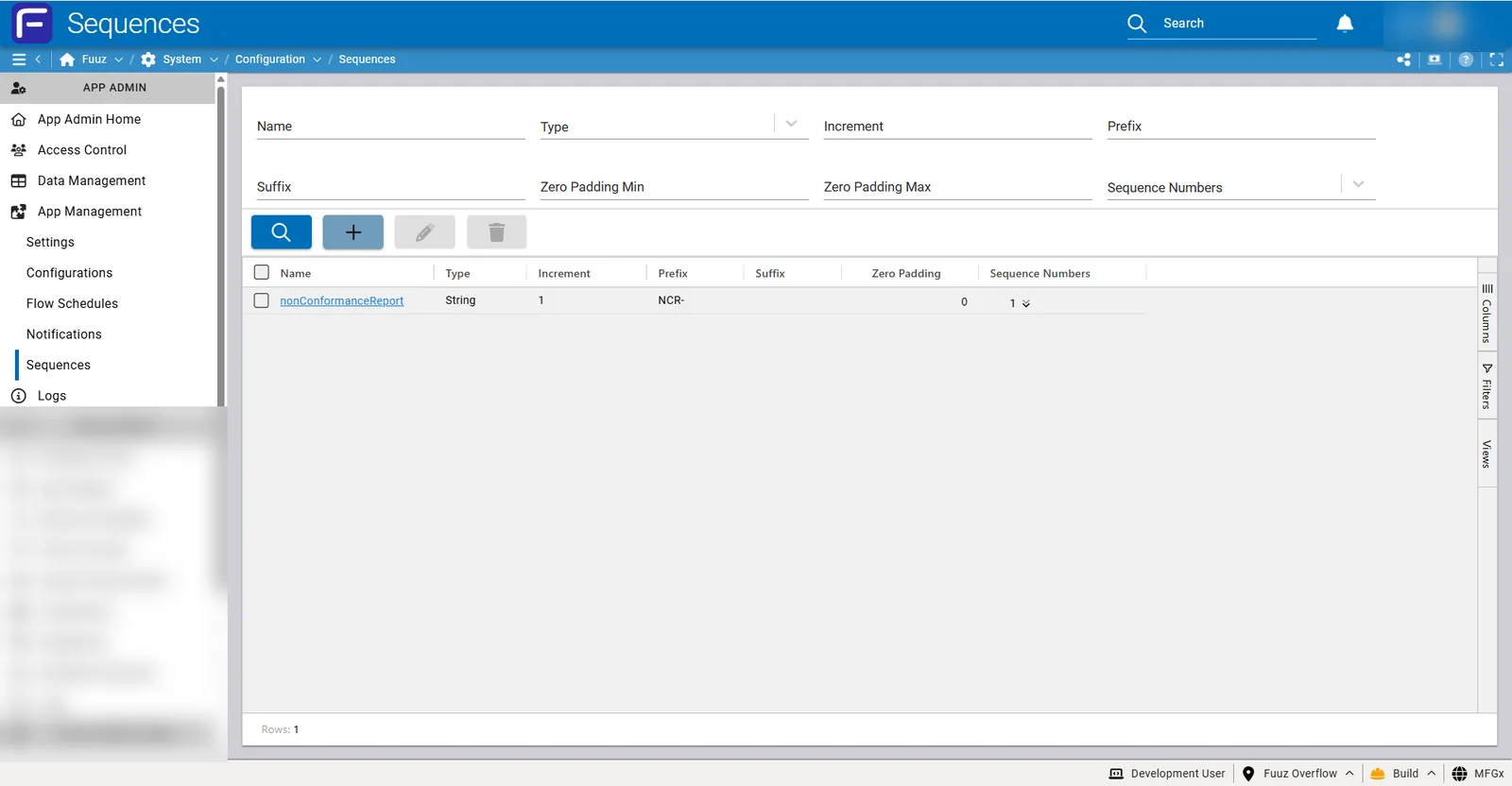
The Sequences screen is accessed via App Management > Sequences in the App Admin menu section.
Sequences List Screen
The main screen displays all sequences with searchable and filterable columns:
| Column |
Description |
| Name |
Unique identifier for the sequence (clickable to open detail view) |
| Type |
String or Int |
| Increment |
Numeric value by which sequence advances |
| Prefix |
String type only - characters prepended to sequence number |
| Suffix |
String type only - characters appended to sequence number |
| Zero Padding Min |
Minimum number of digits with leading zeros |
| Zero Padding Max |
Display field showing maximum digits based on current sequence values |
| Sequence Numbers |
Count of sequence number instances (shows how many keys/variations exist) |
Actions (Toolbar):
- Search: Filter sequences by name or configuration values
- Create Sequence: Open dialog to add new sequence definition
- Edit Sequence: Modify existing sequence configuration
- Delete Sequence: Remove sequence definition (with confirmation)
Create/Edit Sequence Form
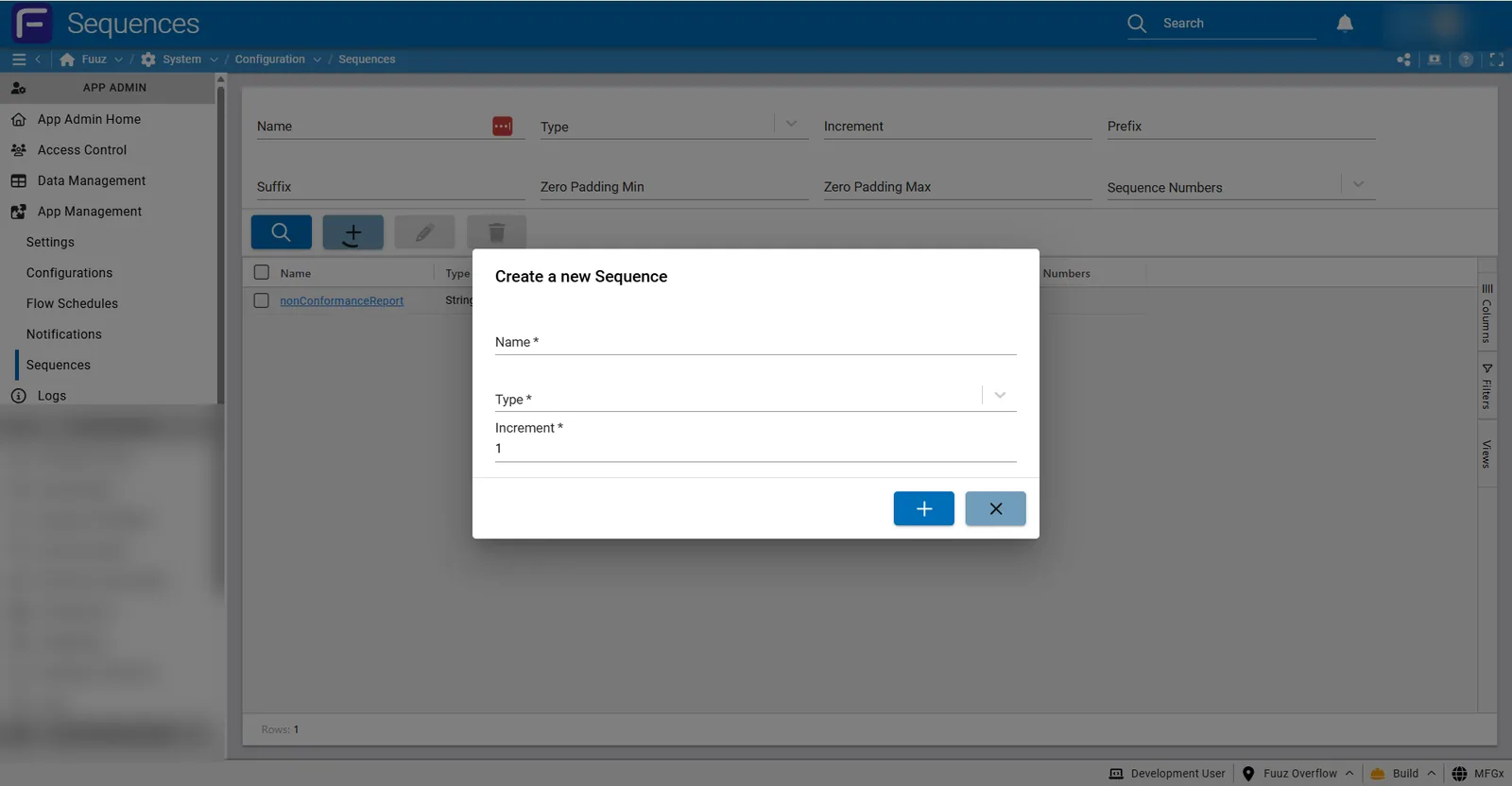
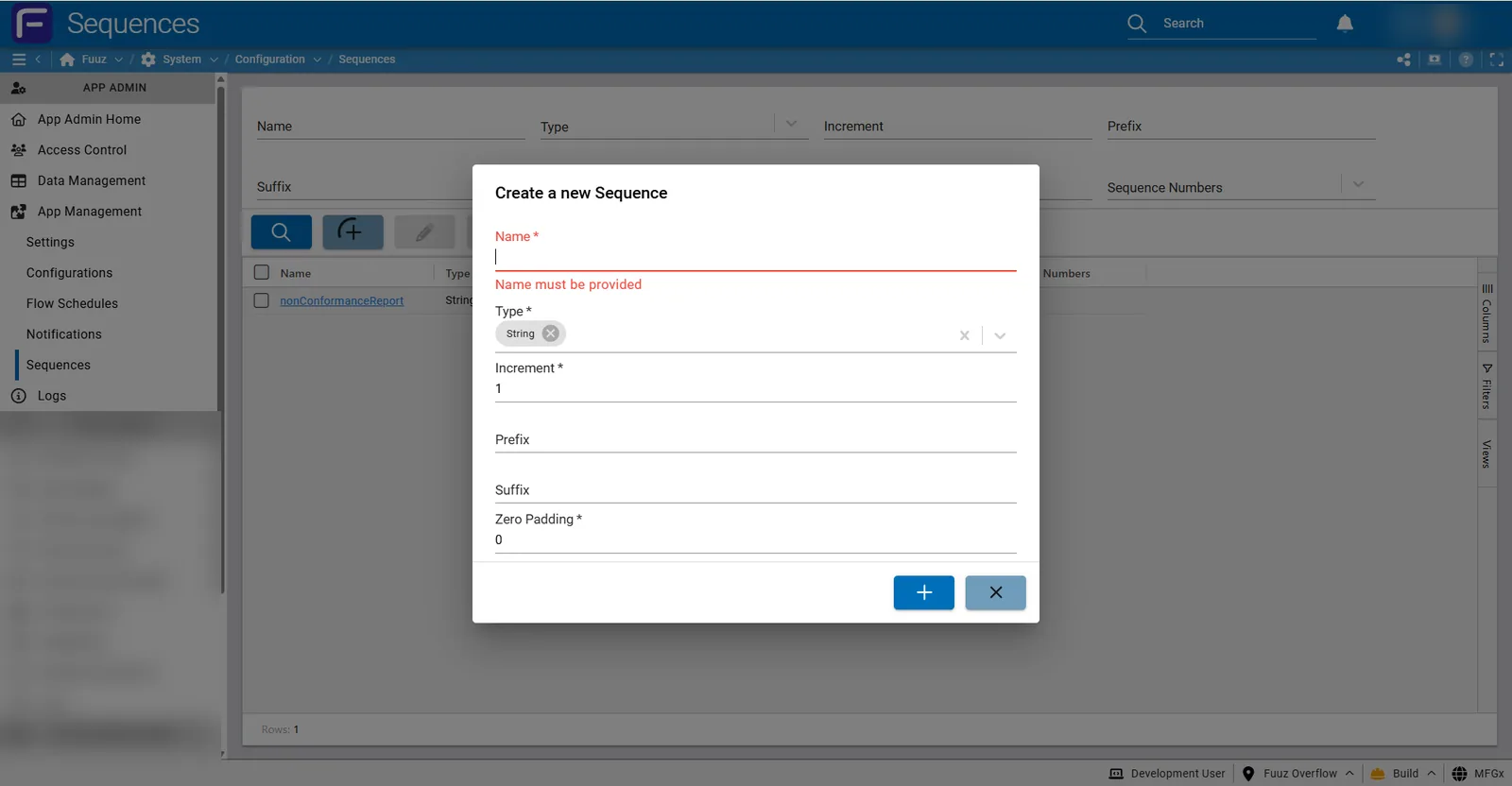
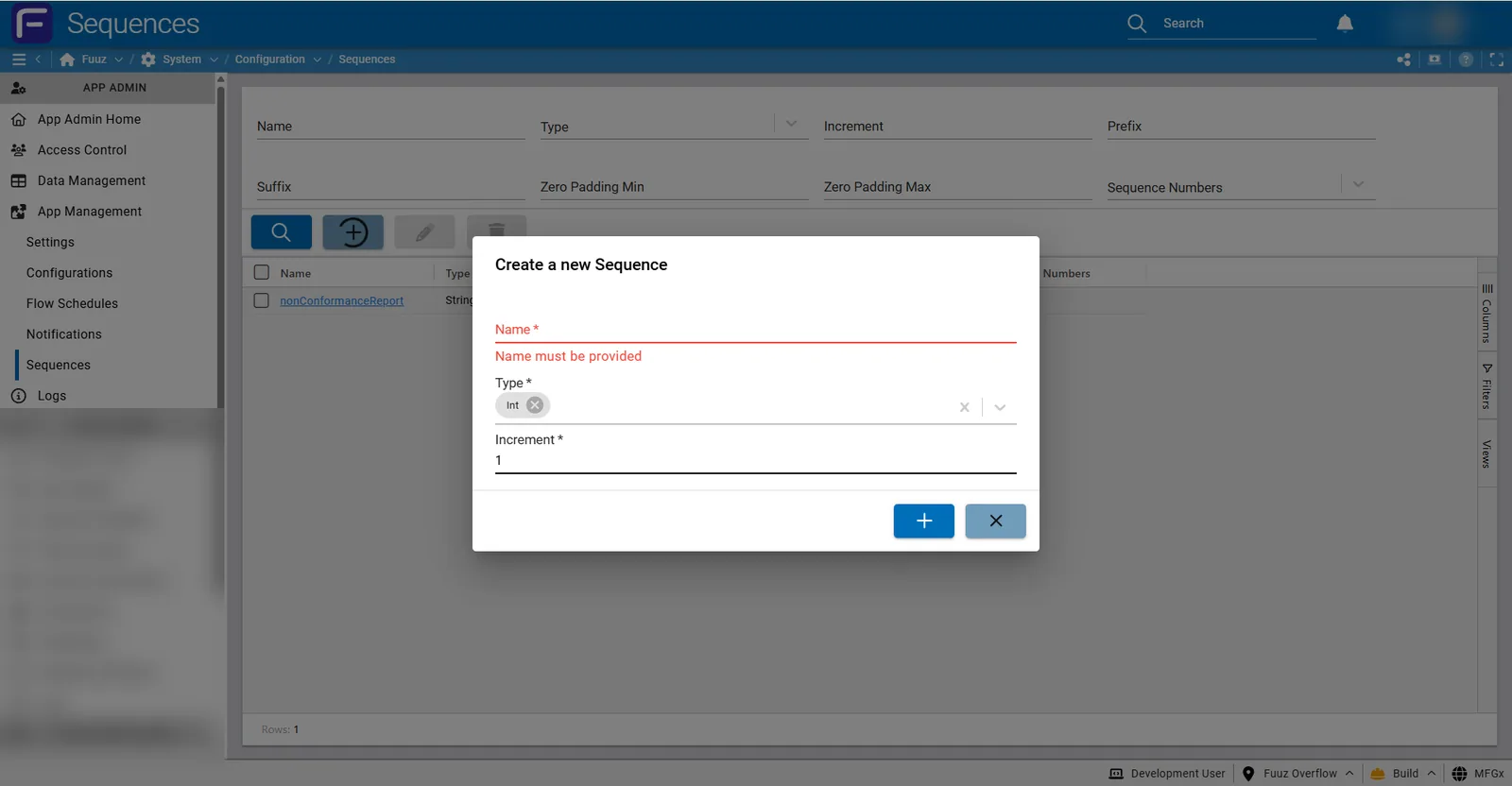
The Create/Edit dialog presents fields based on selected Type:
All Types
| Field |
Type |
Description |
| Name |
Text (Required) |
Unique sequence identifier. Validation: "Name must be provided" |
| Type |
Select (Required) |
String or Int. Selection determines available fields below. |
| Increment |
Number (Required) |
Amount to advance sequence. Default: 1. Common values: 1, 10, 20, 100. |
String Type Only
| Field |
Type |
Description |
| Prefix |
Text (Optional) |
Characters prepended to sequence number (e.g., "WO-", "NCR-") |
| Suffix |
Text (Optional) |
Characters appended to sequence number (e.g., "-2025", "-REV") |
| Zero Padding |
Number (Required) |
Minimum digits for numeric portion. Default: 0. Example: 4 produces 0001, 0002. |
Int Type Only
Int type sequences do not have Prefix or Suffix fields - only Increment and Zero Padding are configurable.
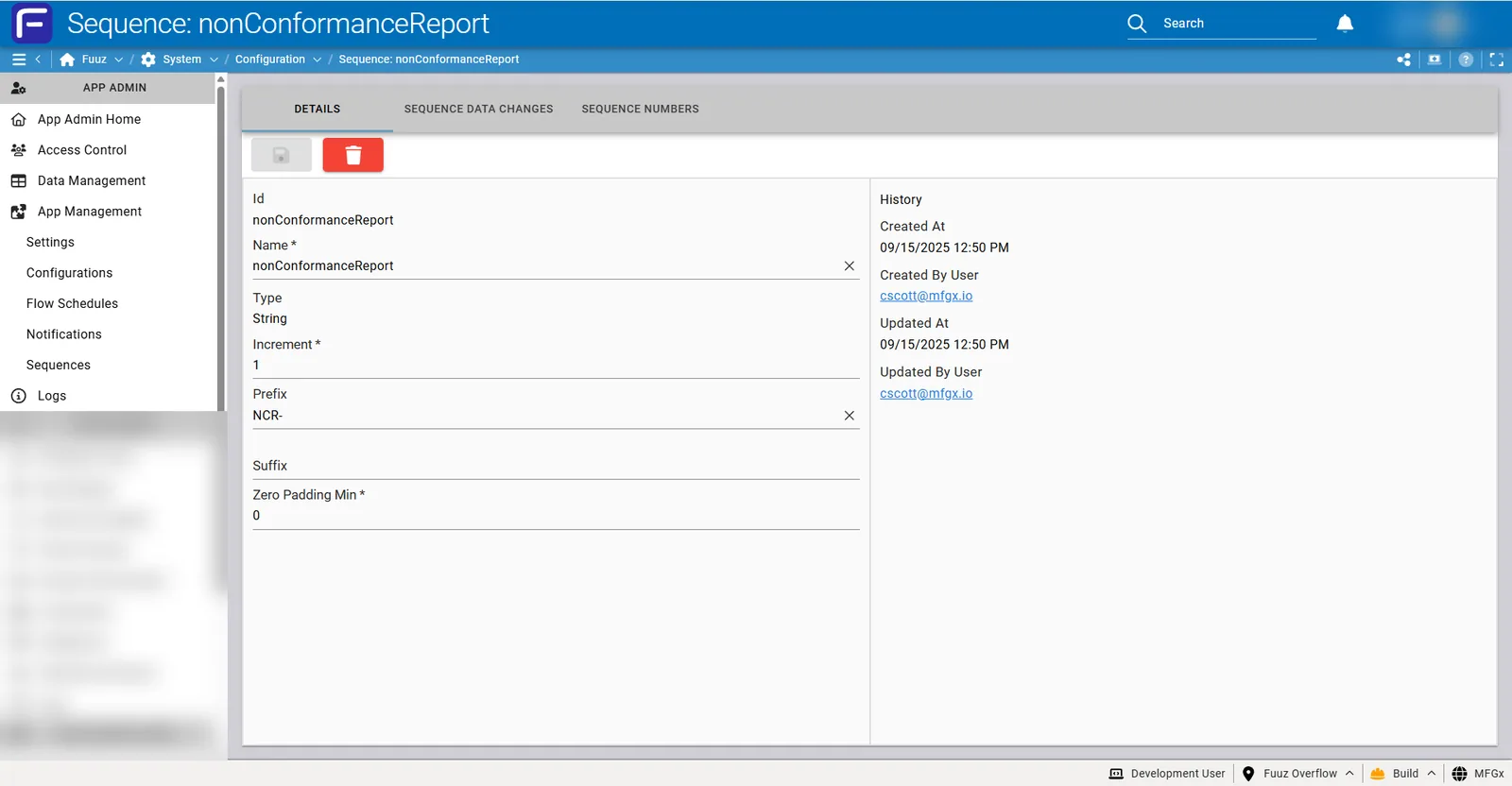
Sequence Detail Screen
Clicking a sequence name opens the detail view with three tabs:
DETAILS Tab
Shows sequence configuration fields (Name, Type, Increment, Prefix, Suffix, Zero Padding Min) with inline editing capability. Right panel displays History:
- Created At: Timestamp of sequence creation
- Created By User: Username of creator (with clickable email link)
- Updated At: Timestamp of last modification
- Updated By User: Username of last modifier
SEQUENCE DATA CHANGES Tab
Displays audit trail of changes to the sequence definition configuration, showing what changed, when, and by whom.
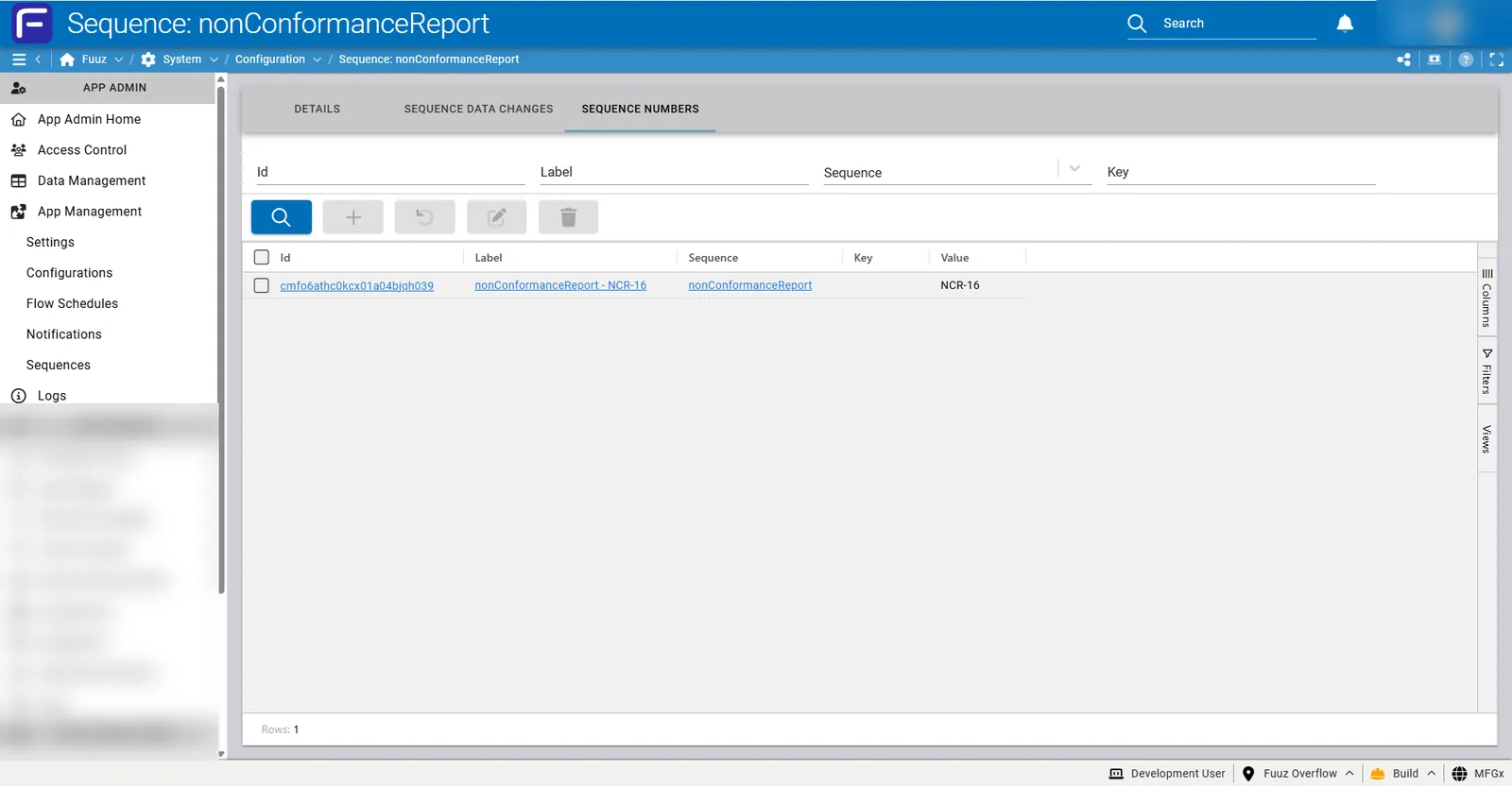
SEQUENCE NUMBERS Tab
Lists all sequence number instances with management capabilities:
| Column |
Description |
| Id |
Internal identifier for the sequence number instance |
| Label |
Human-readable description (e.g., "nonConformanceReport - NCR-16") |
| Sequence |
Clickable link to parent sequence definition |
| Key |
Unique constraint value (e.g., productId) triggering separate sequence. Empty if no unique constraint. |
| Value |
Current sequence value (e.g., "NCR-16") |
Actions (SEQUENCE NUMBERS Tab):
- Search: Filter sequence numbers by label, key, or value
- Add Sequence Number: Manually create sequence instance with specific key
- Reset Sequence: Set sequence value back to 0 (useful for testing)
- Set Sequence Value: Manually set current value (useful for migration scenarios)
- Delete Sequence Number: Remove specific sequence instance
5. Technical Details
Type Options: String vs Int
String Type
- Output Format: Alphanumeric string with optional prefix and suffix
- Configuration: Prefix + Zero-Padded Number + Suffix
- Example: Prefix "WO-", Zero Padding 4, Suffix "-2025" produces "WO-0001-2025", "WO-0002-2025"
- Use When: Human-readable identifiers needed, prefixes/suffixes provide context, or mixing letters and numbers
- Data Model Field Type: Must be String field in data model schema
- Sorting Behavior: Lexicographic (alphabetic) sort - may not sort numerically as expected without proper zero padding
Int Type
- Output Format: Numeric integer with optional zero padding
- Configuration: Zero-Padded Number only (no prefix/suffix)
- Example: Zero Padding 5 produces "00001", "00002", "00003"
- Use When: Pure numeric sequences needed, mathematical operations required, or precise sorting critical
- Data Model Field Type: Must be Int or Number field in data model schema
- Sorting Behavior: Numeric sort works correctly - screens can sort ascending or descending as expected
Important: The sequence Type must match the data model field type. Assigning a String-type sequence to an Int field (or vice versa) will cause errors. Verify data type compatibility when configuring sequences as field default values.
Integration with Data Models
Sequences integrate with data model schemas as default field values, providing automatic number generation during record creation:
Configuration Steps
- Navigate to Data Management > Data Model > Custom Fields
- Select the data model (e.g., WorkOrder, NonConformanceReport)
- Create or edit a field (ensure field type matches sequence type)
- In field configuration, locate Default Value section
- Select the desired sequence from dropdown (only matching-type sequences appear)
- Save field configuration
Behavior
- Automatic Generation: When new record created via screen, flow, or API, sequence generates next value automatically
- User Override: Users can manually enter value instead of accepting sequence default (if field is editable)
- Unique Constraints: If field has unique constraint configured, sequence can start new instance per related record key
- Import Integration: During data imports, can choose to assign sequence values or import existing values
Integration with Flows
Sequences can be invoked within data flows for dynamic number generation:
- Flow Nodes: Use sequence generation nodes or function calls to generate values programmatically
- Variable Assignment: Store generated sequence value in flow variable for use in subsequent nodes
- Conditional Generation: Generate sequences based on business logic conditions within flows
- Batch Processing: Generate multiple sequence values in loop structures for bulk operations
- Naming Convention: Use flowName_nodeName pattern for sequences used exclusively within flows
Unique Constraints and Multi-Key Sequences
Sequences support unique constraints that trigger separate sequence generation based on related data model keys. This powerful feature prevents writing massive amounts of manual code for context-specific numbering.
How It Works
- Configure unique constraint on data model field that references another model (e.g., productId relation)
- Assign sequence to field as default value
- When record created, system checks value of constraint key (e.g., which productId)
- System creates or retrieves separate sequence instance for that specific key
- Each key maintains its own independent sequence counter
Common Example: Process Routing Steps
Scenario: Each product has its own routing with steps numbered 10, 20, 30, 40...
Configuration:
- Data Model: ProcessRoutingStep
- Field: stepNumber (Int type)
- Sequence: routingStep_sequence (Type: Int, Increment: 10)
- Unique Constraint: productId (relation to Product model)
Result:
- Product A: Steps 10, 20, 30, 40
- Product B: Steps 10, 20, 30, 40 (independent sequence)
- Product C: Steps 10, 20, 30, 40 (independent sequence)
Each product ID triggers a new sequence instance, visible in the SEQUENCE NUMBERS tab with Key column showing the productId value.
Import and Integration Support
- CSV Import: During import, can choose to auto-generate sequence values or import existing values from source system
- Integration Flows: API integrations and data flows can invoke sequence generation for incoming data
- External System Integration: Can assign Fuuz sequences to data received from external systems
- Mixed Data Warning: If importing sequence numbers from another system that have a specific schema or pattern, and placing those in the same field used for Fuuz-generated sequences, you may encounter sorting issues in screens
Important: This sequence feature is for Fuuz system-generated sequences only. For instances where you need to use a series generated by another external system (customer-provided lot numbers, EDI sequences, etc.), you're better off creating a custom data model table in Fuuz to house those numbers. Custom tables provide simple import functionality and you can still use them easily in flows and screens.
Naming Conventions
Naming conventions depend on the use case and help maintain organization:
| Use Case |
Convention |
Example |
| Data Model Field |
dataModel_fieldName |
workOrder_orderNumber |
| Flow Generation |
flowName_nodeName |
orderProcessing_batchNumber |
| Functional Purpose |
purposeDescription |
nonConformanceReport |
Sequence Management Operations
Set Sequence Value
Manually set the current sequence value (available in SEQUENCE NUMBERS tab):
- Purpose: Migration scenarios where you want to start at a new range from where you left off in a previous system
- Example: Migrating from legacy system where last PO number was 5432, set Fuuz sequence to start at 5433
- Process: Select sequence number instance, choose Set Value action, enter desired starting value
- Effect: Next generated value will be (set value + increment)
Reset Sequence
Reset sequence counter back to 0 (available in SEQUENCE NUMBERS tab):
- Purpose: Testing situations where you create a bunch of test data and want to reset sequences to start over
- Use Case: Starting tests with a 'clean system' or beginning new year/quarter numbering
- Process: Select sequence number instance, choose Reset action, confirm reset
- Effect: Next generated value will be (0 + increment), e.g., 1, 10, 100 depending on increment
- Warning: Use with caution in production - resetting can create duplicate values if existing records reference old sequence numbers
Permissions and Access Control
- App Administrators: Full access to create, edit, delete sequences and manage sequence numbers
- Developers: Full access to create, edit, delete sequences and manage sequence numbers
- Web Access Users: Require explicit policies assigned to roles via RBAC (Role-Based Access Control)
- Granular Permissions: Can grant view-only or edit access separately for sequences and sequence numbers
- Policy Configuration: Define policies in Access Control > Policies and assign to roles
Scope and Migration
- Per Application: Sequences are scoped to specific applications
- Per Environment: Sequences exist separately in build, QA, and production environments
- No Auto-Replication: Changes in one environment do not automatically propagate to others
- Package Support: Sequences can be included in application packages for migration between environments
- Post-Migration Setup: After migrating, may need to set sequence values appropriately for target environment
6. Resources
- Related KB Article: Data Model Custom Fields
- Related KB Article: Import Data
- Related KB Article: Data Flows Overview
- Related KB Article: Access Control - Policies and Roles
- Related KB Article: Application Packages and Migration
7. Troubleshooting
| Issue |
Cause |
Resolution |
| Sequence not appearing in data model field default value dropdown |
Type mismatch - sequence Type does not match field data type |
Verify field is String type for String sequences or Int/Number type for Int sequences. Create new sequence with matching type or change field type if appropriate. Only compatible-type sequences appear in dropdown. |
| Sorting not working correctly - numbers appear out of order |
String type sequence without proper zero padding causes lexicographic sort |
String values sort alphabetically: "1", "10", "100", "2", "20". Solution: (1) Use zero padding in String sequences to force correct sort order (0001, 0010, 0100, 0002, 0020), or (2) Use Int type sequences instead which sort numerically. Screens can define sort order for Int fields but may not interpret String values as integers. |
| Mixed data from import and Fuuz sequences sorting incorrectly |
Imported sequence numbers from another system have different schema/pattern than Fuuz-generated sequences in same field |
Best practice: Do not mix imported sequences with Fuuz-generated sequences in the same field. Options: (1) Use separate fields for imported vs. generated values, (2) Standardize imported data to match Fuuz sequence pattern before import, (3) Use custom data model tables for externally-generated sequences instead of Fuuz Sequences feature. |
| Sequence generating unexpected values after migration |
Sequence counter not set to appropriate starting value for new environment |
After migrating application package to new environment, navigate to SEQUENCE NUMBERS tab for affected sequences. Use "Set Sequence Value" action to establish correct starting point. Example: If production last used PO-5432, set QA environment sequence to start at QA-appropriate value like 10000 to avoid confusion. |
| Test data cluttering sequence numbers |
Creating test records advances sequences, leaving gaps or high numbers |
For testing environments: (1) Delete test data records, (2) Navigate to SEQUENCE NUMBERS tab, (3) Use "Reset Sequence" action to set counter back to 0, (4) Begin testing with clean sequence. Do NOT use Reset in production environments as it can create duplicate values. |
| Unique constraint sequences not creating separate instances |
Unique constraint not configured correctly on data model field |
Verify data model field has unique constraint properly configured referencing the relation field (e.g., productId). Check that relation field is populated when records are created - sequences cannot create separate instances if constraint key value is null. Review SEQUENCE NUMBERS tab to confirm multiple instances with different Key values exist. |
| Cannot find sequence in Flow Designer |
Sequence not yet created or incorrect reference syntax |
Verify sequence exists in Sequences screen. In flows, use appropriate sequence generation function or node with exact sequence name. Consult flow documentation for correct syntax to invoke sequences. |
| Duplicate sequence values appearing |
Manual overrides or reset operation created duplicates, or concurrent generation race condition |
If users can manually override sequence values, consider adding data model unique constraint on field to prevent duplicates. If duplicates occur after reset operation, use Set Sequence Value to jump past existing values. For concurrency issues, contact Fuuz support to investigate sequence generation locking mechanism. |
| Need to use customer-provided lot numbers or EDI sequences |
Fuuz Sequences feature is for system-generated values, not external sequence management |
For sequences generated by external systems: (1) Create custom data model table to house external sequence numbers, (2) Provide simple import functionality to load external sequences, (3) Reference custom table in flows and screens. This approach gives you full control over external numbering schemas and import/update patterns. |
| Zero padding not applying correctly |
Zero Padding Min value set to 0 or incorrect configuration |
Edit sequence and set Zero Padding Min to desired digit count (e.g., 4 for "0001"). Note that zero padding applies to numeric portion only - prefix and suffix are added as-is. Verify example values in SEQUENCE NUMBERS tab match expected format after configuration change. |
| Import not assigning sequence values automatically |
Import configuration set to use provided values rather than generate sequences |
During import setup, verify option to "Generate sequence values" or "Use default values" is selected for fields with sequence defaults. If importing explicit values, leave field empty in CSV to trigger sequence generation. |
Best Practices
- Match Types Carefully: Always ensure sequence Type matches data model field type to avoid configuration errors and enable proper dropdown selection.
- Use Zero Padding for String Sequences: Apply appropriate zero padding (typically 3-6 digits) to String sequences to ensure correct alphanumeric sorting in screens and reports.
- Descriptive Naming: Follow naming conventions (dataModel_fieldName or flowName_nodeName) to maintain clarity and organization across large applications.
- Don't Mix External and System Sequences: Keep externally-generated sequences in custom data model tables separate from Fuuz-generated sequences to avoid sorting and pattern conflicts.
- Leverage Unique Constraints: Use unique constraints with sequences to automatically create context-specific numbering (e.g., per product, per customer, per location) without manual code.
- Test Reset Capability: In non-production environments, use Reset Sequence feature to clean up test data and start fresh between testing cycles.
- Set Migration Values: After migrating applications between environments, explicitly set sequence values to appropriate ranges for the target environment.
- Document Sequence Purpose: Include sequence purpose and configuration details in application documentation, especially for unique constraint implementations.
- Consider Int for Pure Numbers: Use Int type sequences when working with pure numeric identifiers that require reliable numeric sorting.
- Reserve Reset for Testing: Never use Reset Sequence in production environments as it can create duplicate values and data integrity issues.
- Plan Increment Values: Choose increment values that accommodate your numbering scheme - use 1 for consecutive, 10 for process steps with room for insertions.
- Monitor Sequence Numbers Tab: Regularly review SEQUENCE NUMBERS tab to understand how sequences are being used, especially for unique constraint implementations.
- Coordinate Access Permissions: Grant sequence management permissions carefully via RBAC policies - only authorized users should reset or modify sequence values.
8. Revision History
| Version |
Date |
Editor |
Description |
| 1.0 |
2024-12-27 |
Craig Scott |
Initial Release |