 Help CenterHelp Center
Administer · Access Control
Article Type: Concept
Audience: Application Administrators, Security Architects, Partners, Solution Engineers
Module: Fuuz Platform - Access Control
Applies to Versions: 2024.12+
Policy Groups and Policies form the granular access control layer in Fuuz, sitting between Roles (which define job functions) and individual Statements (which define specific API-level permissions). Together they enable precise control over data access, screen visibility, flow execution, and real-time subscriptions while maintaining a maintainable, reusable permission structure.
A Policy represents a specific job capability — for example, "Receive Inventory" or "Inventory Overrides." Policies are the unit of permission reuse: the same policy can be included in multiple policy groups. A Policy Group is a named collection of policies that maps to a functional role or access profile. Policy groups are attached to Roles (and in specific cases, directly to individual users).
The full permission hierarchy flows top-down: Roles → Policy Groups → Policies → Statements. Understanding how each layer connects — and the rules that govern them — is essential to building correct, secure permission structures in Fuuz deployments.
Note: Policy Groups and Policies are configured at the tenant (App Admin) level, not the Enterprise Admin level. Roles assigned to users must be configured from the App Users screen within the relevant tenant. Important — Limited Web Access: As of recent platform releases, new users default to the Limited Web Access access type, which grants navigate permission to zero screens by default. Screen permissions must be explicitly added via Screen statements in policies. Existing users retain the legacy Full Web Access type, which grants inherent access to all screens (requiring Deny statements to restrict). Be aware of which type applies when troubleshooting screen visibility issues.Fuuz implements a four-tier permission hierarchy:
The diagram below illustrates the full hierarchy using a Warehouse Manager and Warehouse Operator example. It shows how the superset pattern works in practice, and demonstrates function-based policy naming with approval workflows that gate ERP integration.
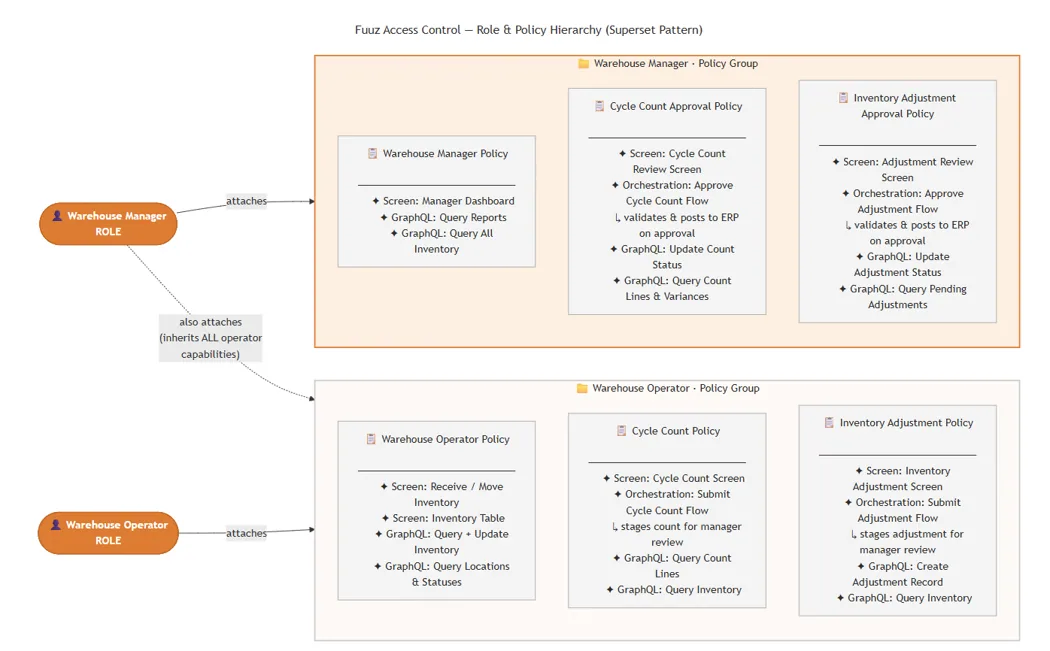
Operators submit counts and adjustments for review. Managers approve them, which triggers the ERP integration flow. This enforcement happens at the permission level — operators do not have Orchestration execute permission for the approval flows.
When a manager or supervisor role needs all the permissions of an operator role plus additional capabilities, attach multiple policy groups to the manager role:
The manager inherits everything the operator can do plus the additional capabilities. Changes to the Operator policy group automatically propagate to the Manager role — no duplication required.
Policies and policy groups can be attached directly to individual users. This is the accepted and recommended approach for gateway users (Edge Gateway user accounts) that need capabilities beyond the Gateway access type baseline. For example, if a gateway user needs to execute a specific backend flow from an edge flow, create a targeted policy with that Orchestration permission and attach it directly to the gateway user via the policy's Attached Users tab.
For regular end users, route permissions through Roles. Direct attachment to regular users creates fragmented, hard-to-audit configurations and should be avoided.
/app/[tenant]/admin/access-control/policy-groups
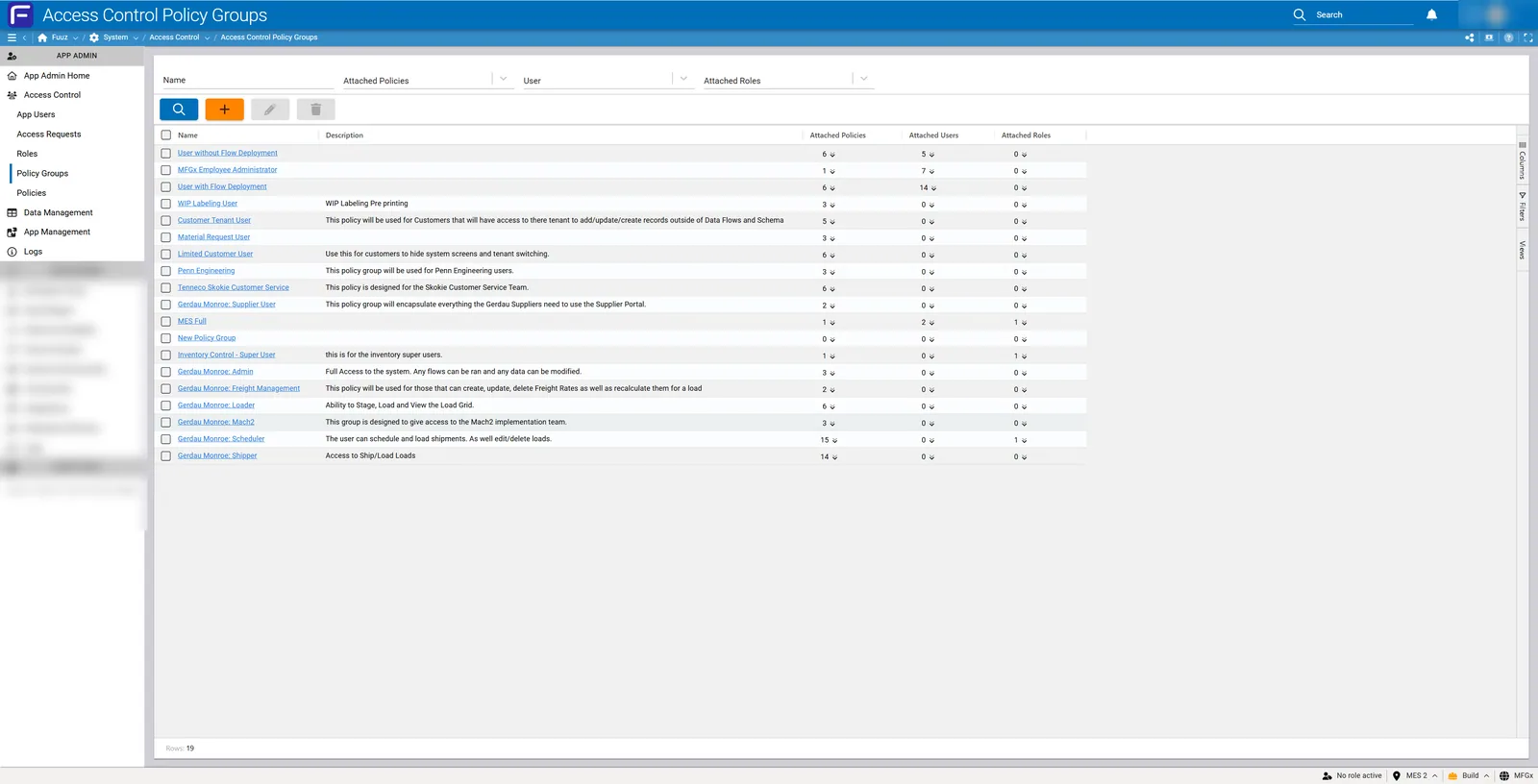
The main list screen displays all policy groups with the following columns:
| Column | Description |
|---|---|
| Name | Policy group identifier — clickable link to the detail form. |
| Description | Brief explanation of the policy group's purpose. |
| Attached Policies | Count of individual policies included. Expandable to show policy names. |
| User | Count of users with this policy group directly attached. In a correctly structured implementation this will typically be 0 for most groups (regular users route through roles) and non-zero only for gateway/API users. |
| Attached Roles | Count of roles that include this policy group. |
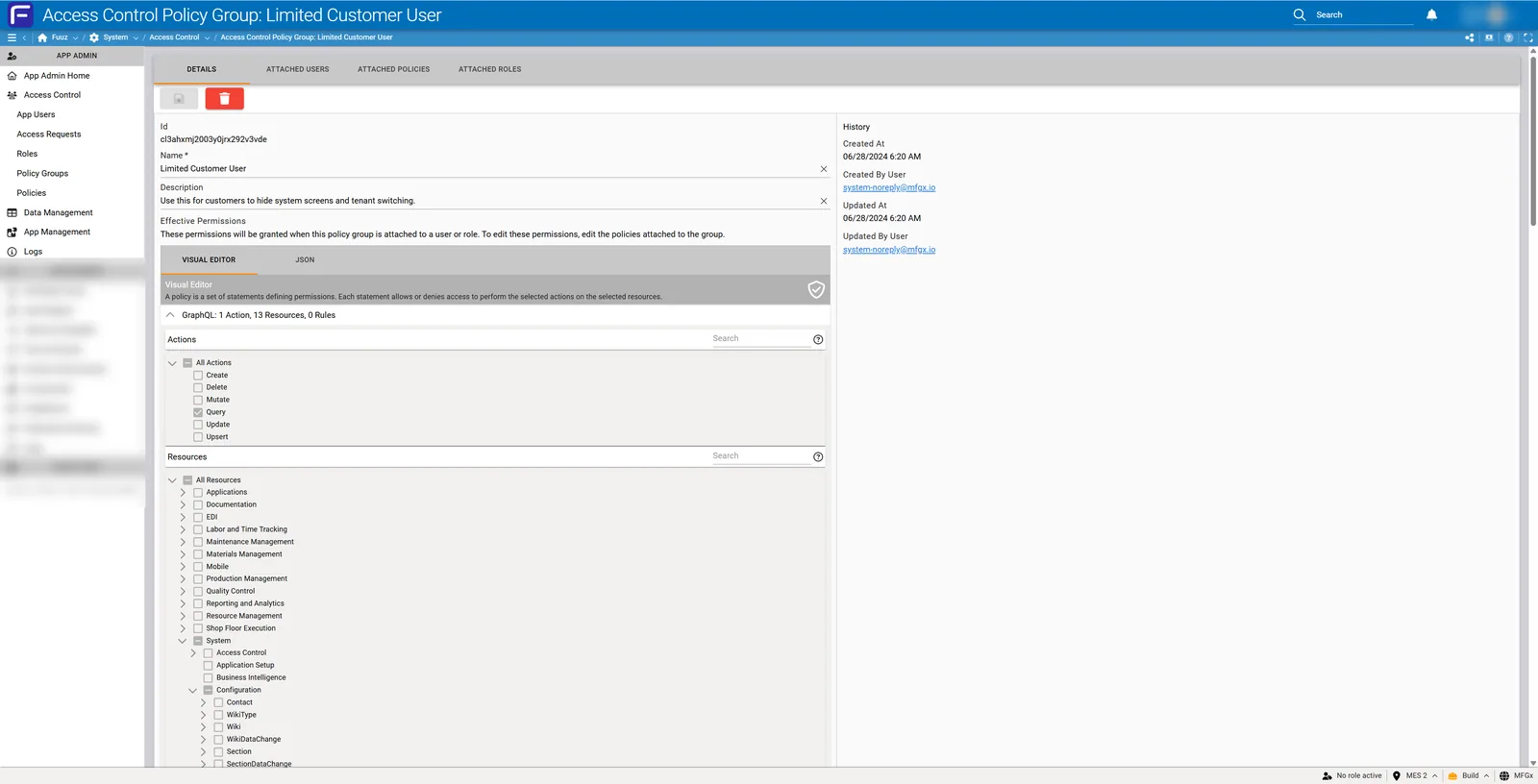
DETAILS Tab: Shows the policy group name, description, and a read-only Visual Editor displaying the cumulative effective permissions from all attached policies. The JSON tab shows the merged policy definition. This view is for reference only — to make changes, use the Attached Policies tab.
ATTACHED USERS Tab: Displays users who have this policy group directly attached. Typically used for gateway and API access type users requiring permissions beyond their access type baseline.
ATTACHED POLICIES Tab: The primary management interface. Attach existing policies to the group, edit individual policies (which opens the full policy editor), or detach policies. Each policy displays a summary notation (e.g., "GraphQL: 1 Action, 6 Resources, 0 Rules").
ATTACHED ROLES Tab: Shows which roles include this policy group, providing a reverse-lookup for understanding where permissions flow.
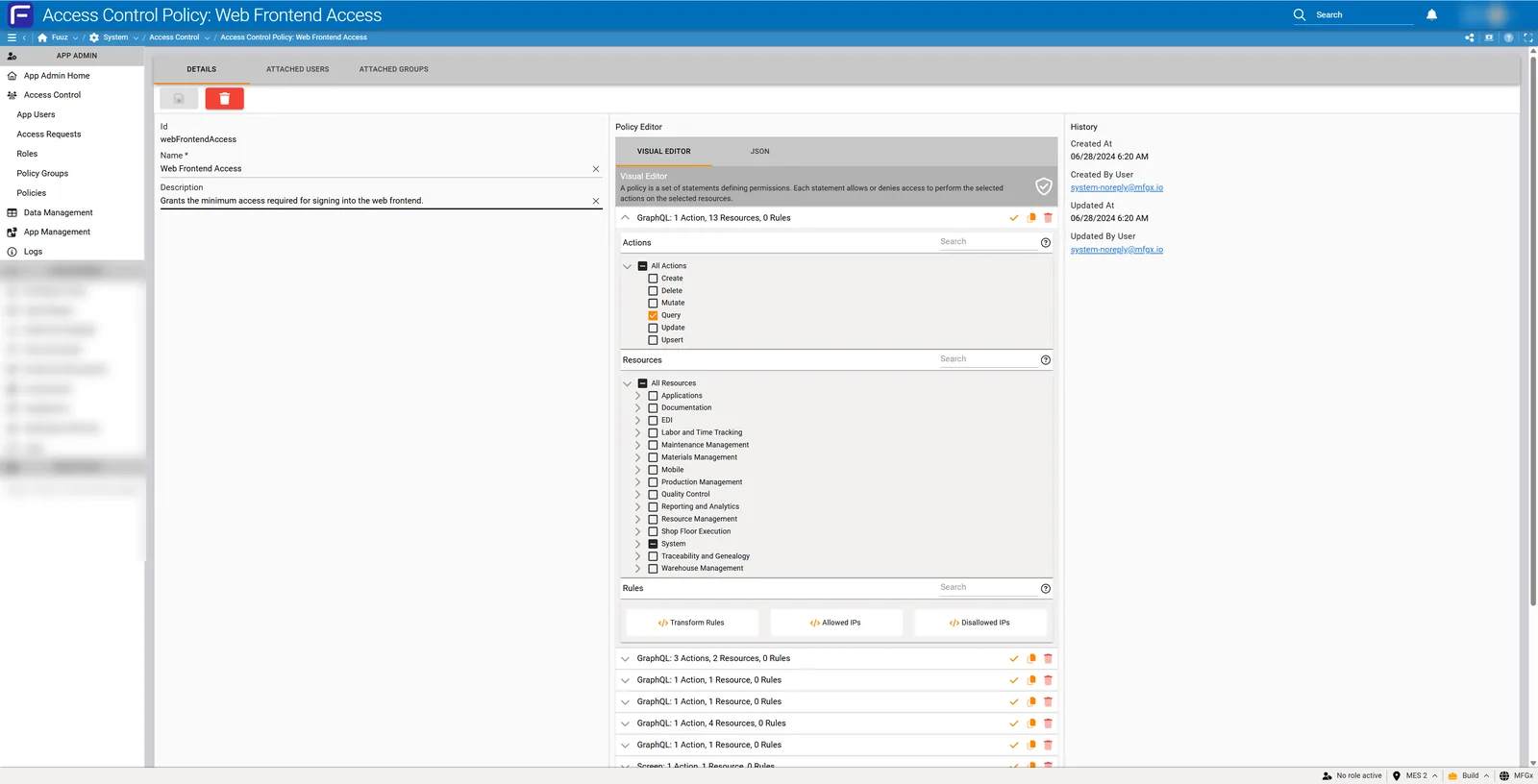
Accessed from the Attached Policies tab by selecting a policy and clicking Edit. The Visual Editor presents statement configuration in sections:
Statement Types — select one per statement block:
| Type | What It Controls | Key Notes |
|---|---|---|
| GraphQL | Data model queries and mutations. Field-level selection available. | Any mutation (Create, Update, Delete, Upsert) requires accompanying Query permission. The "Mutate" action is a special case for platform-level operations only — ignore for standard data work. |
| Orchestration | Execute a specific backend data flow. | Applies to backend/system flows only — not web flows. Web flows run in the user's permission context and do not require an Orchestration statement. Backend flow execution encapsulates all internal operations. |
| Screen | Navigate to specific screens in the UI. | Separate from data permissions — both Screen and GraphQL permissions must be configured for a user to see and use a screen. Screen resources are organized by module in the same hierarchy as GraphQL resources. |
| Websocket | Subscribe to or publish to real-time topics. | Data-change subscriptions for queried models are automatically covered by GraphQL Query permissions — no explicit Websocket statement needed. Only configure explicitly for custom publish/subscribe topics. |
| Integration | Run an integration connector directly from a web flow or browser. | Rarely required. Integration calls are almost always made from within backend flows. Can be skipped in most implementations. |
Actions (GraphQL): Create, Query, Update, Delete, Upsert. The Mutate action appears in this list but applies only to a narrow set of custom platform operations (user file upload, send system email) — use it only when specifically required for those operations.
Resources: Hierarchical tree organized by module group → module → individual resource → individual fields. Select at the module level for broad access or expand to the field level for precise field-level security.
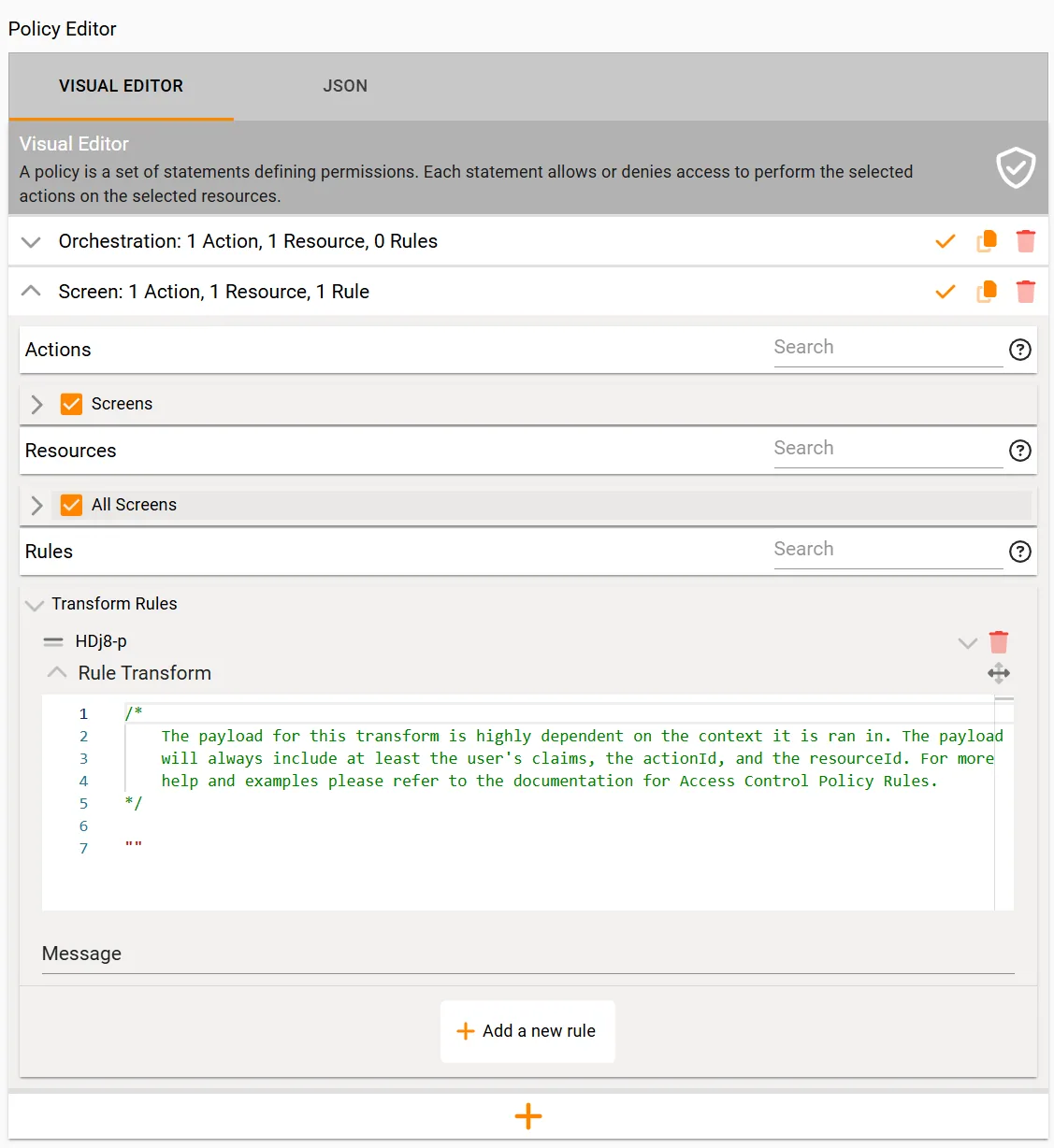
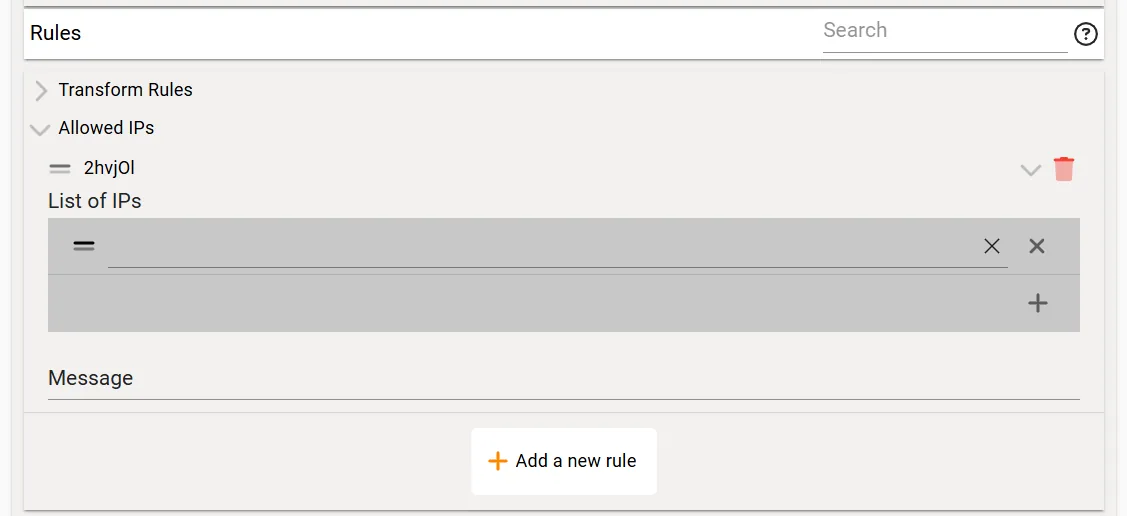
Rules: Optional section for Transform Rules (JSONata), Allowed IPs, and Disallowed IPs. Transform rules are a complex advanced feature — use with caution and document thoroughly.
Mutations Require Query Permission: Any mutation action (Create, Update, Delete, Upsert) requires accompanying Query permission on the same resource. This is because the mutation returns the updated record as output — without Query permission, a mutation could be exploited to extract data the user is not supposed to see. If a user experiences unexpected save failures despite having mutation permission, check for a missing Query statement on the same resource.
The Mutate Action: The Mutate action visible in the GraphQL statement editor applies exclusively to a narrow set of custom platform-level operations such as user file upload and send system email. It does not apply to standard data model CRUD operations and cannot be used as a substitute for Create, Update, Delete, or Upsert. Ignore the Mutate action for standard data model work.
Field-level security enables administrators to control access to specific fields within a data model, providing granular data protection beyond model-level permissions.
How Field-Level Security Works:
product.cost or edit product.code while allowing broader access to other product fields such as name and description.UI Behavior with Field-Level Security:
This distinction is critical and commonly misunderstood:
Web Flows: Run in the permission context of the user. No Orchestration execute permission is needed to trigger a web flow. However, any GraphQL actions performed within the web flow (queries, mutations) require the user to have the corresponding GraphQL permissions. If a web flow mutation step fails with a permission error, add the required GraphQL permission to the user's policy — or convert the step to call a backend flow.
Backend/System Flows: Permission is checked once at the start ("does this user have permission to execute this flow?"). If yes, everything the flow does internally runs without further user permission checks. This encapsulation enables the Custom API Pattern: create a backend flow that performs a privileged operation with built-in validation, grant users execute permission on that specific flow rather than broad GraphQL mutation rights, and the flow enforces all business rules. Users cannot bypass the flow's logic by calling the API directly.
Important: Flows with "Web" in their name (e.g., "Confirm Line Web", "Move Inventory Web") are web flows. They appear in the Orchestration resource list, but granting execute permission on them has no practical effect for those flows. Only grant Orchestration permissions on backend/system flows.Data-change subscriptions — the mechanism that makes screens update in real time when a queried record changes — are automatically permissioned by the GraphQL Query permission for the same resource. You do not need to configure a separate Websocket statement for standard real-time data updates. Configure Websocket statements explicitly only when using custom publish/subscribe topics beyond standard data change events.
Any statement can be toggled from Grant to Deny. An explicit Deny takes precedence over any Grant from anywhere in the user's entire policy set. Use Deny statements deliberately. With Limited Web Access (the new default for new users), screen Deny statements are rarely needed — simply omit the screens you don't want the user to access.
Gateway users should always be assigned the Gateway access type — never Administrator. The Gateway access type grants the minimum permissions required to operate the Edge Gateway. If an API key associated with an administrator account is compromised, the attacker has full access to create, modify, or delete all data in the tenant. A gateway-scoped key limits the blast radius to only what that key is authorized to do.
To extend a gateway user's permissions beyond the baseline, create a targeted policy with the specific capability needed (e.g., an Orchestration statement granting execute permission on a specific backend flow). Attach this policy directly to the gateway user via the policy's Attached Users tab. Do not elevate the gateway user's access type to Administrator.
| Layer | Recommended Pattern | Examples |
|---|---|---|
| Role | [Job Function] | Warehouse Operator, Shipping Supervisor |
| Policy Group | [Job Function] Group | Warehouse Operator Group, Shipping Operator Group |
| Policy | [Job Capability] | Receive Inventory, Inventory Overrides, Execute Machine Integration |
Name policies after what a user can do, not after a screen name or data model. Function-based naming makes policies reusable across roles and meaningful to administrators who are auditing or troubleshooting.
| Access Type | Screen Default | Applies To |
|---|---|---|
| Limited Web Access | Zero screens — add explicitly via Screen statements | New users (current default) |
| Full Web Access | All screens — use Deny statements to restrict | Users created before Limited Web Access was introduced |
| Gateway Access | Minimum required for gateway operation | Edge Gateway user accounts |
Transform Rules use JSONata expressions to conditionally apply or restrict a statement based on user attributes, request context, or data values. Use cases include filtering data by user's assigned warehouse, hiding ITAR-controlled records, and department-level data isolation.
Transform rules are a complex, advanced feature. The implementation is modeled after AWS IAM conditional policy logic. Use only when simpler permission structures cannot meet the requirement, document the logic thoroughly in the policy description, and test with representative user attribute sets before deploying.
IP restrictions control physical network access to Fuuz resources at the statement level. There are two distinct levels of IP restriction in the platform — understanding the difference is important for correct implementation.
| Type | Enforcement Level | Effect |
|---|---|---|
| Identity Provider IP Restriction | Authentication Layer (Enterprise Admin) | Prevents user login completely if accessing from a disallowed IP. Configured in Enterprise Admin identity provider settings. |
| Policy-Level IP Restriction | GraphQL API Layer (App Admin) | User can log in successfully but receives permission errors when attempting to access resources protected by the IP restriction. Configured in individual policy statements. |
Allowed IPs vs. Disallowed IPs within a policy statement:
192.168.1.100) and CIDR ranges (e.g., 192.168.1.0/24).When to use each level: Use Identity Provider IP restrictions when you want to block login entirely from unauthorized locations (e.g., prevent all access from outside the corporate network). Use policy-level IP restrictions when users need to authenticate from multiple locations but should only access specific resources from approved networks (e.g., shop floor operators can log in remotely to check schedules, but can only access production inventory data when connected from the plant floor network).
Transform Rules use JSONata expressions evaluated at request time. The payload always includes user claims (user attributes and properties), the actionId (the GraphQL action being performed), and the resourceId (the resource being accessed).
/*
  Example: Filter inventory by user's assigned warehouse
*/
warehouseId = $user.assignedWarehouse

/*
  Example: Hide ITAR records from unauthorized users
*/
$user.itarCleared = true or itarControlled = false

/*
  Example: Show only records in user's department
*/
department = $user.department
Always test transform rule expressions thoroughly with representative user attribute sets before deploying to production. Document the logic in the policy description field — these expressions are difficult to debug without documentation.
When a user has multiple policy groups with potentially conflicting statements, Fuuz applies the most restrictive rule: Deny overrides Grant, Disallowed IPs override Allowed IPs, field restrictions override field grants. No automatic conflict detection exists — administrators are responsible for auditing effective permissions.
Policy groups and policies can be bundled into packages and deployed across environments (build → QA → production) as an application evolves.
| Issue | Cause | Resolution |
|---|---|---|
| User can log in but cannot navigate to any screens. | User has Limited Web Access with no Screen statements in any policy, or has no role assigned. | Check the user's role assignment in App Users. If Limited Web Access, add Screen statements to the appropriate policy for the required screens. |
| User sees a screen but all data shows a permission error on load. | Screen navigate permission granted but no GraphQL Query statement for the data models the screen requests. | Add a GraphQL Query statement for the relevant data models and any adjacent models used for display (related lookups, statuses, categories). Test iteratively and add permissions as errors appear. |
| User can view data but save fails with a permission error. | Missing mutation permission, or mutation permission present but Query permission absent on the same resource. | Verify both the mutation action (Update/Create/Delete/Upsert) AND Query are granted for the same resource. Both are required for any mutation to succeed. |
| User triggers a web flow but it fails with a permission error on a data step. | Web flows run in the user's permission context. A mutation or query step inside the web flow requires the user to have the corresponding GraphQL permission. | Add the required GraphQL permission to the user's policy for the failing operation. Alternatively, convert the step to call a backend flow, which encapsulates its own execution permissions. |
| User has Orchestration execute permission for a backend flow but still gets a permission error. | The flow may be a web flow (Orchestration permissions only apply to backend/system flows), or the flow name changed since the statement was configured. | Confirm the target is a backend/system flow, not a web flow. Verify the exact flow name in the Orchestration statement matches the current flow name in Flows & Scripts. |
| Field appears editable on screen but save fails with a field-level permission error. | Field-level security is enforced at the API layer. The screen does not automatically hide or disable fields based on policy restrictions. | Either add the required field-level permission to the policy, or configure the screen element's visibility settings to match policy restrictions for better UX. |
| Policy group Visual Editor is read-only — cannot make permission changes. | By design. The Visual Editor on the Policy Group Details tab shows a cumulative merged view and is not editable. | Navigate to the Attached Policies tab, select the policy to edit, and click Edit. All changes are made in the individual policy editor. |
| Policy group attached to a role but user still has no permissions. | The policy group may have no policies attached, or the policies may have no statements, or the user may not have the role set as active. | Check the Attached Policies tab — verify at least one policy exists and contains statements. Use the Visual Editor on the Details tab to confirm effective permissions are non-empty. |
| Gateway user is getting permission errors in an edge flow. | Gateway user needs an additional capability beyond the Gateway access type baseline (e.g., execute a specific backend flow in another tenant). | Create a targeted policy with the specific Orchestration execute permission. Attach it directly to the gateway user via the policy's Attached Users tab. Do not change the gateway user's access type to Administrator. |
| User can log in and has a policy attached but accesses screens that weren't intended. | User has Full Web Access (legacy type) which grants inherent access to all screens. Legacy implementations may not have Deny statements in place. | For legacy Full Web Access users: add Deny statements for screens that should be restricted. For new users: use Limited Web Access type and only add Screen permissions explicitly. Consider migrating legacy users to Limited Web Access during the next role reconfiguration. |
| Cannot delete a policy group. | Policy group is still attached to one or more roles or users. | Navigate to Attached Roles and Attached Users tabs and remove all attachments before deleting. |
| Policy package import fails in target environment. | The target environment is missing data models, screens, or flows referenced in the imported policies. | Ensure all resources referenced in the policies exist in the target environment before importing. Deploy application packages first, then permission packages. |
| User with multiple policy groups gets unexpected access or denials. | Conflicting statements across policy groups. Deny statements in any policy override grants everywhere. | Review all policy groups attached to the user's roles. Export policy JSON from all groups and compare. Restructure policies to eliminate contradictions. Remember: Deny always wins. |
| User sees no data on a screen despite having Query permission. | Transform rule or IP restriction on the policy is filtering or blocking the request. | Check the Rules section of all relevant statements. Temporarily remove transform rules or IP restrictions to isolate the cause. Verify the user's attributes match the expected transform rule conditions. |
| Version | Date | Editor | Description |
|---|---|---|---|
| 1.0 | 2024-12-26 | Craig Scott | Initial Release |
| 2.0 | 2026-06-08 | Ed Sosnowski | Major revision: corrected direct user policy attachment guidance (gateway users accepted exception); added web flow vs. backend flow distinction for Orchestration; clarified Mutate action scope; added Limited Web Access documentation; added superset/inheritance pattern; added mutation-requires-Query rule; added WebSocket automatic permissioning note; updated naming convention to function-based approach; expanded troubleshooting section. |