 Help Center
Administer · Enterprise Admin Interface
Organizations
Last updated June 11, 2026, 6:17 PM UTC · fuuz.com/help/organizations
Organizations are logical business units within your Fuuz enterprise that represent divisions, regions, campuses, or factories operating under common management. Organizations serve as the licensing and pricing scope for Fuuz deployments and provide semantic structure for enterprises operating across multiple sites, countries, or business domains.
1. Overview
Enterprise Administrators use the Organizations interface to create, modify, and manage the organizational hierarchy that houses all applications (tenants) within the Fuuz platform. Each organization can contain multiple applications, and proper organization structure is critical for effective license management, user access control, and operational efficiency.
Note: When you create a new Fuuz enterprise, one default organization is automatically created, typically named the same as your enterprise company name. This default organization may or may not be utilized during actual deployment depending on your organizational structure needs.
2. Architecture & Data Flow
Hierarchical Structure
Understanding how organizations fit within the broader Fuuz architecture is essential for effective management:
| Level |
Entity |
Definition |
Example |
| 1 |
Enterprise |
Top-level corporate structure, license holder |
ACME Manufacturing Corp |
| 2 |
Organization |
Logical business unit, licensing scope |
North America Division, EMEA Region |
| 3 |
Location |
Physical site with distinct address |
Detroit Plant, Chicago Warehouse |
| 4 |
Application |
Modular solution scoped to organization |
Detroit MES, Chicago WMS |
Organization Attributes
Organizations have a simple structure with only two configurable attributes:
- Name: The display name of the organization (no naming restrictions or required conventions)
- Description: Rich text field for documenting the organization's purpose, scope, or other relevant information
Physical Sites vs Organizations
Understanding the distinction between physical locations and logical organizations is critical for proper structure:
Important: If a location has a distinct physical or mailing address, it is considered a separate physical site. A warehouse building on the same property as your main production site without a separate address is part of the same campus, not a separate physical site.
Organizations can span: Multiple countries, timezones, currencies, and localization requirements
Physical sites and applications cannot span: Each physical site and each Fuuz application is scoped to a single timezone, currency, and localization setting
Application Relationship
Every application (tenant) in Fuuz must be associated with an organization. Multiple locations within one organization can share a single application if they meet these criteria:
- They share the same localization requirements (timezone, currency, language)
- Users are allowed to see data across the locations
- Users in the sites/locations are not restricted from accessing data belonging to the other location
- The same application administrators will have control over multiple locations
- The same application developers will have access/control over multiple locations
- The locations do not require the need to be independently controlled / managed / updated / migrated
Applications can be reallocated to different organizations if necessary, supporting organizational growth, expansion, divestitures, or acquisitions.
3. Use Cases
- Geographic Structure: Creating organizations for North America, EMEA, APAC regions with applications specific to facilities in each region
- Divisional Structure: Establishing organizations for different business divisions (Automotive, Aerospace, Consumer Products) with division-specific applications
- Campus Operations: Setting up a single organization for a campus with multiple buildings, using one or more applications depending on operational requirements
- Multi-Site with Aggregation: Creating an organization with site-specific applications (Detroit MES, Chicago MES, Atlanta MES) plus an HQ application that aggregates data from all sites
- Merger Integration: Creating a new organization to house applications from an acquired company, then gradually integrating or reallocating applications
- Divestiture Preparation: Reorganizing applications to be under a separate organization before spinning off a business unit
4. Managing Organizations
Creating Organizations
Prerequisites: Enterprise Administrator access type
Steps:
- Navigate to Enterprise Admin Home in the left navigation menu
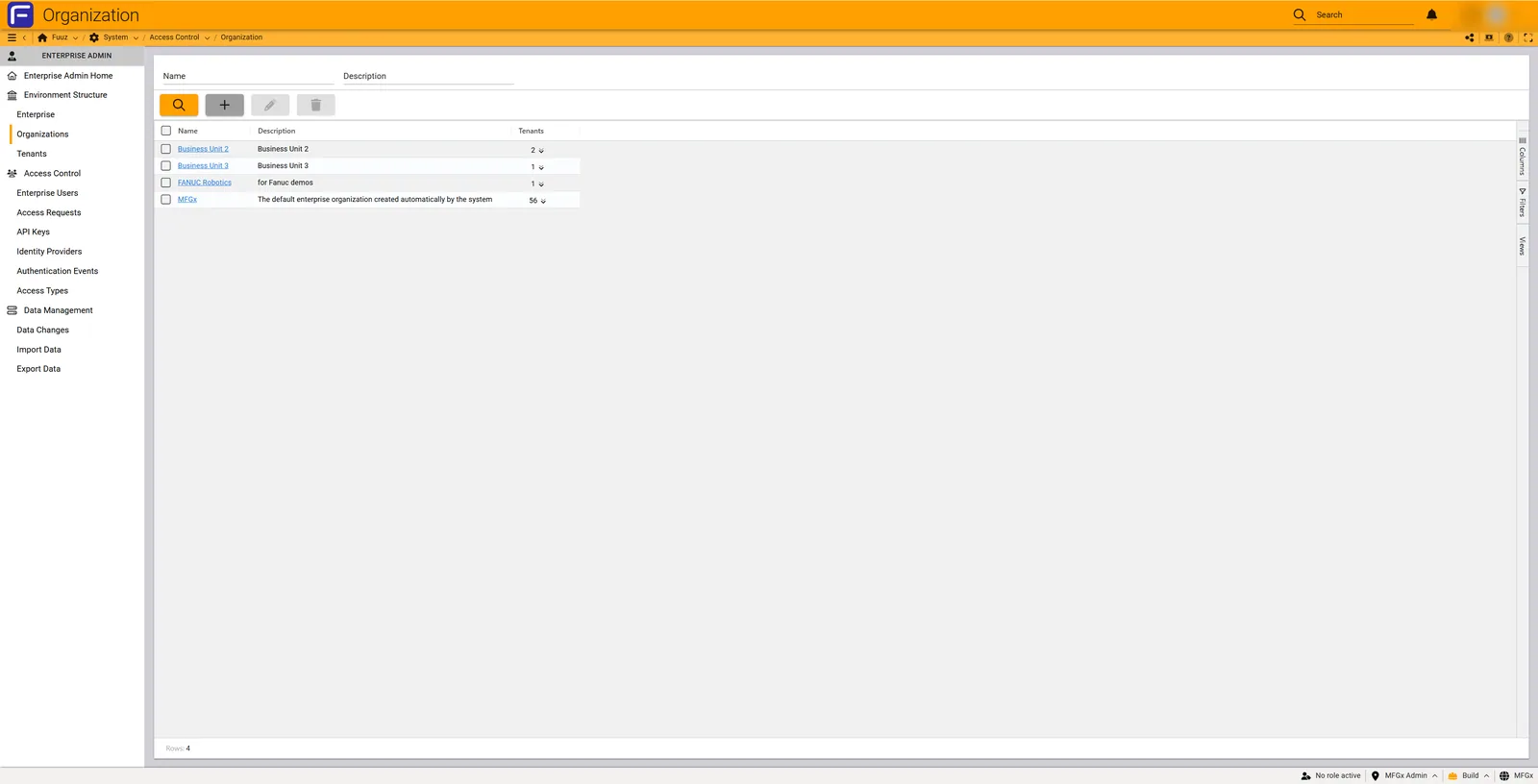
- Select Environment Structure > Organizations
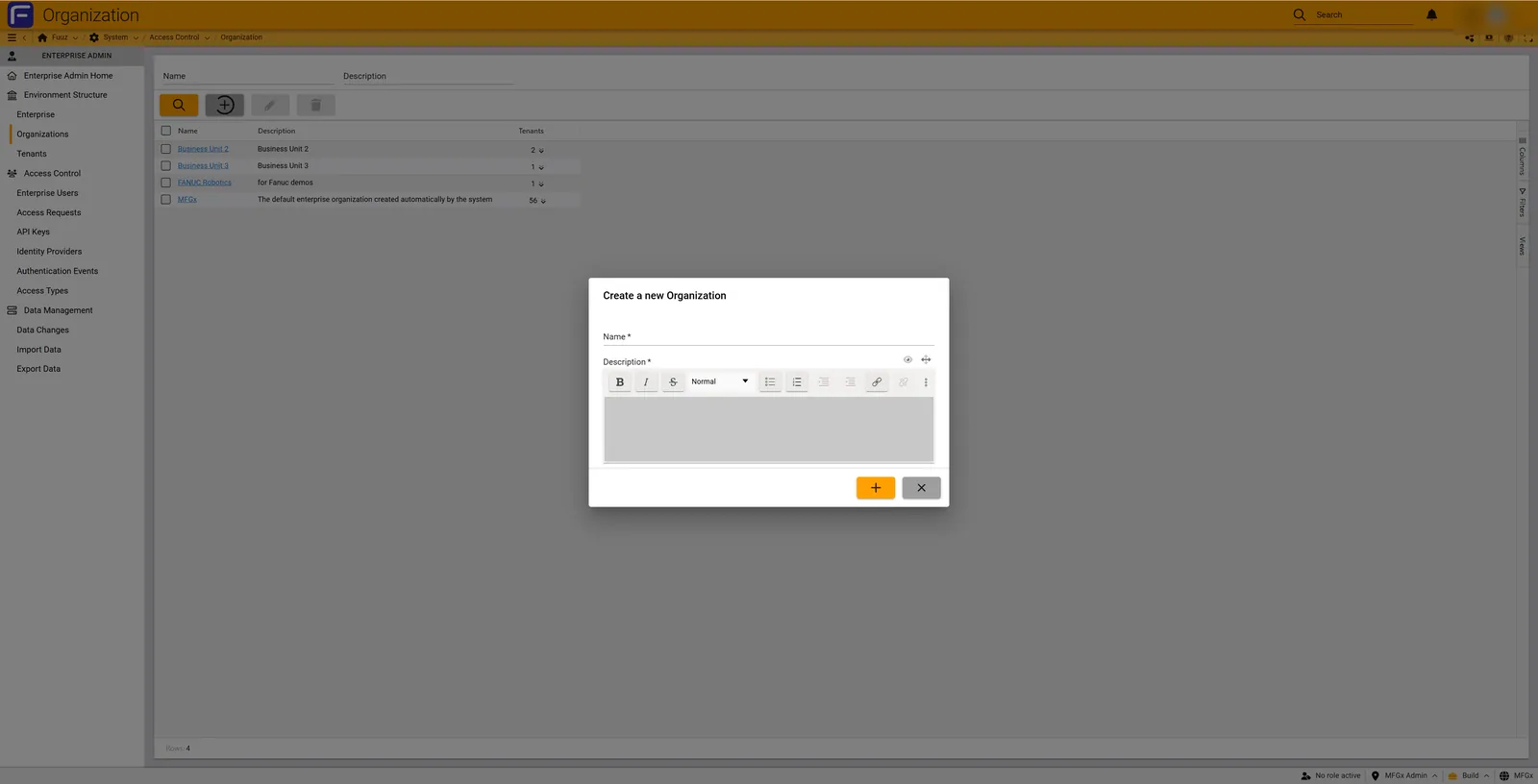
- Click the + (plus) button in the toolbar to open the "Create a new Organization" dialog
- Enter the organization Name (required field)
- Enter a Description using the rich text editor (required field)
- Click the + (save) button to create the organization
Important: Creating organizations beyond your subscription limits will result in additional licensing costs. Verify your subscription level supports the desired number of organizations before creation.
Editing Organizations
Steps:
- Navigate to Environment Structure > Organizations
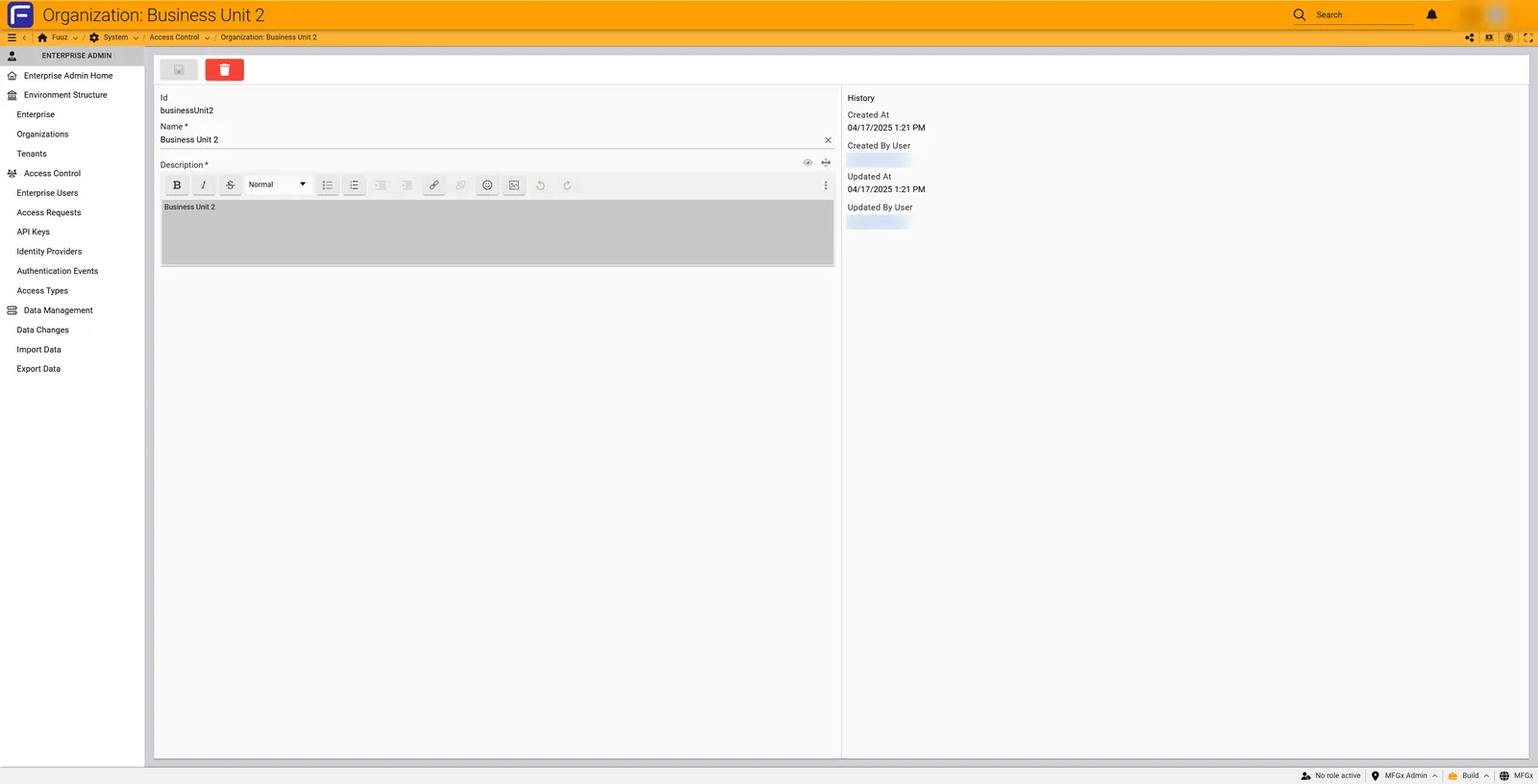
- Click on the organization name to open the organization record
- Modify the Name or Description fields as needed
- Click the save icon to commit changes
Organization descriptions can be updated at any time with no impact to associated applications or users.
Deleting Organizations
Restrictions: Organizations can only be deleted if they have no associated applications. Even organizations with inactive applications cannot be deleted.
Steps:
- Navigate to Environment Structure > Organizations
- Select the checkbox next to the organization you want to delete
- Verify the Tenants column shows
0 (no associated applications)
- Click the trash can (delete) button in the toolbar
- Confirm the deletion when prompted
Important: To delete an organization with applications, you must first delete or reallocate all associated applications to other organizations.
Viewing Applications
Steps:
- Navigate to Environment Structure > Organizations
- Locate the organization in the table
- Click the dropdown arrow in the Tenants column to view the list of applications associated with that organization
Searching Organizations
The search box filters organizations based on matches in the Name or Description fields. Enter search terms and the table will automatically filter to show matching organizations.
5. Licensing & Subscription Considerations
Licensing Model
Fuuz licensing operates on a two-tier cost structure:
- Organization Cost: There is a cost per organization you set up on Fuuz (some licenses include coverage for multiple organizations)
- Application Cost: Additional costs apply for each application (tenant) you deploy within organizations
Subscription Tiers
Different Fuuz subscription levels determine how many organizations and physical sites you can support:
- Single-Site Subscriptions: Allow only 1 organization with support for 1 physical location (may still allow multiple applications within that single site)
- Small Organization Subscriptions: Allow multiple physical sites to be attached to one or more organizations
- Medium Organization Subscriptions: Support larger deployments with multiple organizations and physical sites
- Enterprise Subscriptions: Support for extensive multi-site, multi-organization deployments
Note: Contact your Fuuz account representative to understand your specific subscription limits and costs for adding organizations or applications. You can submit a support ticket if you wish. Pricing and packaging is updated frequently and subject to change without notice.
6. Best Practices
Organizational Structure Design
- Plan Before Implementation: Carefully design your organizational structure before creating organizations and applications, considering growth, licensing costs, and operational requirements
- Align to Business Structure: Name and structure organizations to reflect your actual business structure (divisions, regions, product lines)
- Use Naming for Hierarchy: Since there is no enforced hierarchy between organizations, use naming conventions to create implied hierarchy (e.g., "NA-East-Detroit", "NA-West-Seattle")
- Document in Descriptions: Use the description field to document the organization's purpose, scope, physical sites included, and any special considerations
Application Deployment Strategy
- One App Per Physical Site (Recommended): Deploy separate applications for each physical site with distinct addresses. This approach scopes user management, integrations, and data specifically to that site, providing the most robust infrastructure and security options. Sometimes you'll have multiple apps for one physical site: MES, WMS, Quality, or even smaller apps such as a single workcenter HMI. The decisions here are primarily around scalability, flexibility, resiliency and how you plan to deploy over time.
- Consider Localization Requirements: If locations have different timezones, currencies, or language requirements, they must use separate applications
- Implement HQ Aggregation: For organizations with multiple site-specific applications, implement an HQ application that aggregates data across all applications. While this requires configuration, it is considered best practice for enterprise deployments
- Balance Consolidation vs Separation: Weigh the benefits of shared applications (easier management, lower cost) against the benefits of isolated applications (security, customization, performance)
Ongoing Management
- Regular Reviews: Periodically review your organizational structure to ensure it still aligns with business operations
- Clean Up Unused Organizations: Delete organizations that are no longer needed (after ensuring all applications are removed or reallocated)
- Update Descriptions: Keep organization descriptions current to reflect changes in scope, purpose, or structure
- Plan for Growth: When planning expansion, consider whether new sites should be added to existing organizations or require new organizational structures
- Document Changes: Maintain records of organizational changes, especially when reallocating applications or restructuring for mergers/divestitures
7. Troubleshooting
| Issue |
Cause |
Resolution |
| Cannot create new organization |
Subscription limit reached |
Contact your Fuuz account representative to upgrade your subscription or add additional organization capacity |
| Cannot delete organization |
Organization has associated applications (even inactive ones) |
First delete or reallocate all applications to other organizations, then delete the organization |
| Organization not appearing in application provisioning |
Organization creation may not have completed |
Refresh the page and verify the organization appears in the Organizations list. If not, recreate the organization |
| App Admin cannot see organization |
App Admins only see organizations containing their applications |
This is expected behavior. Only Enterprise Admins can see all organizations. App Admins see organizations through their application access |
| Need to restructure organizations after merger |
Business structure changed |
Create new organizations as needed. Reallocate applications to new organizational structure. Delete old organizations after applications are moved |
| Tenants column shows count but dropdown is empty |
Display refresh issue |
Refresh the browser page. If issue persists, navigate to Tenants screen to verify application associations |
| Cannot edit organization name |
User does not have Enterprise Admin access |
Only Enterprise Admins can create, edit, or delete organizations. Request Enterprise Admin access or have an Enterprise Admin make the change |
| User cannot access application in organization |
Users are not granted access to organizations, only to applications |
Grant the user explicit access to the specific application. Organization access is not user-specific |
See Also