Help CenterHelp Center
Administer · Admin Options
This article provides the steps and resources to support the task of using the visual policy editor. The visual policy editor makes it easy to create and modify access control policies without requiring written policies in JSON.
A policy is a list of statements. Each statement in a policy has an effect, a list of actions and resources, and an optional rule.
Actions and resources allow * to affect all child actions/resources. Example resource from the Web Frontend Access Control Policy:
graphql:system:accessControl:currentUser:*
| Segment | Meaning |
|---|---|
graphql |
Specifies that this is being pulled from the main data API |
system |
The module group |
accessControl |
The module |
currentUser |
The model, which is similar to a table |
* |
Individual fields or columns can be listed if desired; the star * means all columns will be accessible |
Rules: Additional conditional logic evaluated to determine if the statement should apply to the request. There are several types of rules supported:
true if the statement should apply.Note: The visual editor does not currently support rules. To add a rule, make changes in the JSON editor.
The following is a full list of supported policy actions and resources, grouped by base.
GraphQL policy statements affect requests to the Application and System APIs, which are the primary APIs for data retrieval and modification.
graphql:query - Read data from application or system APIsgraphql:create - Create data in application or system APIsgraphql:update - Update data in application or system APIsgraphql:delete - Delete data in application or system APIsgraphql:mutate - Execute custom mutations in application or system APIs, examples: uploadFile, changeCurrentUserPasswordgraphql:{moduleGroup}:{module}:{type}:{field}Orchestration policy statements affect the Orchestration service, responsible for running Backend data flows.
orchestration:executeFlow - Execute a data floworchestration:dataFlow:{flowId}Integration policy statements affect the Integration service, responsible for connection to external systems.
integration:executeConnector - Execute an integration connectorintegration:connector:{connectorId}Websocket policy statements affect requests to the Websocket-based Subscription API.
websocket:publish - Publish messages to topics through a Subscription service Websocket connectionwebsocket:subscribe - Subscribe to messages through a Subscription service Websocket connectionwebsocket:topic:{topicName} - The name of the topic to publish or subscribe to, with periods replaced with colons (e.g. test.name becomes test:name).websocket:dataChange:{service}:{model}:{operation} - The data change event to subscribe to.websocket:dataChangeNotification:{service}:{model}:{operation} - The data change notification event to subscribe to.websocket:deviceSubscription:{deviceId}:{subscriptionId} - The device subscription events to subscribe to.websocket:deviceGateway:{deviceGatewayId}:{functionId}:{requestId}:{request|response} - The Edge Gateway function event to publish or subscribe to.websocket:device:{deviceId}:{functionId}:{requestId}:{request|response} - The Edge Gateway device function event to publish or subscribe to.Use the data change notification event if you need to know which models changed. Use the data change event if you need the content of the data change.
Websocket resources support two wildcard variants:
*): Match any characters in the segment where the wildcard is present. Example: websocket:dataChangeNotification:application:*:create grants access to the create data change notifications of all application service models.#): Match any characters and segments following the # wildcard. Example: websocket:dataChangeNotification:system:# grants access to the data change events of all operations and models from the system service.Screen policy statements affect the behavior of the Fuuz UI, but do not affect any API requests.
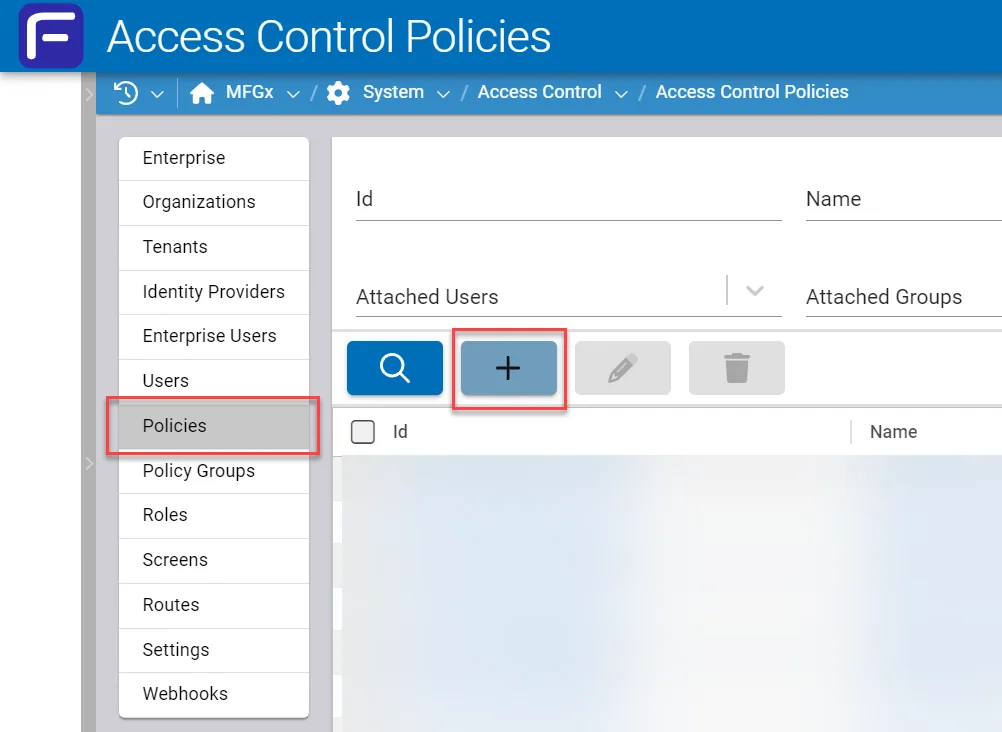
screen:navigate - Access a screen through the Fuuz UI.screen:{moduleGroup}:{module}:{path}Go to the Access Control Policies list.
Click the pale blue + button to create a new policy. Alternately, select a pre-existing policy to edit or modify.
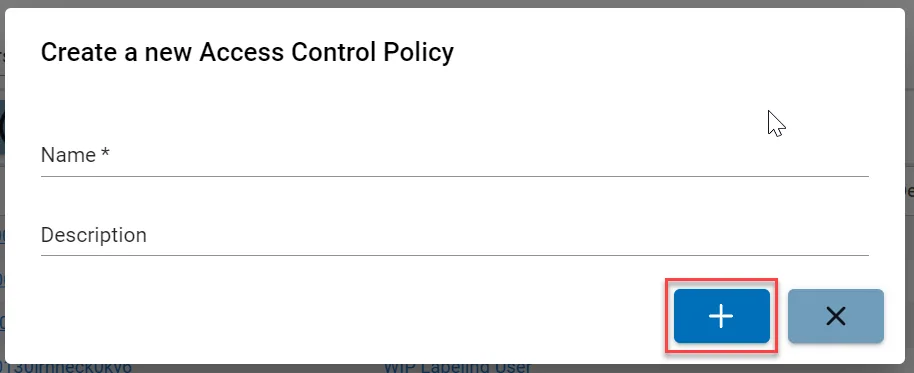
Wait for the window to appear, then type in a Name and a Description, and click the blue + button.
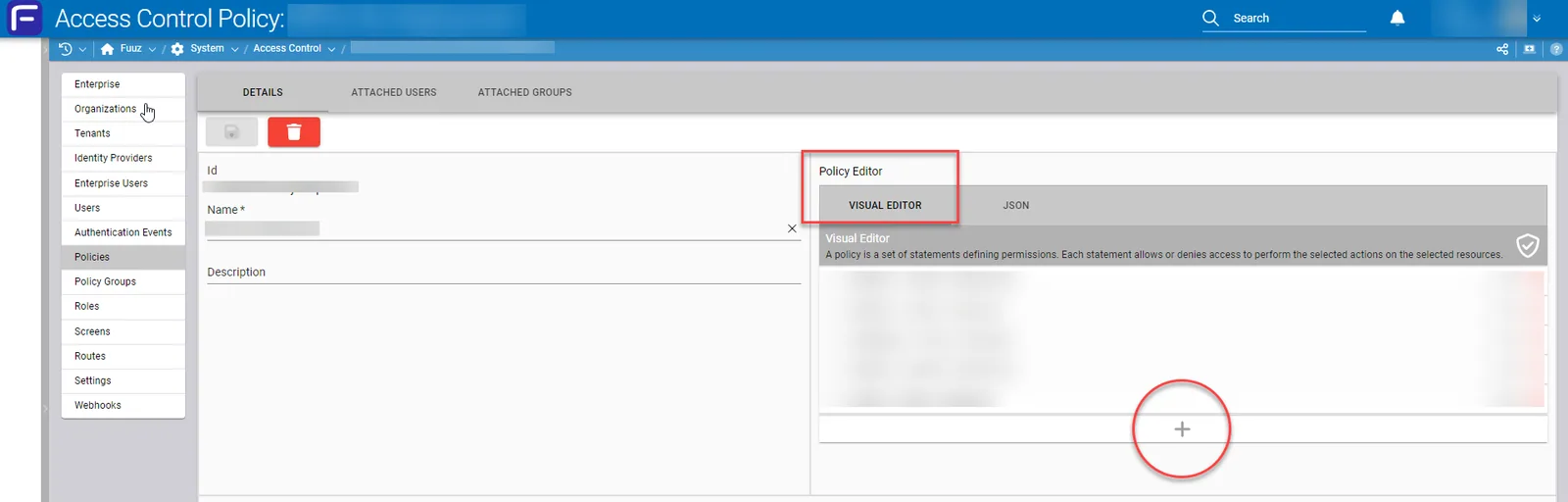
Wait for the Details page to open, then click the blue + icon to add new statements. Alternately, modify existing statements in the Visual Editor tab of the Policy Editor.
Select a base:
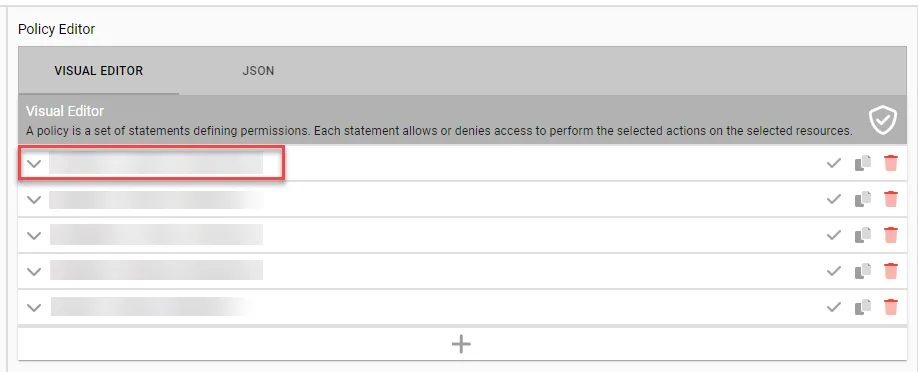
Wait for the actions and resources for that base to be displayed in a checkbox tree format.
Use the left arrow icon to expand the actions, or use the search bar to view the actions. Check the box or click on the action to select the actions necessary for the statement.
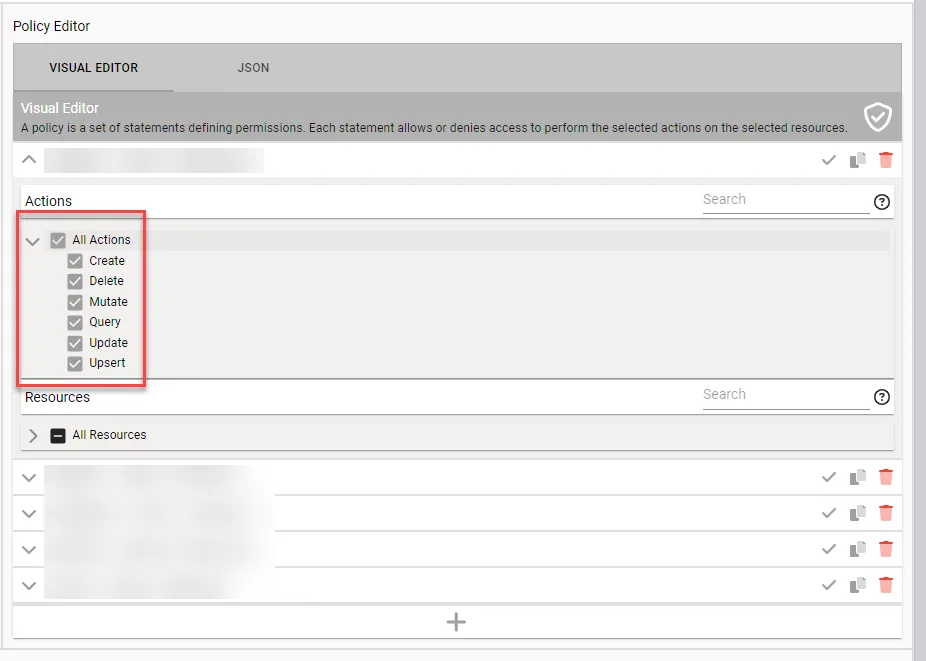
Select the resources necessary for the statement.
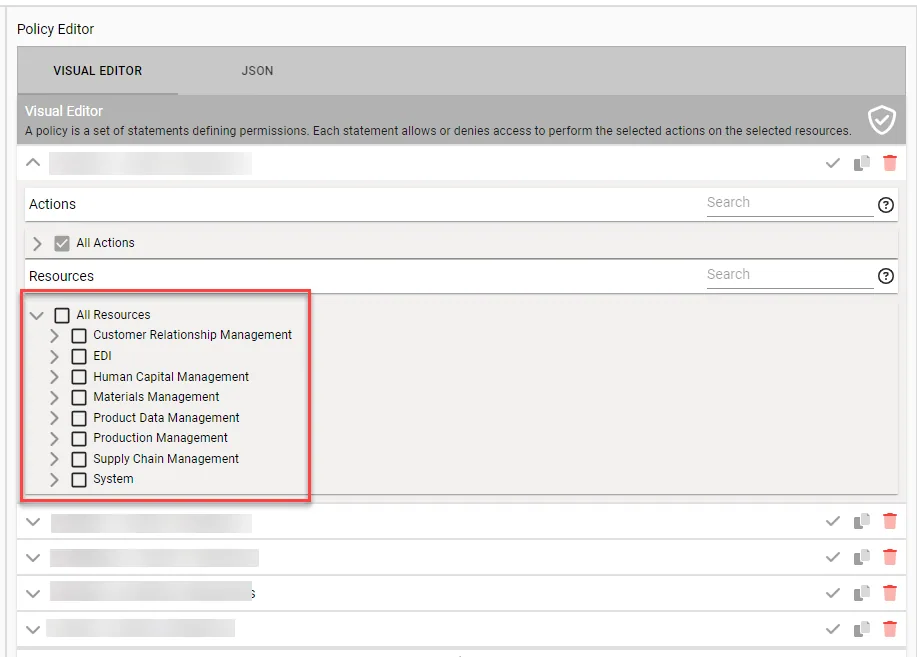
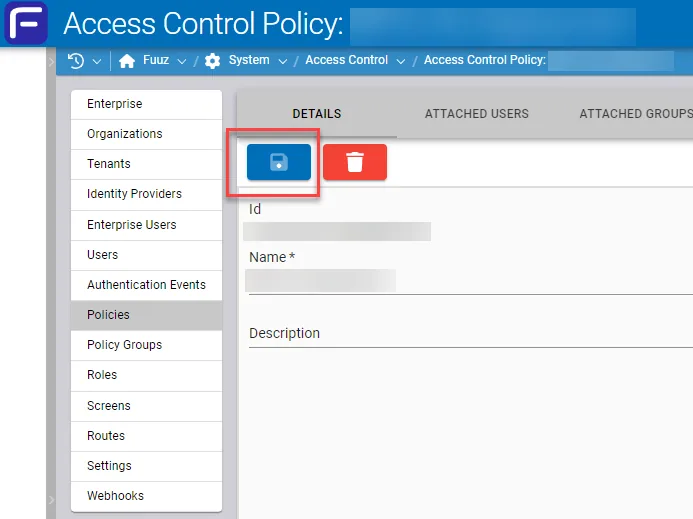
Repeat the steps as necessary, then click the blue save button.
Important: It is necessary to select at least one action and one resource before saving, otherwise the data will be lost.
If the policy is saved successfully, the save button (top, left) will be grayed out, and there will be a confirmation message.
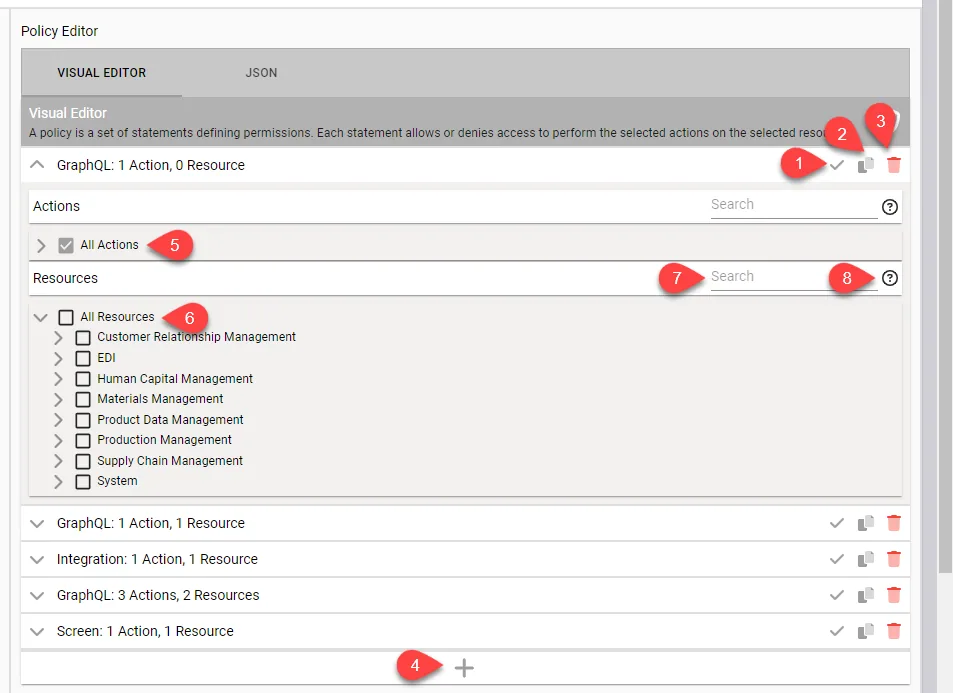
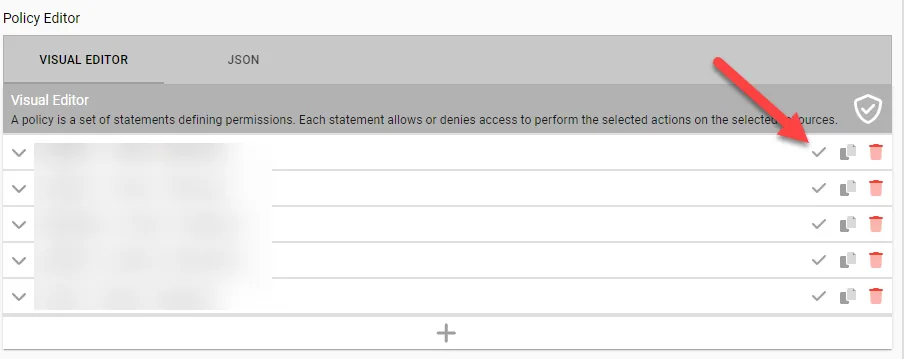
Change the permission by clicking on the icon to Allow Permission or Deny Permission (the Allow Permission state is shown).