 Help Center
Administer · App Management
Flow Schedules
Last updated December 27, 2025, 5:27 PM UTC · fuuz.com/help/flow-schedules
Flow Schedules
Article Type: Concept
Audience: App Administrators, Application Designers, Developers
Module: App Management
Applies to Versions: All Versions
1. Overview
Flow Schedules provide automated time-based execution of Data Flows using flexible scheduling patterns including cron expressions, calendar-based rules, and interval timers. This feature replaces the deprecated periodic nodes within flows, offering centralized schedule management where App Administrators can configure when and how flows execute without modifying flow logic. Flow Schedules support complex scenarios such as business-hour-only executions, multi-timezone operations, weekday-only processing, and custom exclusion patterns, making them ideal for integrations, batch processing, reporting, and data synchronization tasks.
Note: Flow Schedules are scoped per application and per environment. Each Schedule can have multiple Frequencies that execute the same Data Flow at different times or intervals, with each Frequency supporting its own timezone, execution pattern, and input payload configuration.
2. Architecture & Data Flow
Definitions
- Flow Schedule: Parent entity that associates a specific Data Flow with scheduling configuration, input schema validation, and one or more execution frequencies.
- Schedule Frequency: Child entity defining a specific execution pattern (time-based, daily, monthly, or cron) with its own timezone, payload data, and active state.
- Input Schema: JSON Schema definition at the Schedule level that validates payload data for all frequencies, ensuring consistent parameter structure.
- Payload Data: JSON object passed to the Data Flow when a frequency triggers execution, containing parameters, configuration values, or contextual information.
- Schedule Type: The pattern definition method for a frequency: Time (interval-based), Daily (day-of-week), Monthly (day-of-month), or Cron (expression-based).
- Cron Expression: Standard 5-field cron syntax (minute, hour, day-of-month, month, day-of-week) used for complex scheduling patterns.
- Estimated Next Execution: Calculated field showing when a frequency is predicted to trigger next based on its schedule pattern and timezone.
- Status Message: Field displaying execution status, validation errors, or configuration warnings for a frequency.
Components
- Schedule Definition: Name, description, input schema, and data flow reference
- Frequency Executor: Scheduling engine that triggers data flow executions based on frequency patterns
- Timezone Processor: Moment.js-based timezone handler supporting IANA database and daylight saving time transitions
- Payload Validator: JSON Schema validation engine ensuring frequency payload data conforms to schedule input schema
- Cron Expression Builder: UI-based calendar interface that generates standard cron expressions from user-friendly inputs
- Execution Logger: System that records frequency triggers, flow executions, and status messages
Schedule-Frequency Relationship
A single Flow Schedule can have multiple Frequencies, enabling complex execution patterns:
- One-to-Many Relationship: One Schedule → Multiple Frequencies
- Shared Data Flow: All frequencies execute the same Data Flow
- Shared Input Schema: All frequencies validate against the same schema
- Independent Payloads: Each frequency can pass different payload data to the flow
- Independent Schedules: Each frequency has its own execution pattern and timezone
- Independent Active State: Frequencies can be individually enabled or disabled
Important: If frequencies need to pass different parameters to the same flow, you have two options: (1) Create separate Schedules for each parameter set, or (2) Use Application Configurations referenced within the flow to determine behavior based on context.
3. Use Cases
- E-Commerce Integration - Weekdays Only: Schedule order synchronization to run Monday through Friday at 6:00 AM, avoiding weekend processing when the warehouse is closed.
- Stock Price API - Business Hours: Execute API calls every hour from 9:30 AM to 4:00 PM Eastern Time during market hours, with separate frequencies for each hour.
- Monthly Report Generation: Generate financial reports on the 1st of each month at midnight, with payload specifying the report type and distribution list.
- Multi-Timezone Operations: Run the same integration flow at 8:00 AM local time across multiple plant locations by creating separate frequencies with different timezones.
- Data Synchronization - Multiple Intervals: Synchronize critical data every 15 minutes during business hours, but only once per hour overnight, using different frequencies.
- Batch Processing with Exclusions: Process transactions Monday through Saturday at 2:00 AM, excluding Sundays and with custom logic in the flow to skip company holidays.
- Interval-Based Monitoring: Poll equipment status every 5 minutes using a Time-type frequency with interval configuration.
- Complex Cron Patterns: Execute maintenance tasks on the 15th and last day of each month at 11:00 PM using cron expression scheduling.
- Seasonal Schedules: Run promotional email flows daily in December but weekly in other months by activating/deactivating different frequencies seasonally.
- Parameterized Executions: Execute the same ETL flow for different data sources by creating multiple frequencies with different payload configurations specifying source parameters.
4. Screen Details
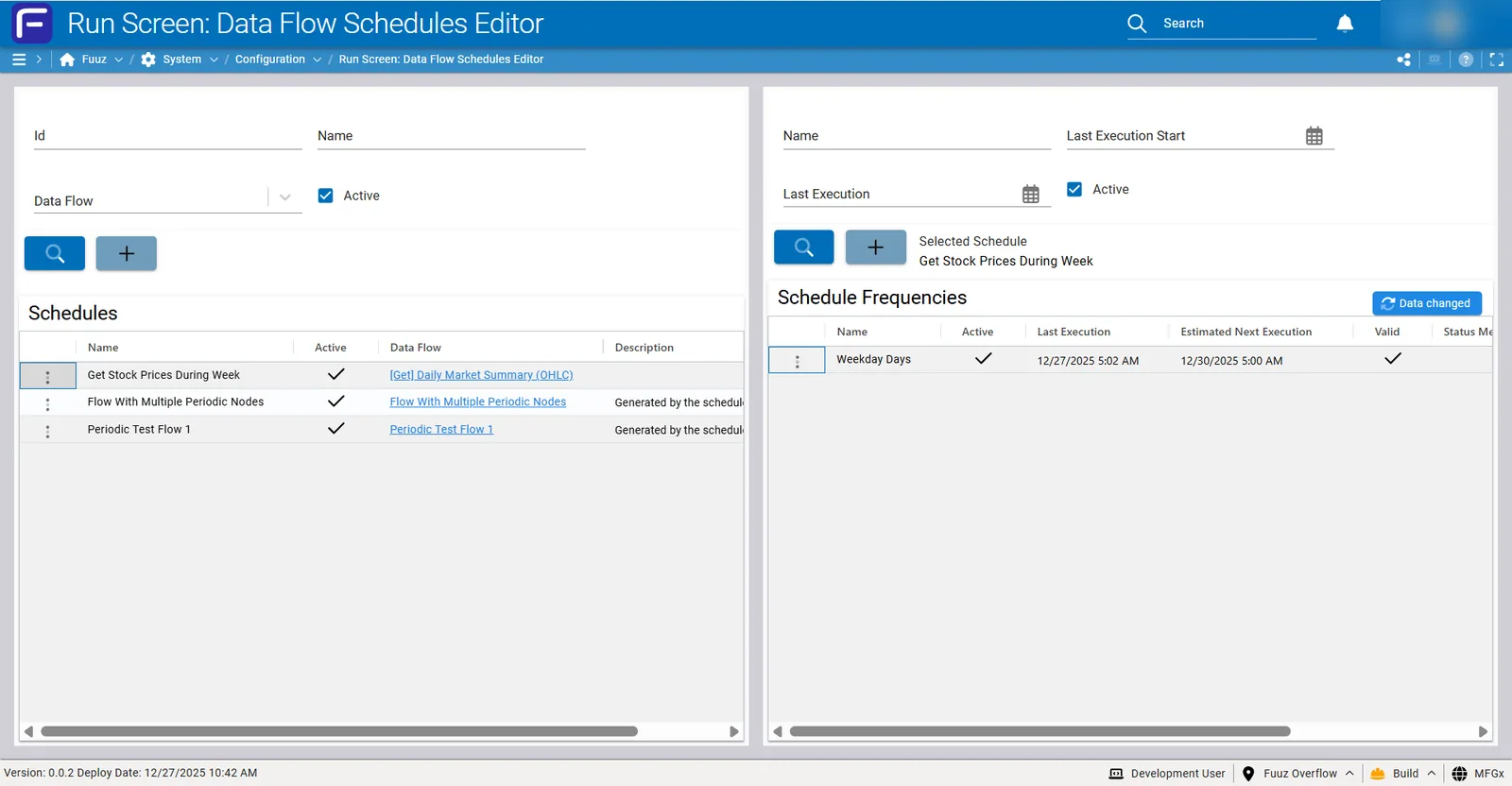
The Flow Schedules screen is accessed via App Management > Flow Schedules in the App Admin menu section. The interface is split into two panels:
Left Panel: Schedules
Displays all Flow Schedules in the current application with the following columns:
- Name: Schedule identifier (clickable to select schedule)
- Active: Checkmark indicating if schedule is active (parent-level control)
- Data Flow: Link to the associated Data Flow that will be executed
- Description: Optional markdown description of schedule purpose
Actions (Left Panel):
- Search: Filter schedules by name or data flow
- Create Schedule: Add new schedule with data flow selection and input schema definition
- Update Schedule: Modify schedule name, description, input schema, or data flow reference
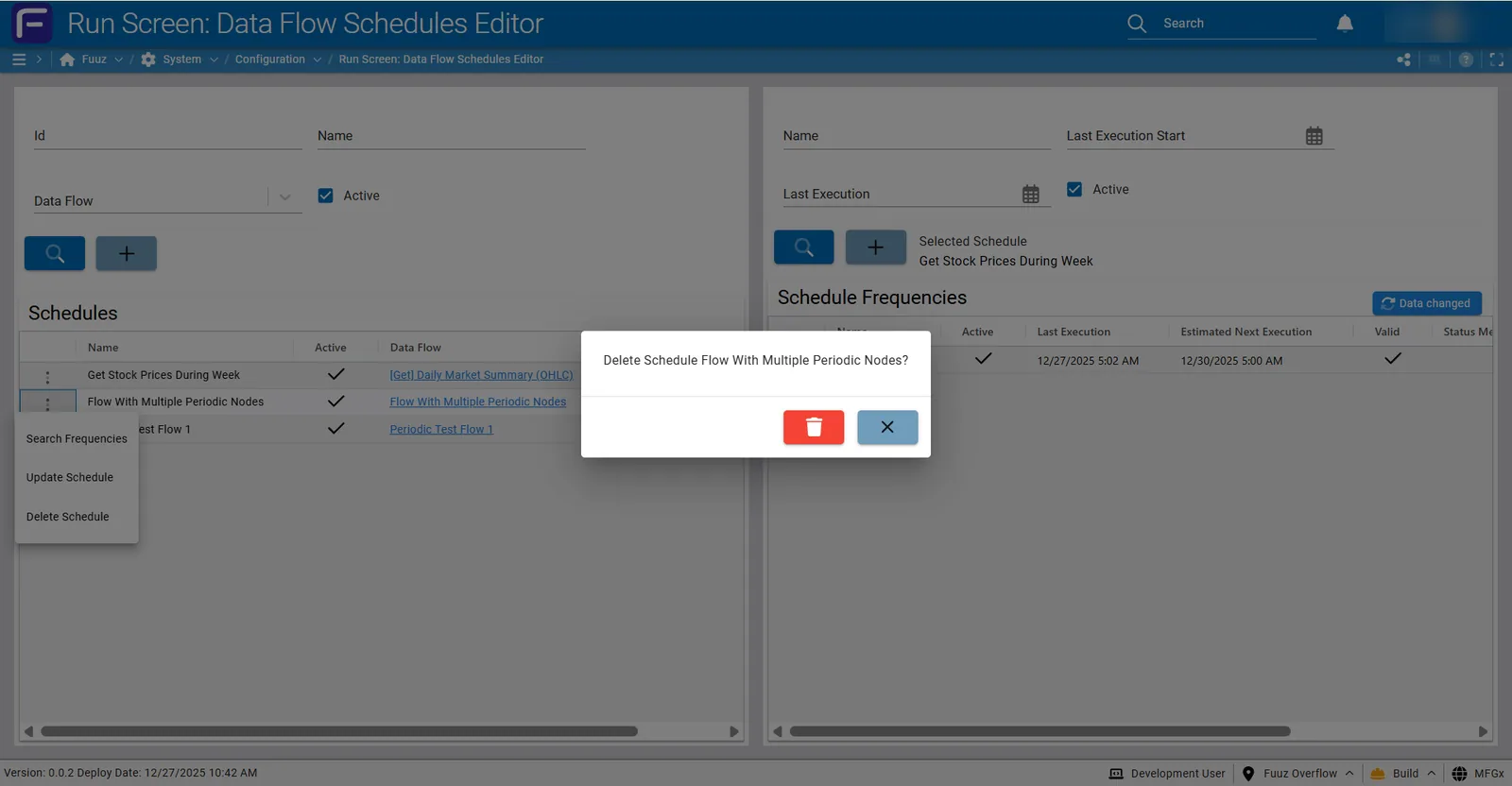
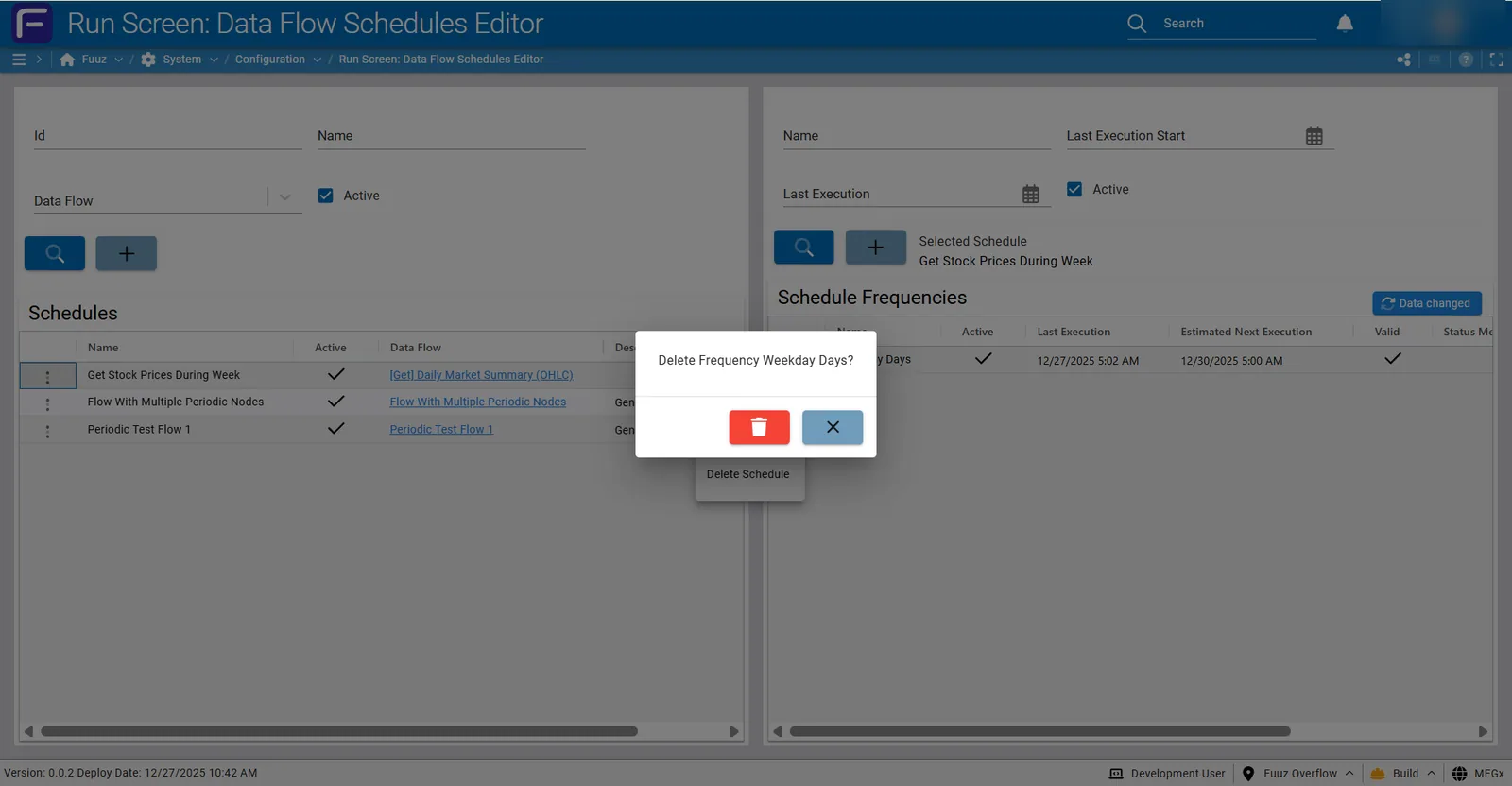
- Delete Schedule: Remove schedule and all associated frequencies
- Active Filter: Filter to show only active or inactive schedules
Right Panel: Schedule Frequencies
Displays all frequencies for the selected schedule with the following columns:
- Name: Frequency identifier (e.g., "Weekday Days", "Hourly During Business Hours")
- Active: Checkmark indicating if this specific frequency is enabled
- Last Execution: Timestamp of most recent frequency trigger
- Estimated Next Execution: Calculated next trigger time based on schedule pattern
- Valid: Checkmark indicating payload data passed schema validation
- Status Message: Execution status, error messages, or validation warnings
Actions (Right Panel):
- Search Frequencies: Filter frequencies by name
- Create Frequency: Add new frequency to the selected schedule
- Update Frequency: Modify frequency configuration, schedule pattern, or payload
- Delete Frequency: Remove frequency from schedule
- Active Filter: Show only active or inactive frequencies
Schedule Editor Form
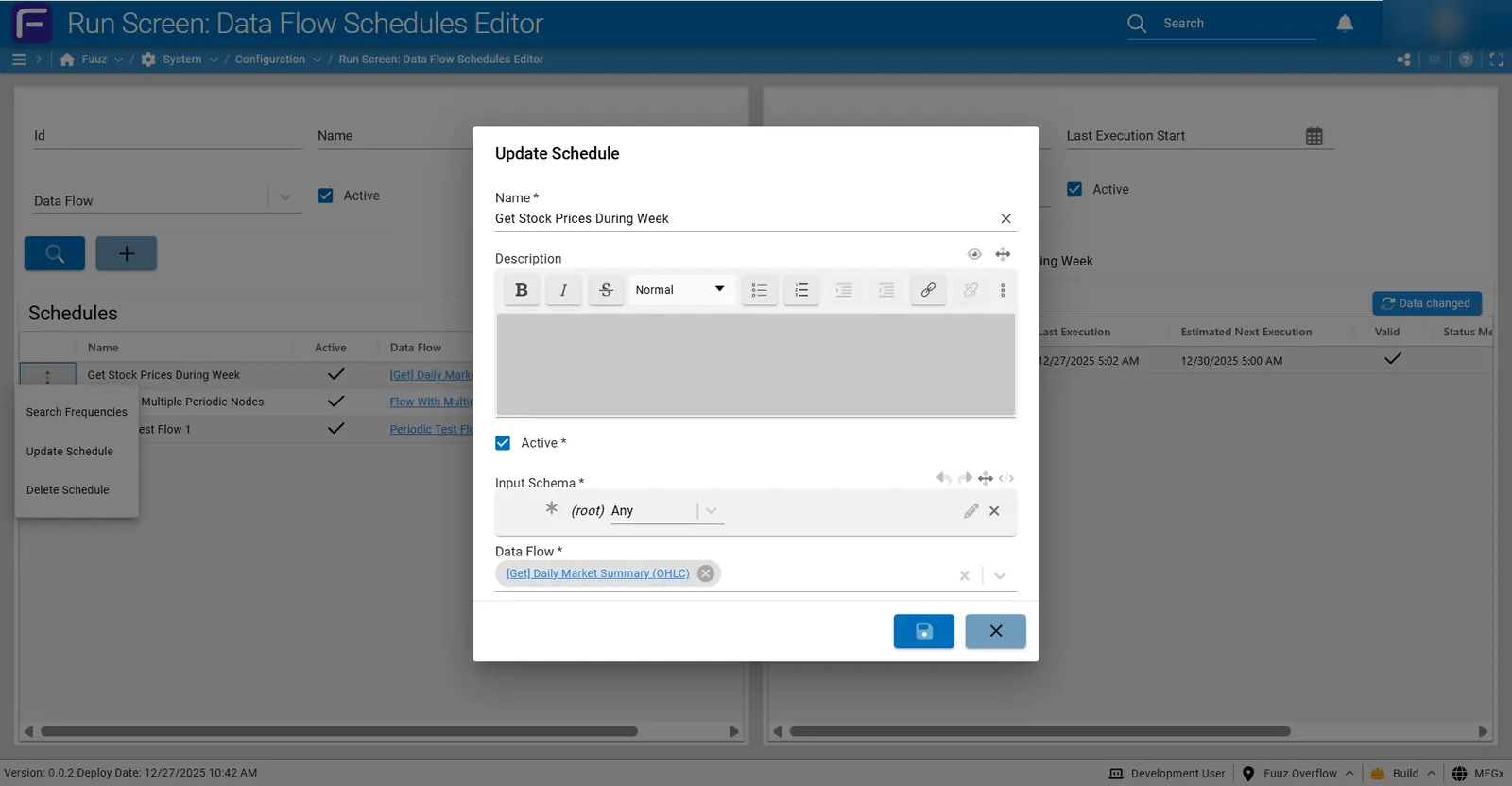
When creating or updating a schedule:
| Field |
Type |
Description |
| Name |
Text (Required) |
Unique identifier for the schedule |
| Description |
Markdown (Optional) |
Detailed explanation of schedule purpose and configuration notes |
| Active |
Checkbox (Required) |
Master switch for entire schedule (does not affect individual frequency active states) |
| Input Schema |
JSON Schema (Required) |
Schema definition that validates payload data for all frequencies. Default: {"type": "object"} (accepts any JSON) |
| Data Flow |
Lookup (Required) |
Reference to the Data Flow that will be executed by all frequencies in this schedule |
Frequency Editor Form
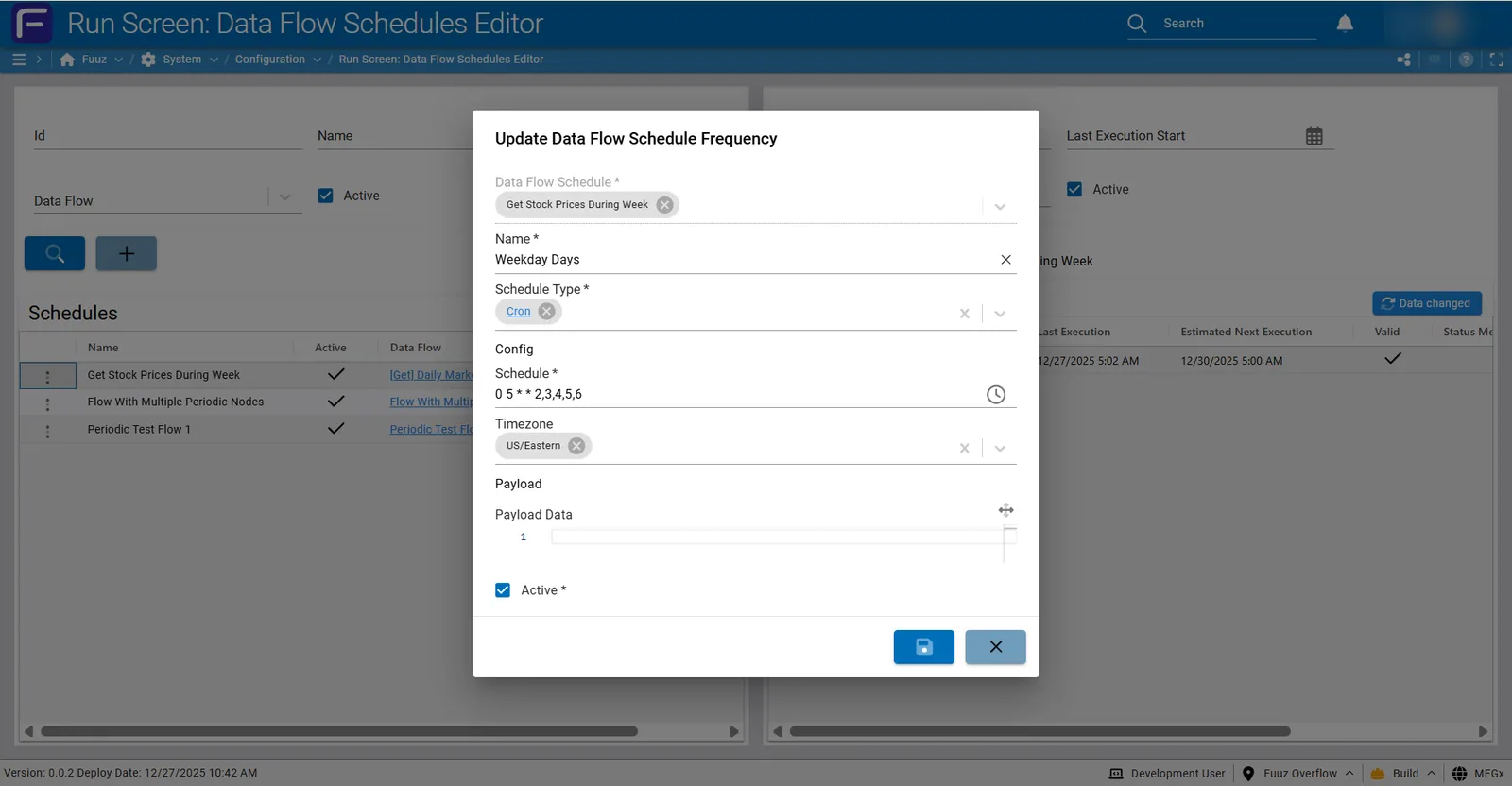
When creating or updating a frequency:
| Field |
Type |
Description |
| Data Flow Schedule |
Lookup (Required) |
Parent schedule reference (auto-populated from selection) |
| Name |
Text (Required) |
Descriptive name for this frequency (e.g., "Weekday Days", "Evening Run") |
| Schedule Type |
Select (Required) |
Time, Daily, Monthly, or Cron |
| Config/Schedule |
Dynamic (Required) |
Schedule definition interface changes based on Schedule Type selection |
| Timezone |
Select (Required) |
IANA timezone identifier for frequency execution (e.g., US/Eastern, Europe/London) |
| Payload Data |
JSON (Optional) |
JSON object passed to Data Flow execution. Validated against schedule's Input Schema. |
| Active |
Checkbox (Required) |
Enable or disable this specific frequency without deletion |
5. Technical Details
Schedule Types
Flow Schedules support four schedule type patterns, each with a UI-based configuration interface that generates the underlying cron expression or scheduling logic:
TIME (Interval-Based)
The TIME tab provides interval-based scheduling for continuous operations:
- Every N minutes: Execute every X minutes (e.g., every 5, 15, 30 minutes)
- Every N hours: Execute every X hours (e.g., every 1, 2, 4 hours)
- Starting Point: Interval begins from the first execution date and continues indefinitely while active
- Use Case: Continuous monitoring, polling APIs, real-time data synchronization
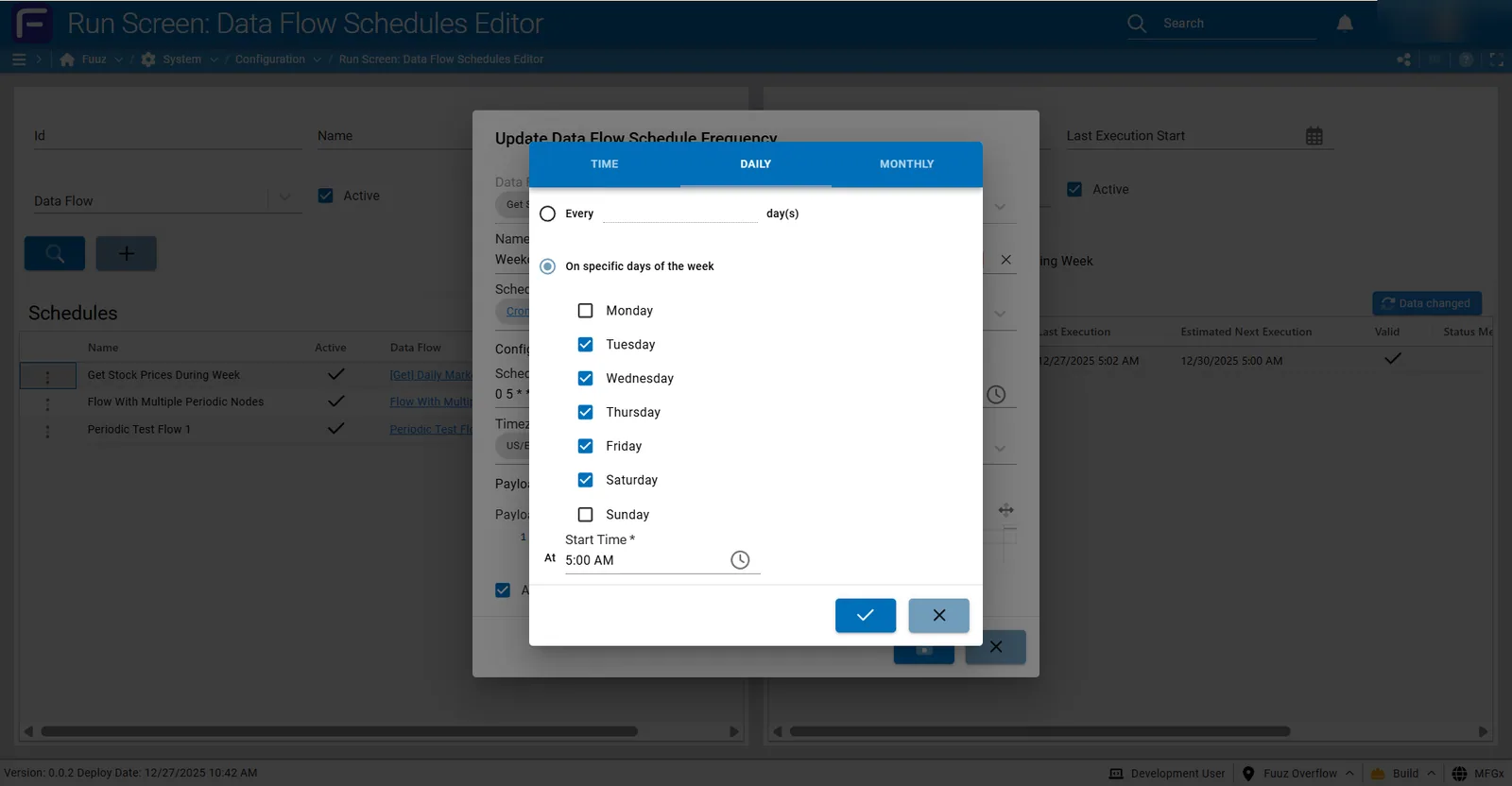
DAILY (Day-of-Week Based)
The DAILY tab provides day-of-week scheduling with calendar-style selection:
- Every X day(s): Execute every N days starting from first execution date (e.g., every 2 days, every 3 days)
- On specific days of the week: Select any combination of Monday through Sunday using checkboxes
- Start Time: Time of day for execution (24-hour or 12-hour format with AM/PM)
- Example: Tuesday through Saturday at 5:00 AM for weekday-only operations (excluding Sunday and Monday)
Note: To execute multiple times per day (e.g., 8:00 AM and 5:00 PM), you must create separate frequencies within the same schedule, each with a different Start Time. A single DAILY frequency can only have one Start Time.
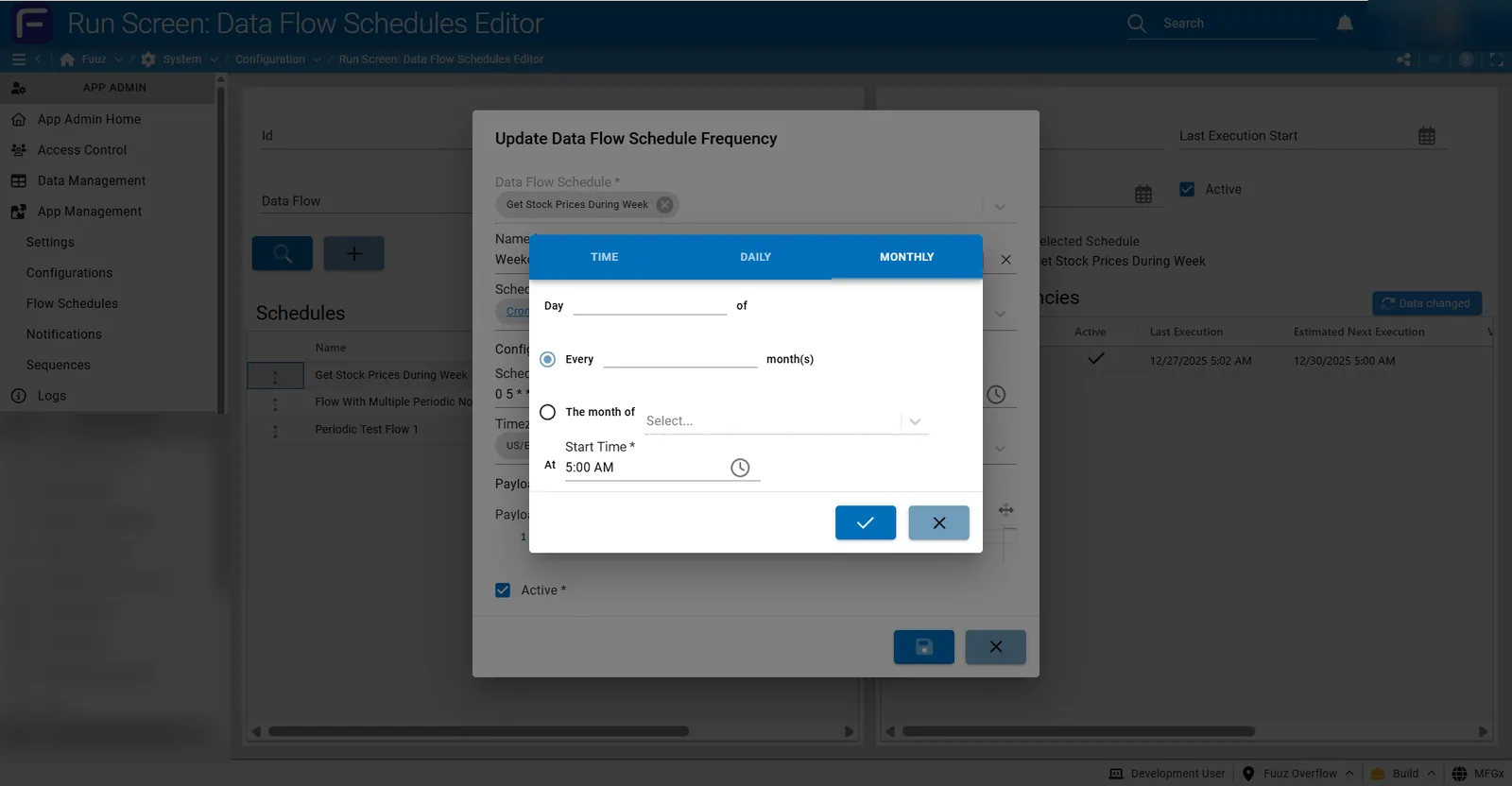
MONTHLY (Day-of-Month Based)
The MONTHLY tab provides day-of-month and month-specific scheduling:
- Every X month(s): Option 1 - Execute on day N of every X months
- Day field: Specify day of month (1-31) for execution
- Month(s) field: Specify interval - every 1 month (monthly), every 2 months (bi-monthly), etc.
- The month of: Option 2 - Execute only in specific named months selected from dropdown
- Start Time: Time of day for monthly execution (combined with day selection)
- Example 1: Day 1 of every 1 month at 12:00 AM = First of every month at midnight
- Example 2: Day 15 of every 3 months at 5:00 AM = Quarterly on the 15th
- Use Case: Monthly reports, billing cycles, periodic maintenance, quarterly reviews
CRON (Expression-Based)
The Schedule Type selector allows switching to CRON for manual cron expression entry. The TIME, DAILY, and MONTHLY tabs serve as a visual cron expression builder - you can either use the calendar-style UI to build your schedule, or enter a raw cron expression directly when Schedule Type is set to "cron".
* * * * *
│ │ │ │ │
│ │ │ │ └─── Day of week (0-6, Sunday=0)
│ │ │ └───── Month (1-12)
│ │ └─────── Day of month (1-31)
│ └───────── Hour (0-23)
└─────────── Minute (0-59)
Cron Expression Examples:
| Expression |
Description |
0 5 * * 2,3,4,5,6 |
5:00 AM Tuesday through Saturday |
0 0 1 * * |
Midnight on the 1st of every month |
30 9-16 * * 1-5 |
9:30 AM through 4:30 PM (every hour) on weekdays |
0 23 15,L * * |
11:00 PM on 15th and last day of each month (Note: L notation support varies) |
*/15 * * * * |
Every 15 minutes |
0 0 * * 0 |
Midnight every Sunday |
Cron Expression Builder: The frequency editor provides a calendar-style interface for Time, Daily, and Monthly types that generates the underlying cron expression. Advanced users can switch to Cron type for direct expression entry to handle edge cases not covered by the UI builders.
Input Schema and Payload Data
The relationship between Schedule Input Schema and Frequency Payload Data enables validated, parameterized flow executions. This two-level validation system ensures data integrity while maintaining flexibility.
Input Schema (Schedule Level)
- Purpose: Define structure and validation rules for payload data across all frequencies in the schedule
- Format: JSON Schema (standard JSON Schema Draft 7 or compatible specification)
- Default:
{"type": "object"} which accepts any JSON structure without validation - Flexibility: Input Schema allows any type of JSON object - you can define simple schemas or complex nested structures
- Validation: Schema validation applied to each frequency's Payload Data before execution; invalid payloads prevent the flow from running
- Shared Across Frequencies: All frequencies in a schedule validate against the same Input Schema
- Edit Location: Defined in the Schedule editor form (not the Frequency editor)
Payload Data (Frequency Level)
- Purpose: Provide input parameters to Data Flow execution when the frequency triggers
- Format: JSON object that must conform to the parent schedule's Input Schema
- Execution: Passed to the Data Flow as the initial payload/context every time this specific frequency triggers execution
- Per-Frequency Independence: Each frequency can define completely different Payload Data values while adhering to the same schema structure
- Flexibility: Payload data can reference just about anything you need - literal values, identifiers, configuration keys, date ranges, etc.
- References: Can include static values, or reference Application Configurations, environment variables, or any JSON-compatible data
- Validation Indicator: The "Valid" column shows whether this frequency's Payload Data passes schema validation
- Edit Location: Defined in the Frequency editor form (separate from Schedule definition)
Key Concept: The Input Schema is the "contract" that defines what structure the Payload Data must have. Each frequency provides concrete values matching that structure. This allows the same Data Flow to be executed with different parameters by different frequencies, all validated by the same schema.
Example: Parameterized Integration Schedule
Schedule Configuration:
- Name: E-Commerce Order Sync
- Data Flow: Sync Orders to ERP
- Input Schema:
{
  "type": "object",
  "properties": {
    "source": {
      "type": "string",
      "enum": ["shopify", "magento", "woocommerce"]
    },
    "startDate": {
      "type": "string",
      "format": "date"
    },
    "notificationEmail": {
      "type": "string",
      "format": "email"
    }
  },
  "required": ["source", "startDate"]
}
Frequency 1 - Shopify Morning Sync:
- Schedule Type: Daily - Monday through Friday at 6:00 AM
- Payload Data:
{
  "source": "shopify",
  "startDate": "2024-01-01",
  "notificationEmail": "admin@company.com"
}
Frequency 2 - Magento Evening Sync:
- Schedule Type: Daily - Monday through Friday at 6:00 PM
- Payload Data:
{
  "source": "magento",
  "startDate": "2024-01-01",
  "notificationEmail": "warehouse@company.com"
}
Important: If the Data Flow expects specific input parameters but the Payload Data is empty or invalid, the flow execution will likely fail. Always ensure Payload Data matches the flow's expected input structure and is validated by the Input Schema.
Timezone Handling
- Per-Frequency Configuration: Each frequency has its own timezone setting, allowing the same schedule to execute in multiple timezones
- IANA Timezone Database: Uses standard IANA timezone identifiers (e.g., US/Eastern, Europe/London, Asia/Tokyo)
- Daylight Saving Time: Moment.js automatically handles DST transitions, adjusting execution times appropriately
- Example Use Case: Multi-plant operation where each plant needs 8:00 AM local time execution - create separate frequencies with different timezones
Execution Behavior
- Trigger Mechanism: When a frequency's schedule pattern triggers, the scheduling system executes the associated Data Flow with the frequency's Payload Data as input
- Execution User: All scheduled executions run as the "system" user, not the user who created the schedule or frequency. Audit logs will show "system" as the executor.
- Asynchronous Execution: If multiple frequencies trigger simultaneously (either from the same schedule or different schedules), they execute asynchronously without blocking each other
- Overlapping Executions: If a frequency triggers while a previous execution of the same flow is still running, a new concurrent execution starts immediately (unless flow-level parallelism controls prevent it)
- Parallelism Controls: Flows can be configured with a degree of parallelism setting to control concurrent execution - this helps manage multiple frequencies, manual triggers, data change subscriptions, and other triggers that might cause concurrent flow execution
- No Automatic Retry: Failed executions do not automatically retry. Flows are unlikely to recover automatically, especially integration flows depending on 3rd party systems or APIs. If retry logic is needed, it must be implemented within the flow itself.
- Failure Recovery: When flows fail to execute, there is often an underlying reason (API unavailable, invalid data, network issues). Implement error handling, notification, and retry logic within Data Flows rather than depending on schedule-level recovery.
- Manual Testing: Manual flow executions are typically done within the Flow Designer window using a debug node and a hardcoded payload you provide. Test flows manually with representative payloads before creating schedules.
- Alert Configuration: You can write flows that alert you on any number of variables including X number of failed executions, data processing thresholds, or operational exceptions.
Important: Schedules trigger flow execution - they do not control flow behavior once started. All logging, error handling, retry logic, notifications, and operational controls must be configured within the Data Flow itself and its nodes.
Logging and Monitoring
Critical Concept: Flow Schedules trigger execution but do not automatically log execution details. If your flow is configured to log executions, then logging will occur - but all logging must be configured at the flow level and within individual nodes within the flow.
Schedule-Level Monitoring
The Flow Schedules screen provides these monitoring capabilities:
- Status Message: Displays execution status, configuration errors, or validation warnings for each frequency
- Last Execution: Timestamp showing when the frequency most recently triggered
- Estimated Next Execution: Calculated prediction of next trigger based on schedule pattern and timezone
- Valid Indicator: Checkmark showing whether Payload Data passes Input Schema validation
- Active Status: Both schedule-level and frequency-level active indicators
Flow-Level Logging (Must Be Configured)
These logging capabilities require explicit configuration within Data Flows:
- Flow Logs: Add logging nodes within the Data Flow to capture execution details, intermediate data, and processing steps
- Error Handling: Configure error handling nodes to capture failure details and stack traces
- Integration Logs: API call details and external system interactions logged automatically when using integration nodes
- Custom Logging: Use logging nodes at critical points to track data transformations, decision points, and business logic execution
Metrics and Analytics
- Data Flow Metrics Dashboard: View execution times, frequency of execution, success rates, failure counts, and performance metrics across all flow executions
- Metrics Include: Average execution time, total executions, failure percentage, concurrent execution counts
- Historical Analysis: Track trends over time to identify performance degradation or increasing failure rates
Notifications and Alerts (Flow-Based)
- Notification Channels: Configure notification channels (email, webhook, etc.) and subscribe to specific events
- Email Notifications: Add email notification nodes within flows to send execution summaries, error alerts, or data processing reports
- Conditional Alerts: Implement flow logic to send notifications only on failures, exceptions, or when specific thresholds are exceeded
- Custom Alert Logic: Write flows that alert on any variable you need - X consecutive failures, data volume thresholds, processing time limits, etc.
Permissions and Access Control
Flow Schedules access is controlled through Fuuz's policy-based permission system, enabling granular control over who can create, view, edit, and manage schedules and frequencies.
Default Access Levels
- App Administrators: Full access to create, view, edit, and delete schedules and frequencies
- Developers: Full access to create, view, edit, and delete schedules and frequencies
- Web Access Users: No default access - must be granted explicit permissions via policies assigned to their roles
Granular Permission Options
Permissions for Flow Schedules are very granular and can be configured separately for viewing versus editing:
- View Permissions: Allow users to see schedules, frequencies, execution history, and status without ability to modify
- Edit Permissions: Allow users to create, modify, activate/deactivate, and delete schedules and frequencies
- Schedule-Level Control: Permissions can be granted for managing schedules (parent level)
- Frequency-Level Control: Permissions can be granted for managing frequencies within schedules
Policy Configuration
To grant Flow Schedules access to Web Access users:
- Navigate to Access Control > Policies
- Create or edit a Policy Group and Policy
- Add specific permissions for:
- Creating Flow Schedules
- Managing Flow Schedules
- Creating Frequencies
- Managing Frequencies
- Assign the Policy to Roles
- Assign Roles to Web Access users who need Flow Schedules access
Audit and Accountability
- Creation Tracking: Schedule and frequency records track which user created them
- Modification Tracking: Changes to schedules and frequencies are tracked in Data Change History
- Execution User: All scheduled flow executions run as "system" user regardless of who created the schedule - this ensures consistent execution permissions and prevents issues when creator's access changes
- Audit Logs: Data Change History shows who created, modified, activated, or deactivated schedules and frequencies
Best Practice: Grant Flow Schedules permissions carefully - users with edit access can schedule flows to execute automatically, potentially impacting system resources and operations. Consider granting view-only access to users who need to monitor schedules but not create or modify them.
Scope and Migration
- Per Application: All schedules are scoped to specific applications - each application has its own independent set of schedules
- Per Environment: Schedules exist separately in build, QA, and production environments
- No Auto-Replication: Changes to schedules in one environment do not automatically propagate to other environments
- Package Migration: Schedules can be included in application packages and migrated between environments
- Data Flow Dependency: Underlying Data Flows must exist in the destination environment for schedules to function after migration
- Environment-Specific Configuration: After migration, review timezone settings, payload data, and execution patterns to ensure they're appropriate for the destination environment
Holiday and Exception Handling
Fuuz does not have a built-in holiday calendar system. To exclude holidays or implement custom date-based logic:
- Flow-Based Logic: Implement holiday checking logic at the beginning of the Data Flow
- Custom Data Model: Create a Holiday data model with dates and descriptions for your organization's holiday calendar
- Application Configuration: Store holiday dates in Application Configurations for easy maintenance without flow changes
- Exit Early Pattern: Check current date against holiday list and exit flow early if it matches
- Manual Control: Temporarily deactivate frequencies before holidays and re-activate after
- Timezone Considerations: Ensure holiday checking logic accounts for timezone differences if operating across multiple regions
Example Flow Pattern:
- Flow execution starts from schedule trigger
- First node queries Holiday data model or Application Configuration
- Compare current date (in appropriate timezone) against holiday list
- If holiday match, log "Skipped due to holiday" and exit flow
- If not holiday, continue with normal flow processing
6. Resources
- Cron Expression Reference
- Moment.js Timezone Documentation
- IANA Timezone Database
- Related KB Article: Data Flows Overview
- Related KB Article: Data Flow Metrics Dashboard
- Related KB Article: Notifications Configuration
- Related KB Article: Application Configurations
- Related KB Article: Access Control - Policies and Roles
7. Troubleshooting
| Issue |
Cause |
Resolution |
| Frequency marked invalid with schema validation error |
Payload Data does not conform to schedule's Input Schema |
Review Status Message for specific validation errors. Verify Payload Data structure matches Input Schema requirements. Ensure required fields are present and data types match schema definitions. Test payload against schema using external JSON Schema validator if needed. |
| Schedule shows active but frequency never executes |
Frequency Active checkbox is disabled, or invalid schedule configuration |
Verify both Schedule Active and Frequency Active checkboxes are enabled. Check Status Message for configuration errors. Verify cron expression syntax if using Cron type. Ensure Estimated Next Execution shows a valid future date. |
| Flow executes but fails immediately with parameter errors |
Data Flow expects parameters not provided in Payload Data, or parameters are incorrectly structured |
Review Data Flow expected inputs using Flow Designer. Update Payload Data to include all required parameters. Consider hardcoding parameters within the flow if they don't need to vary, or use Application Configurations for dynamic values. Test manually in Flow Designer with matching payload before scheduling. |
| Execution time is incorrect - running at wrong time of day |
Timezone misconfiguration or daylight saving time confusion |
Verify Frequency Timezone setting matches intended execution timezone. Check if DST transition occurred - execution times shift with DST changes. Use Estimated Next Execution to preview when frequency will trigger. Consider using UTC timezone for DST-independent scheduling. |
| Invalid cron expression error |
Cron syntax error or unsupported cron features |
Use standard 5-field cron format (minute hour day month day-of-week). Avoid extended features like seconds field or special characters not universally supported. Use the calendar-style UI (Time/Daily/Monthly types) instead of manual Cron entry when possible. Validate expression using external cron validator tools. |
| Edge flow schedule experiencing intermittent failures |
Network connectivity issues between backend and gateway |
Monitor network connectivity between Fuuz backend and edge gateways. Consider using backend-only flows for critical schedules. Implement retry logic and error handling within edge flows. Check Gateway Logs and Integration Logs for connectivity errors during scheduled execution times. |
| Multiple frequencies triggering simultaneously causing system load |
Too many schedules configured for the same time or short intervals |
Stagger execution times across frequencies to distribute system load. Configure parallelism limits within flows to control concurrent execution. Monitor Data Flow Metrics Dashboard for performance impacts. Consider consolidating related operations into single flows with configuration-driven logic instead of multiple scheduled flows. |
| Schedule not included in package migration |
Schedule or underlying Data Flow not selected in package |
When creating packages, explicitly include both Data Flows and their associated Flow Schedules. Verify the Data Flow exists in destination environment before migrating schedules. Manually recreate schedules in destination if not included in package. Document schedule configurations for cross-environment consistency. |
| Cannot find execution logs for scheduled run |
Logging not configured in Data Flow or nodes |
Add logging nodes to Data Flow to capture execution details. Configure error handling and logging in flow nodes. Use Data Flow Metrics Dashboard for high-level execution statistics. Implement email notifications in flows for execution summaries or error alerts. Check Integration Logs for API call details. |
| Need to temporarily disable schedule without deleting |
Maintenance, testing, or operational hold requirement |
Uncheck Active checkbox at Schedule level to disable all frequencies, or uncheck Active at individual Frequency level for selective disabling. Both Schedule and Frequency must be Active for execution. Re-enable by checking Active when ready to resume. |
| Holiday exclusion not working - flow still runs |
No built-in holiday calendar system in Flow Schedules |
Implement holiday checking logic within the Data Flow itself. Create a custom Holiday data model or use Application Configurations to store holiday dates. Add flow nodes at the beginning to check current date against holiday list and exit if holiday. Alternatively, manually disable frequencies before holidays and re-enable after. |
| Flow executes successfully but no data processed |
Flow logic expects data that isn't available at scheduled time |
Review flow logic for timing dependencies - data availability, API rate limits, system operating hours. Verify Payload Data provides necessary context for flow to query or process correct data. Add conditional logic in flow to handle empty datasets gracefully. Consider adjusting schedule timing to match data availability. |
Best Practices
- Test Before Scheduling: Always test Data Flows manually with representative payloads in Flow Designer before creating schedules. Verify flow handles all expected input scenarios and error conditions.
- Use Descriptive Names: Name schedules and frequencies descriptively to indicate their purpose and timing (e.g., "Daily Order Sync - Weekdays 6AM" not "Schedule 1").
- Document with Descriptions: Use markdown in Description fields to document schedule purpose, frequency patterns, payload structures, and any special considerations or dependencies.
- Define Comprehensive Input Schemas: Create detailed Input Schemas that validate all required payload fields. This prevents execution failures due to missing or malformed parameters.
- Implement Flow-Level Error Handling: Add error handling, retry logic, and notification mechanisms within Data Flows - schedules do not provide automatic retry on failure.
- Use Application Configurations for Dynamic Logic: Instead of creating dozens of similar schedules with different parameters, use Application Configurations referenced within flows to drive behavior based on context.
- Stagger Execution Times: Avoid scheduling many frequencies at the same time. Stagger by a few minutes to distribute system load and prevent resource contention.
- Monitor Execution Health: Regularly review Data Flow Metrics Dashboard, Status Messages, and Last Execution timestamps to ensure schedules are executing as expected.
- Leverage Multiple Frequencies Per Schedule: Use multiple frequencies within a single schedule for complex timing patterns (e.g., hourly during business hours + once daily overnight) instead of creating separate schedules.
- Consider Timezone Carefully: Choose timezone based on where the schedule should logically execute. Use UTC for timezone-independent operations or local timezones for business-hour-aware schedules.
- Use Calendar UI Over Raw Cron: Prefer Time, Daily, and Monthly schedule types over raw Cron expressions when possible - they're more maintainable and less error-prone.
- Plan for Daylight Saving Time: Be aware that execution times shift with DST transitions. Design flows to handle potential 1-hour timing variations during transition periods.
- Implement Business Rule Logic in Flows: For holiday exclusions, custom date patterns, or conditional execution, implement the logic within the Data Flow rather than trying to encode it in schedule configuration.
- Document Cross-Environment Dependencies: When migrating schedules via packages, document any environment-specific configurations (credentials, endpoints, etc.) that need manual adjustment in destination.
- Use Active Checkboxes for Operational Control: Disable schedules or frequencies temporarily using Active checkboxes rather than deleting - this preserves configuration and allows easy re-enablement.
- Test Payload Schema Validation: Before activating frequencies, verify Payload Data validates against Input Schema by checking the Valid indicator. Fix validation errors before enabling.
- Configure Logging and Notifications: Add logging nodes and email notification nodes within flows to track execution success, failures, and data processing summaries.
- Version Control Flow Changes: When modifying Data Flows referenced by schedules, test thoroughly in non-production environments first. Schedule-triggered flows execute automatically and errors can impact operations.
8. Revision History
| Version |
Date |
Editor |
Description |
| 1.0 |
2024-12-27 |
Craig Scott |
Initial Release |