 Help CenterHelp Center
Administer · Enterprise Admin Interface
Article Type: Concept / How-To
Audience: Enterprise Administrators
Module: Enterprise Admin - Enterprise Users
Applies to Versions: Fuuz 2024.1+
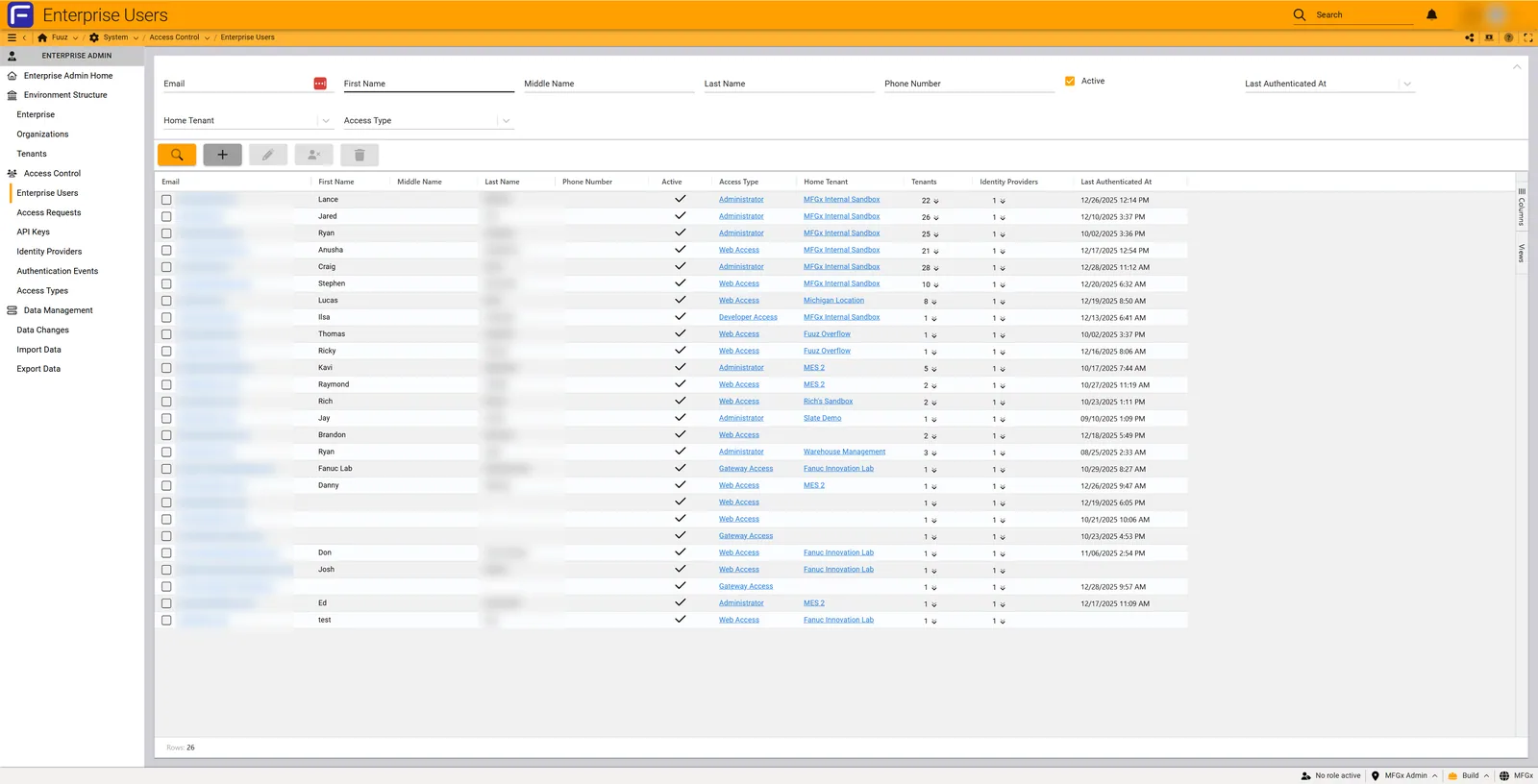
Enterprise Users are the foundational user records in the Fuuz platform, maintained at the enterprise level rather than within individual applications. These user records control platform access, authentication, and the basic permissions structure that governs what users can see and do across all applications and environments.
Only Enterprise Administrators have access to the Enterprise Users management interface. This centralized control ensures proper governance, security, and compliance across the entire Fuuz implementation.
Understanding the distinction between Enterprise Users and App Users is critical for proper platform administration:
| Aspect | Enterprise Users | App Users |
|---|---|---|
| Definition | Actual user record in the database | Reflection of enterprise user with app-specific access |
| Scope | Platform-wide (all tenants and apps) | Single application/tenant only |
| Who Manages | Enterprise Administrators only | Application Administrators within their app |
| Contains | Basic identity, authentication, access types, tenant assignments | Role assignments, permissions, app-specific settings |
| Creation | Must be created first; can exist without app access | Created automatically when enterprise user granted app access |
Fuuz supports two methods for creating Enterprise Users, each serving different organizational needs:
| Method | Who Initiates | Use Case | Result |
|---|---|---|---|
| Direct Creation | Enterprise Administrator | Enterprise-level users, bulk onboarding, pre-provisioning | User created immediately with selected access types and tenants |
| Access Request Approval | Application Administrator requests; Enterprise Administrator approves | New employees, contractors, facility-specific users | User created (if new) or existing user granted additional app access |
Managing Enterprise Users requires:
All Enterprise Users must have a valid email address that serves as their unique identifier. The platform supports:
Before creating users, ensure appropriate Identity Providers are configured:
| Provider Type | Description | When to Use |
|---|---|---|
| Internal | Fuuz native authentication | Default; operational users; users without SSO |
| OIDC Provider | OpenID Connect compatible service | Enterprise SSO integration |
OpenID Connect (OIDC) is an authentication protocol built on OAuth 2.0 that allows users to authenticate through their existing enterprise identity provider rather than maintaining separate Fuuz credentials. This provides single sign-on (SSO) capabilities and centralizes authentication management.
Common OIDC-Compatible Services:
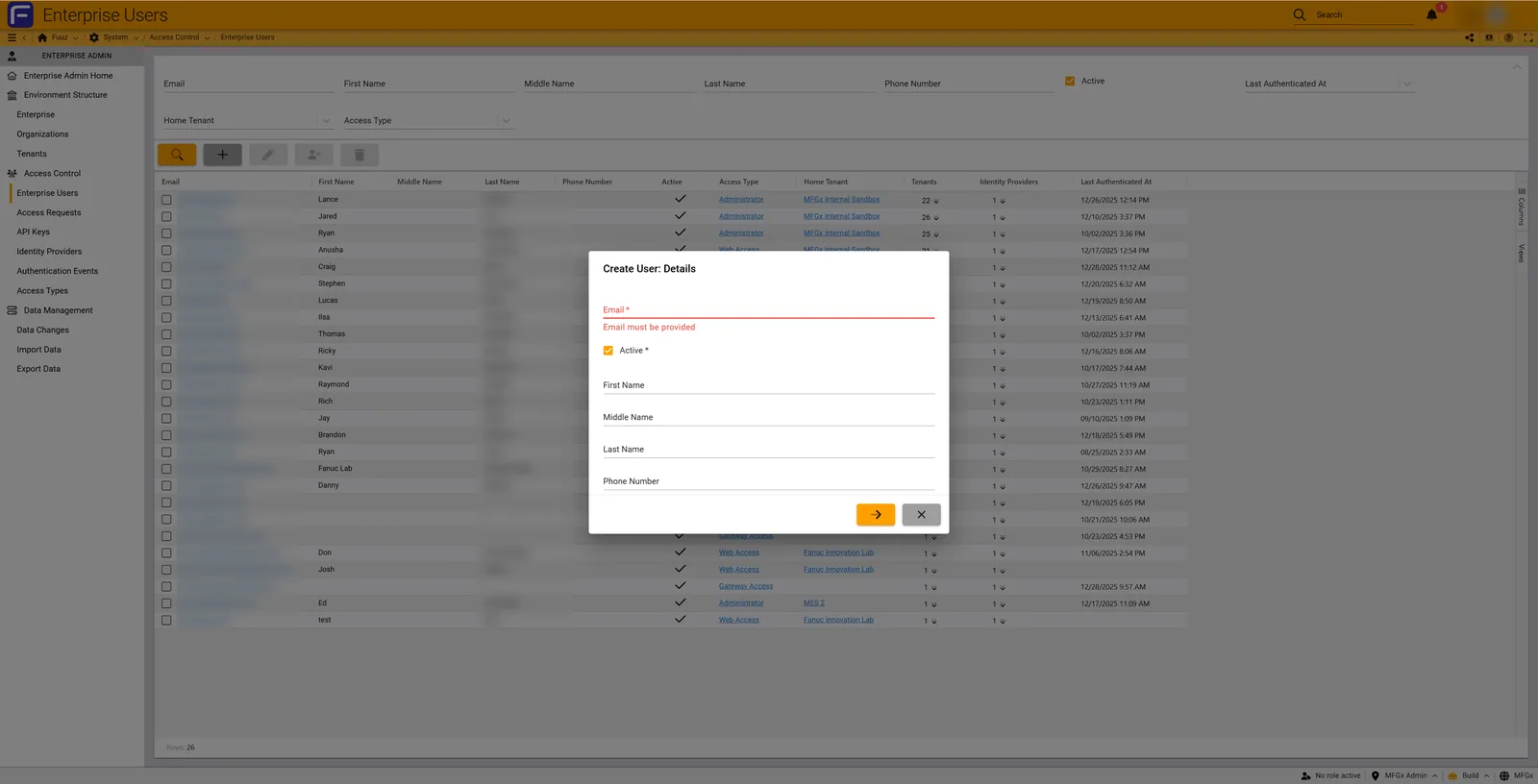
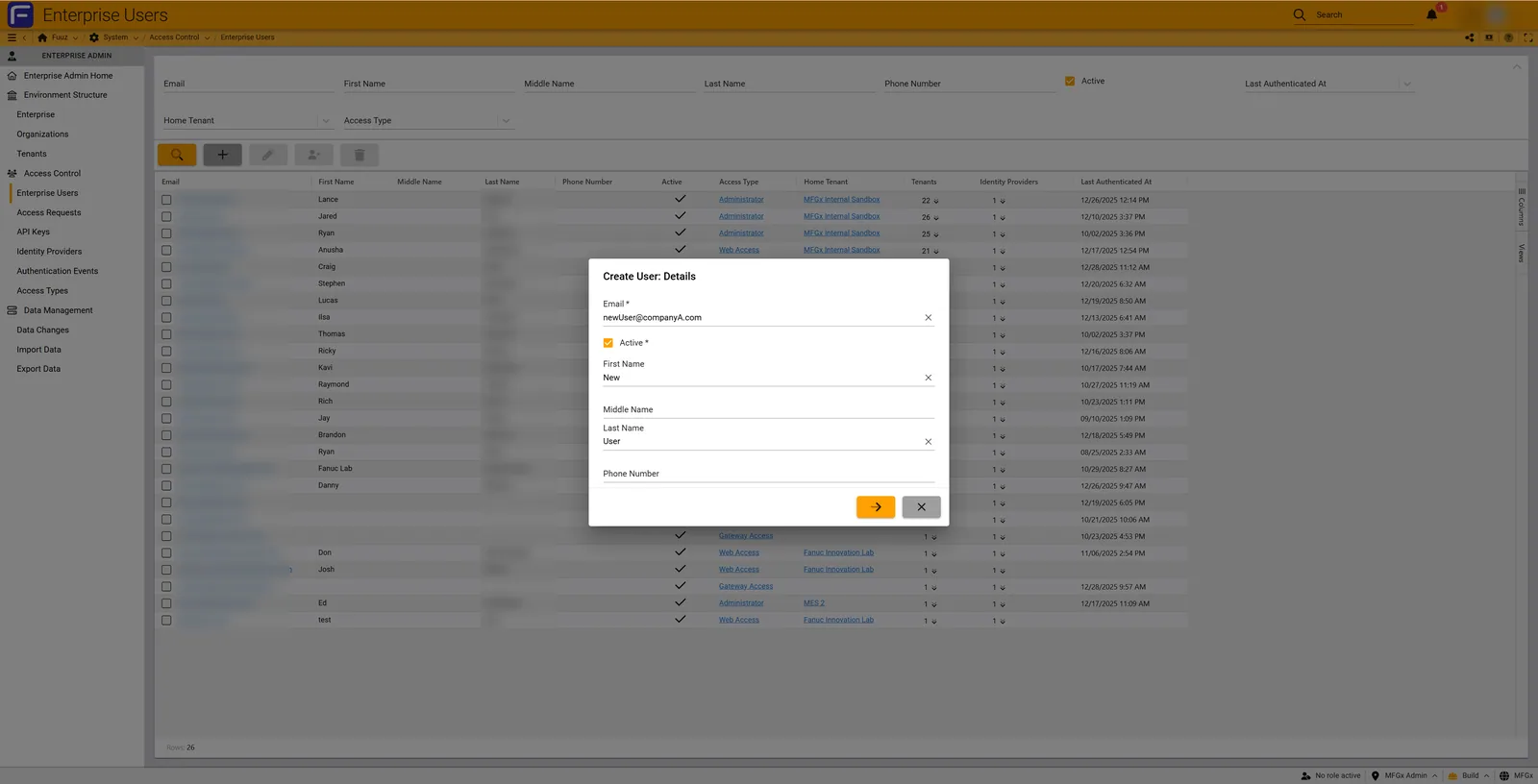
Use this method when Enterprise Administrators need to create users directly without an access request workflow.
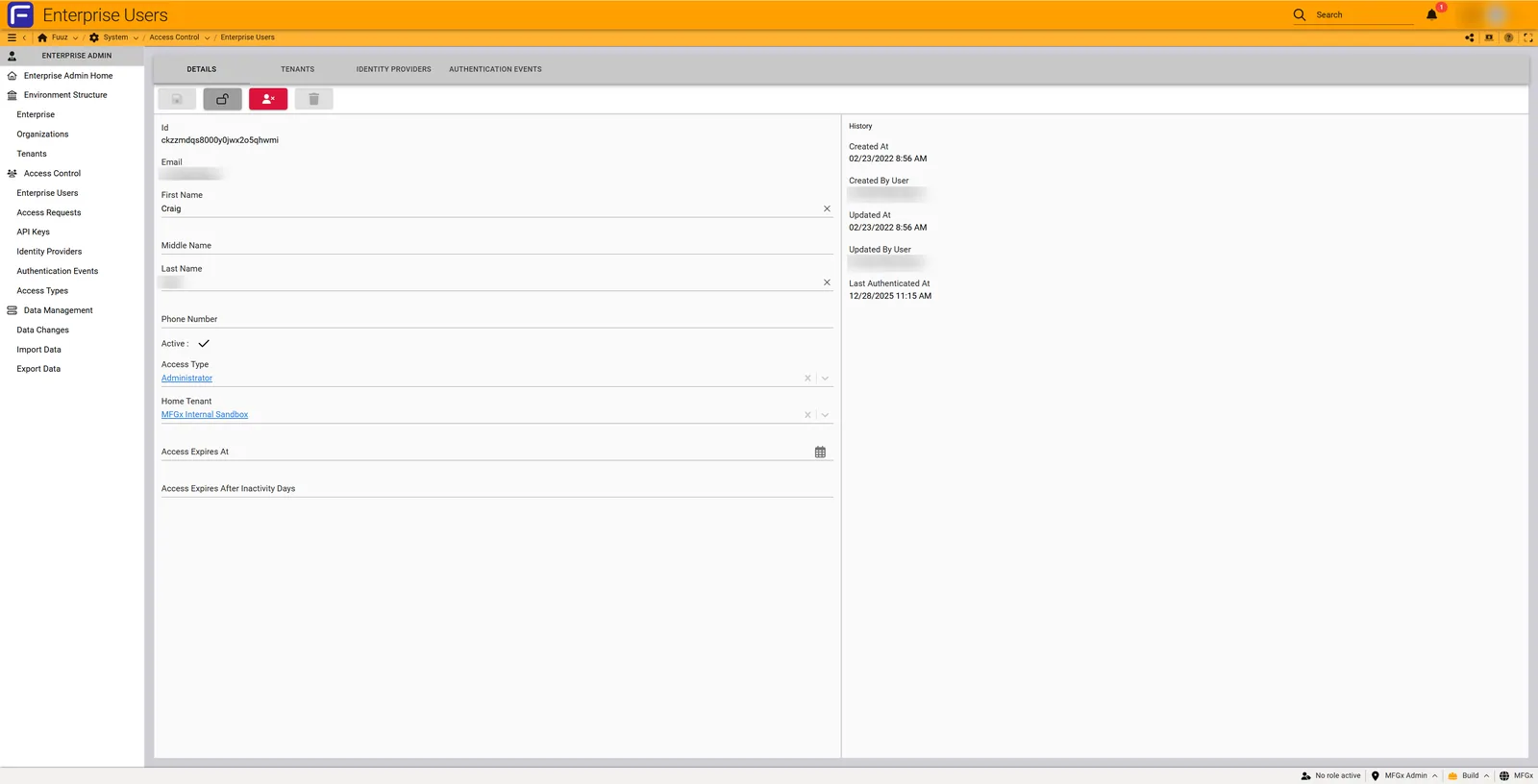
Complete the following required and optional fields:
| Field | Required | Description |
|---|---|---|
| Yes | Unique identifier for the user; must be valid email format | |
| Active | Yes | Toggle; new users should typically be active |
| First Name | No | User's given name; appears in UI and logs |
| Middle Name | No | User's middle name or initial |
| Last Name | No | User's surname; appears in UI and logs |
| Phone Number | No | Contact number; may be used for multi-factor authentication |
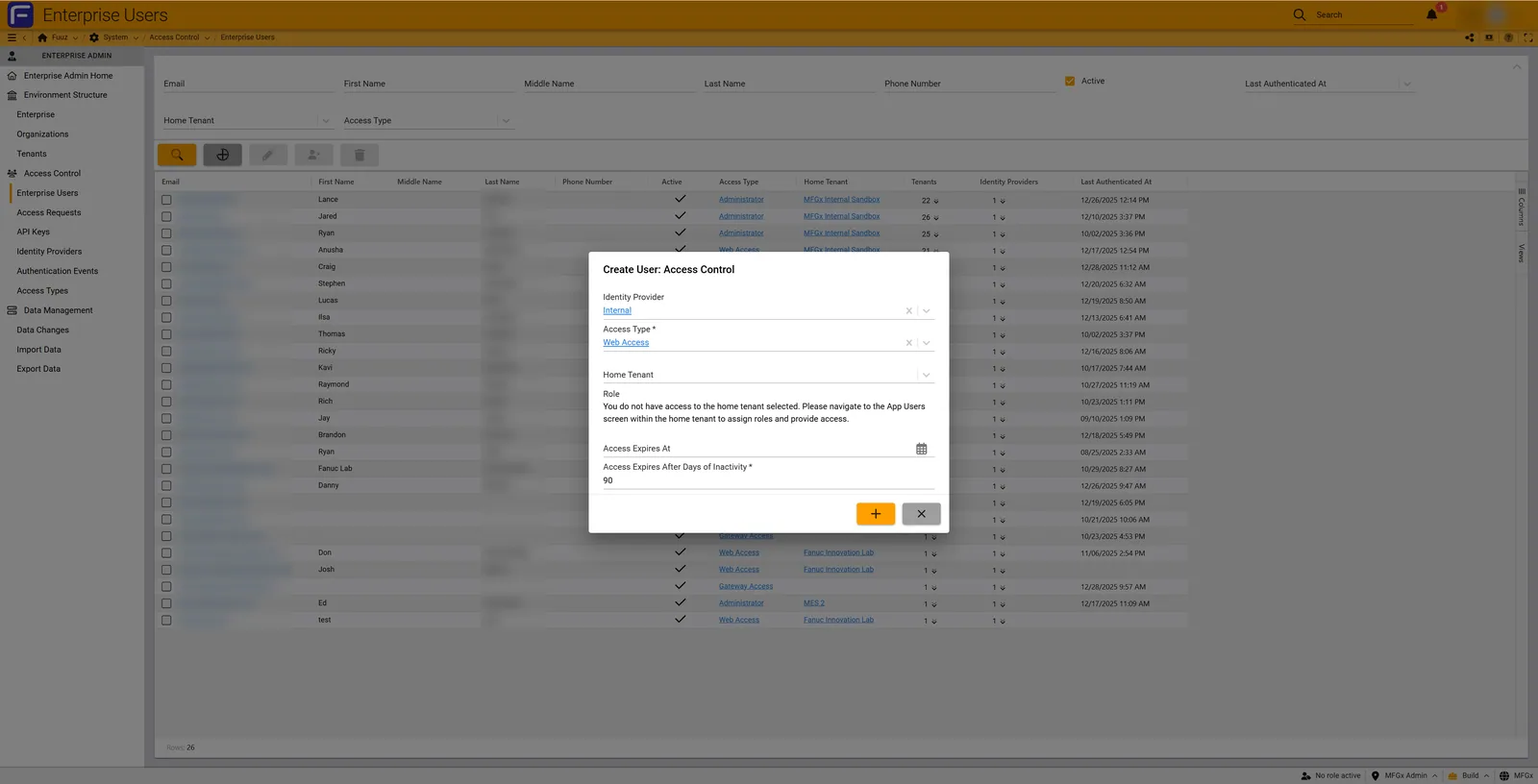
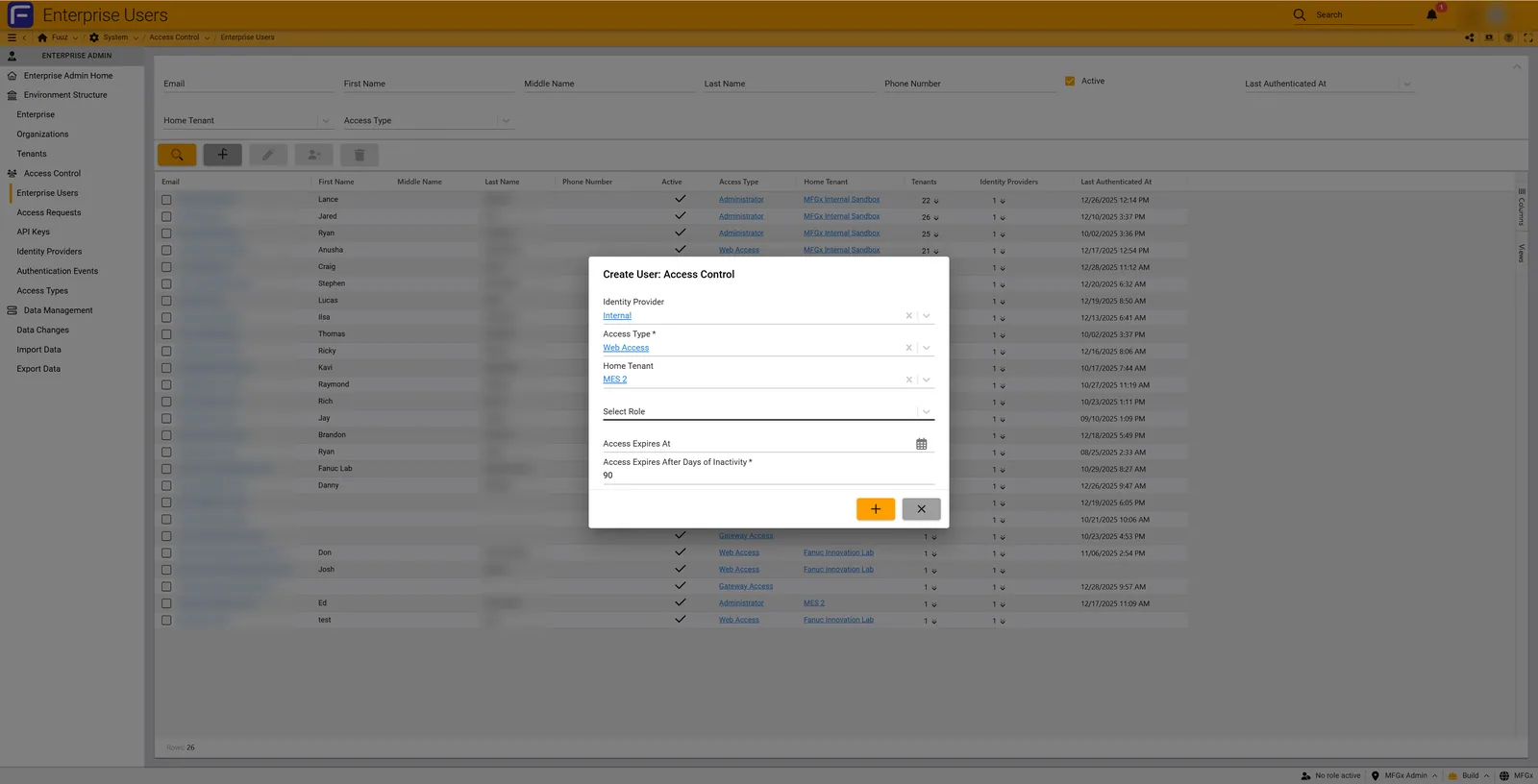
The Create User: Access Control dialog configures authentication and access parameters:
| Field | Required | Description |
|---|---|---|
| Identity Provider | Yes | Select "Internal" or configured OIDC provider |
| Access Type | Yes | Choose from Administrator, Developer, or Web Access (see Configuration Details section) |
| Home Tenant | Recommended | Default tenant for user login; if not set, user must select tenant each login |
| Select Role | Conditional | Available only if you have access to the Home Tenant; roles control granular permissions |
| Access Expires At | No | Specific date when access automatically expires; useful for contractors |
| Access Expires After Days of Inactivity | No | Default 90 days; user locked after this period of no authentication |
This method provides a governance workflow where Application Administrators request access for users, and Enterprise Administrators approve those requests.
| Step | Who | Action | Location |
|---|---|---|---|
| 1 | App Administrator | Submits access request with user email and business justification | Within their application → Access Control → Access Requests |
| 2 | System | Sends email notification to Enterprise Administrators | Email inbox |
| 3 | Enterprise Administrator | Reviews request and approves/denies | System → Access Control → Access Requests |
| 4 | System | Creates Enterprise User (if new) or grants access to existing user | Automatic |
| 5 | App Administrator | Assigns roles and finalizes access configuration | Within their application → Access Control → App Users |
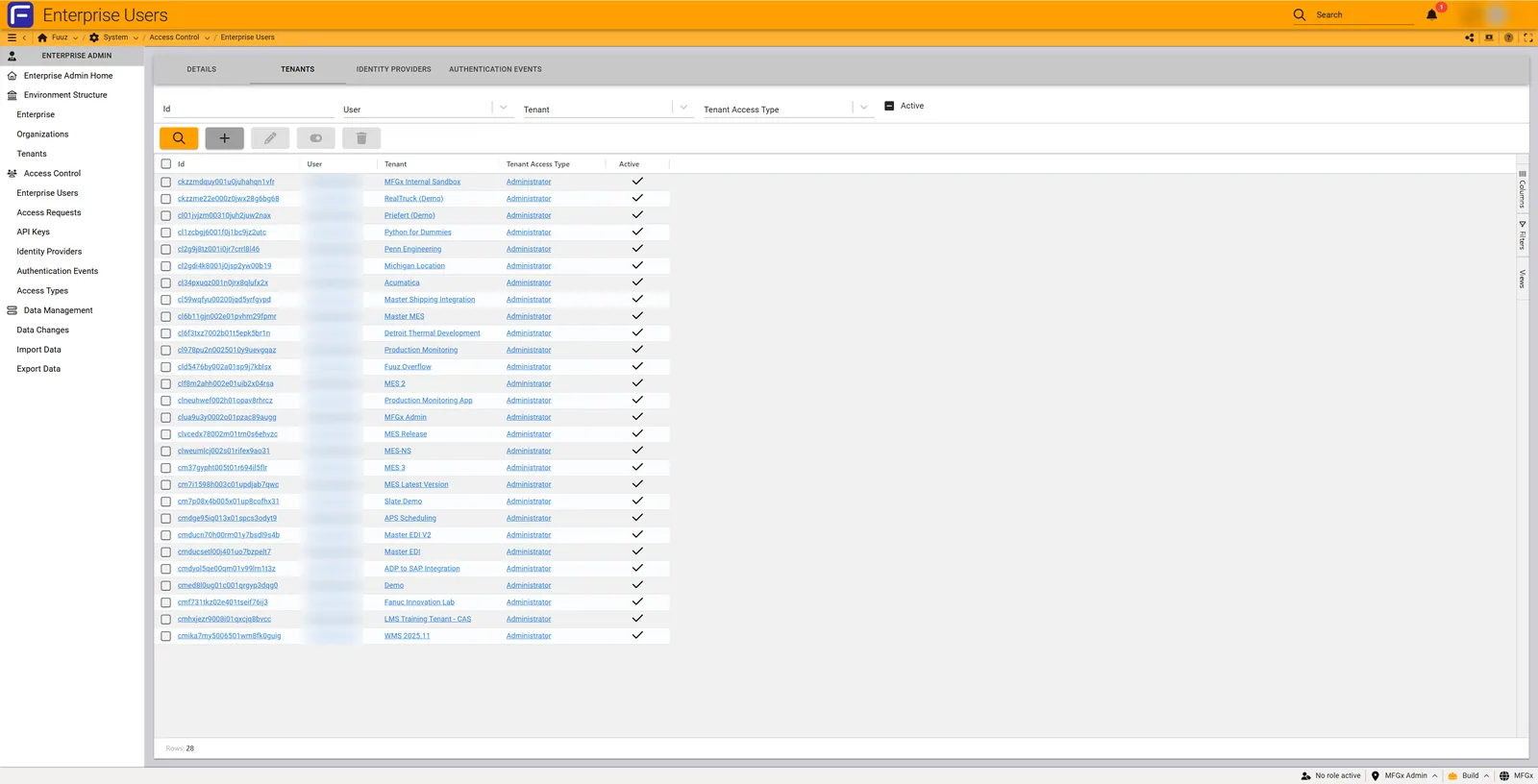
Users can be granted access to multiple tenants (applications). Each tenant access can have a different Access Type, allowing fine-grained control over user capabilities across the enterprise.
Users can become locked due to inactivity timeouts, excessive failed login attempts, or manual deactivation. Enterprise Administrators can reactivate these users.
Access Types determine the fundamental capabilities and menu visibility for users. These are distinct from Roles, which provide granular permission control within applications.
| Access Type | Menu Access | Capabilities | Typical Users |
|---|---|---|---|
| Administrator | Access Control, Data Management, App Management, Logs, Reports, and all operational screens | Manage users, roles, data models, application configuration, view all logs and reports | IT staff, plant managers, department supervisors |
| Developer | Environment application designer, troubleshooting features, API browser, plus operational screens granted via roles | Create/modify data flows, screens, data models, saved queries, document designs; debug and troubleshoot; test features | Application developers, integration specialists, business analysts with technical skills |
| Web Access | Only operational screens granted via their assigned roles | View data, enter transactions, run reports as permitted by role-based access control (RBAC) | Operators, production workers, quality inspectors, warehouse personnel |
| Gateway Access | None (system account) | Used by gateway devices for IIoT data collection and device communication | Automatically created by system (not manually managed) |
| API Access | None (programmatic only) | Programmatic API access for integrations and external systems | Service accounts for ERP integrations, external applications, automated processes |
Gateway Access: These users are automatically created when initializing a gateway device and cannot be manually created or modified. Each gateway user is scoped to exactly one tenant and serves as the authentication identity for the physical gateway device communicating with the platform.
API Access: These users can only be generated by Enterprise Administrators and are scoped to specific tenants. API Access users receive an API key for programmatic authentication and are typically used for system-to-system integrations.
The Home Tenant setting determines which application a user enters by default when logging into the Fuuz platform. This setting significantly impacts user experience and should be configured thoughtfully.
| Configuration | Login Experience | When to Use |
|---|---|---|
| Home Tenant Set | User automatically enters their Home Tenant application immediately after authentication | Most users; provides seamless login experience |
| No Home Tenant | User must select an application from a list every time they log in before accessing any screens | Users who frequently switch between many applications; administrators who need application selection flexibility |
The Home Tenant can be changed at any time by modifying the user's Enterprise User record. Users retain access to all other assigned tenants and can switch between applications after login using the tenant/application switcher in the interface.
Pro Tip: For users who primarily work in a single application, always set an appropriate Home Tenant. The improved login experience significantly reduces friction and support requests. For Enterprise Administrators who manage multiple applications, consider leaving Home Tenant blank to maintain flexibility.Plus addressing enables multiple unique user identities to be created using a single email mailbox. This is particularly valuable for operational environments where individual workers do not have corporate email accounts but still require unique, auditable system access.
Plus addressing inserts a plus sign (+) and a unique identifier into the local part of an email address before the @ symbol. The email server treats these as distinct recipients for authentication purposes while routing all messages to the base mailbox.
Format Pattern:
baseaddress+identifier@domain.com

Examples:
supervisor@company.com+operator1
supervisor@company.com+operator2
admin@company.com+warehouse_clerk_1
plantmanager@company.com+forklift_driver_3
shiftlead@company.com+quality_inspector_a
| Email Provider | Support | Notes |
|---|---|---|
| Gmail | Native support | Fully supported; no configuration needed |
| Microsoft 365 / Outlook | Native support | Fully supported; no configuration needed |
| Yahoo Mail | Alternative format | Uses hyphen (-) instead of plus: user-identifier@yahoo.com |
| ProtonMail | Native support | Supported in paid plans; verify plan compatibility |
| iCloud / Apple Mail | Limited support | Not officially supported; test before deployment |
| Self-Hosted / Custom | Varies | Depends on mail server configuration; verify with IT administrator |
While operational users share a mailbox for receiving emails, they are treated as completely separate users within Fuuz for authentication, authorization, and auditing. Each plus-addressed user:
Fuuz provides two mechanisms for automatically expiring user access, both serving important security and compliance functions.
This setting specifies an absolute date and time when user access expires. This is particularly useful for:
This setting (default 90 days) automatically locks user accounts that have not authenticated within the specified timeframe. This helps:
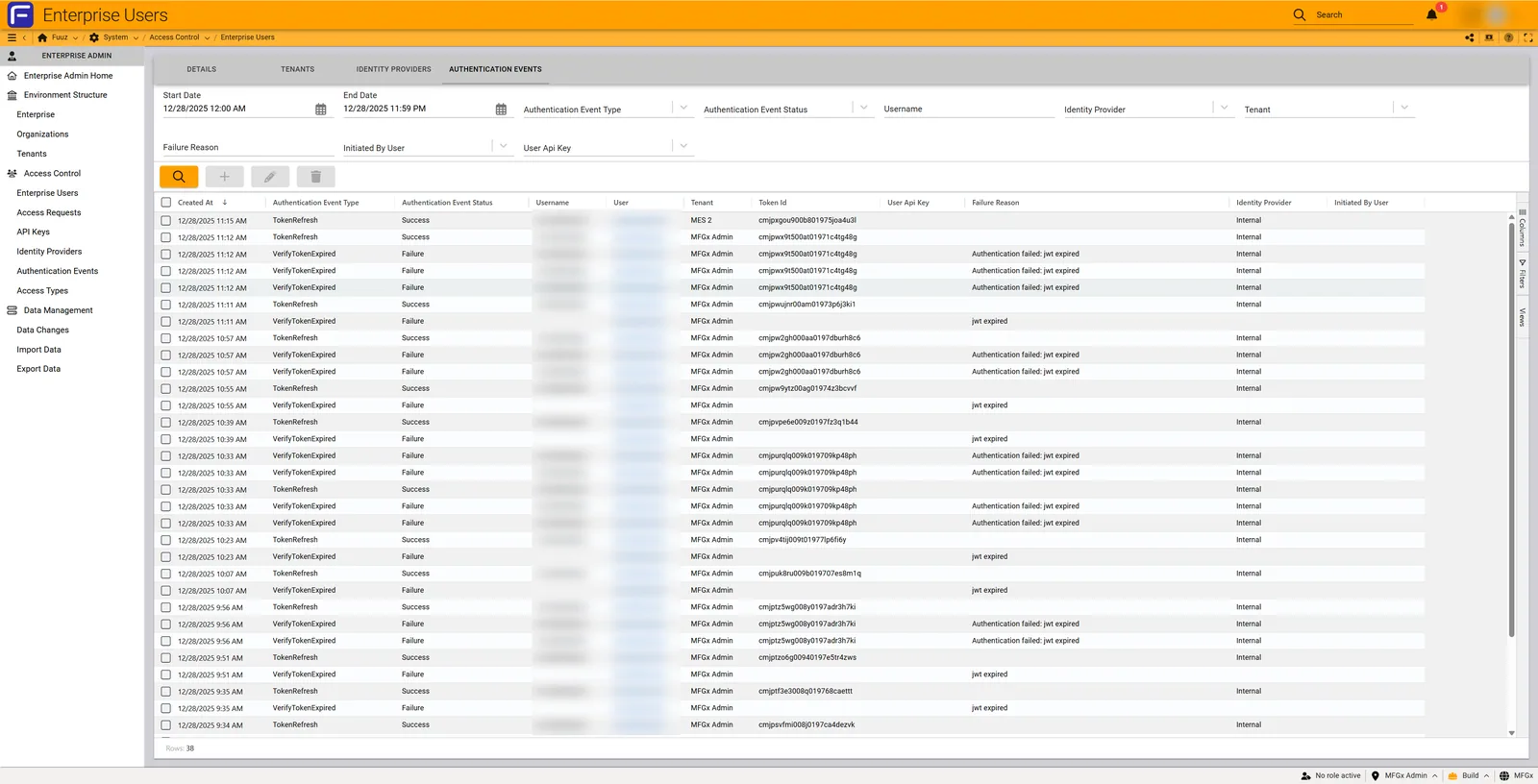
The Authentication Events tab for each Enterprise User provides a detailed log of all authentication attempts, both successful and failed. This is a critical tool for security monitoring and troubleshooting user access issues.
| Failure Reason | Cause | Resolution |
|---|---|---|
| Authentication failed: jwt expired | User's session token has expired after period of inactivity | User should log out and log back in; not a security concern |
| Authentication failed: wrong password | Incorrect password entered | User should reset password; watch for repeated attempts indicating potential attack |
| Too many failed attempts | User exceeded maximum failed login attempts | Administrator must reactivate account; verify legitimate user before unlocking |
| Access expired | User's access expired due to inactivity timeout or absolute expiration date | Administrator must reactivate account and may need to update expiration settings |
| IP restriction violation | User attempting to access from unauthorized IP address | Verify user is on VPN or within allowed IP range; update IP restrictions if legitimate |
| Password expired | User's password exceeded maximum age per password policy | User must reset password through password reset workflow |
| User not found / inactive | User account does not exist or is marked inactive | Administrator must create user or set Active flag to enabled |
| Problem | Possible Causes | Solution |
|---|---|---|
| Cannot assign roles during user creation | Enterprise Administrator does not have access to the selected Home Tenant | Choose a different Home Tenant where you have access, or complete user creation and have an App Administrator assign roles afterward. Alternatively, grant yourself access to the tenant first |
| Access request not received | Email notification filtered or not delivered; administrator hasn't checked interface | Check email spam/junk folders for Fuuz notifications; navigate directly to System → Access Control → Access Requests to view pending requests; set up email filter to prioritize Fuuz notifications |
| Plus-addressed email not working | Email provider does not support plus addressing or has non-standard implementation | Verify email provider compatibility (see Configuration Details section); Yahoo Mail requires hyphen (-) instead of plus (+); test with a sample email before creating multiple users |
| User exists in Build but not in Production | Access types and user assignments do not automatically synchronize across environments | Manually create the user in Production environment with same configuration; consider documenting user creation as part of deployment checklist |
| User has wrong permissions | Access Type determines menu visibility; Roles control data and operation permissions | Verify both Access Type (Enterprise Users) and Role assignments (App Users within application). Most permission issues are role-related, not access type |
| Cannot access Enterprise Users interface | User has Administrator access type within apps but not access to Enterprise Admin Home | Contact another Enterprise Administrator to grant access to Enterprise Admin Home interface. Application-level administrators cannot access enterprise-level user management |
| Cannot reactivate locked user | User status shows as no longer active; account may be in locked state | Navigate to Enterprise Users, select the user, enable Active flag, clear or extend Access Expires At date if set, and save. User will need to reset password after reactivation |
Fuuz implementations typically include multiple environments (Build, QA, Production) that are completely separate instances. Enterprise Users and their access configurations do not automatically synchronize across these environments.
When creating or modifying Enterprise Users, administrators must manually ensure consistency across environments:
While Enterprise User records must be manually synchronized, Role definitions and RBAC policies can be packaged and migrated across environments using Fuuz's Package Management features. This is typically handled by users with Developer access type who can:
Enterprise Administrators are responsible for maintaining proper security controls across the entire Fuuz implementation. Since customers control their own access to suppliers, employees, third parties, and other stakeholders, they are responsible for maintaining proper security protocols and reviews of access controls to ensure data security.
Critical Security Notice: Should unauthorized access result in any data breach or other security incident where the customer granted access but failed to maintain proper control, this will be the customer's responsibility to remedy. Enterprise Administrators must exercise care in providing access to any IT system and maintain vigilant oversight of user access.| Practice | Implementation | Benefit |
|---|---|---|
| Annual Access Review | Review all users annually; verify job roles, access needs, and employment status | Removes unnecessary access; meets compliance requirements; reduces attack surface |
| Inactivity Timeout | Use "Access Expires After Days of Inactivity" (recommend 90 days default) | Automatically locks unused accounts; prevents compromise of dormant credentials |
| Strong Password Policy | Configure robust password requirements; avoid non-expiring passwords unless absolutely necessary | Reduces risk of credential compromise; meets security compliance standards |
| IP Restrictions | Apply IP restrictions for sensitive accounts or when using non-expiring passwords | Limits access to known secure networks; prevents access from compromised locations |
| Authentication Monitoring | Regularly review authentication events; watch for suspicious patterns | Early detection of security threats; identifies compromised accounts quickly |
| Onboarding/Offboarding Checklists | Add Fuuz to existing IT onboarding and termination procedures | Ensures timely access provisioning and removal; prevents orphaned accounts |
Include Fuuz in existing or new IT policies that govern system access:
| Scenario | Recommended Identity Provider | Rationale |
|---|---|---|
| Corporate employees with existing SSO | OIDC (Azure AD, Okta, etc.) | Leverages existing credentials; eliminates password management; meets security policies |
| Operational users without email | Internal with plus addressing | Cost effective; maintains unique identity; simple management |
| External contractors/suppliers | Internal with time-limited access | Simple provisioning; automatic expiration reduces risk; no dependency on external identity providers |
| Mixed environment | OIDC for employees; Internal for operational/external users | Balances security and convenience; appropriate authentication method for each user type |
For additional assistance: