 Help Center
How-To Guides · Screens, dashboards and reports
Field-Level Help
Last updated December 26, 2025, 8:12 PM UTC · fuuz.com/help/enabling-field-level-help
How-To Enable Field-Level Help
Article Type: Concept / How-To
Audience: End Users, Application Designers, Administrators
Module: Fuuz Platform
Applies to Versions: 2025.12+
Overview
Field-Level Help provides contextual guidance for individual fields and sections across Fuuz—pages, reports, dashboards, and custom screens. It helps end users understand how to use specific inputs and interpret displayed data.
Note: Field-Level Help is defined primarily on data models via description fields. Those descriptions auto-populate screen field help, but can be overridden at the screen (field) level when needed.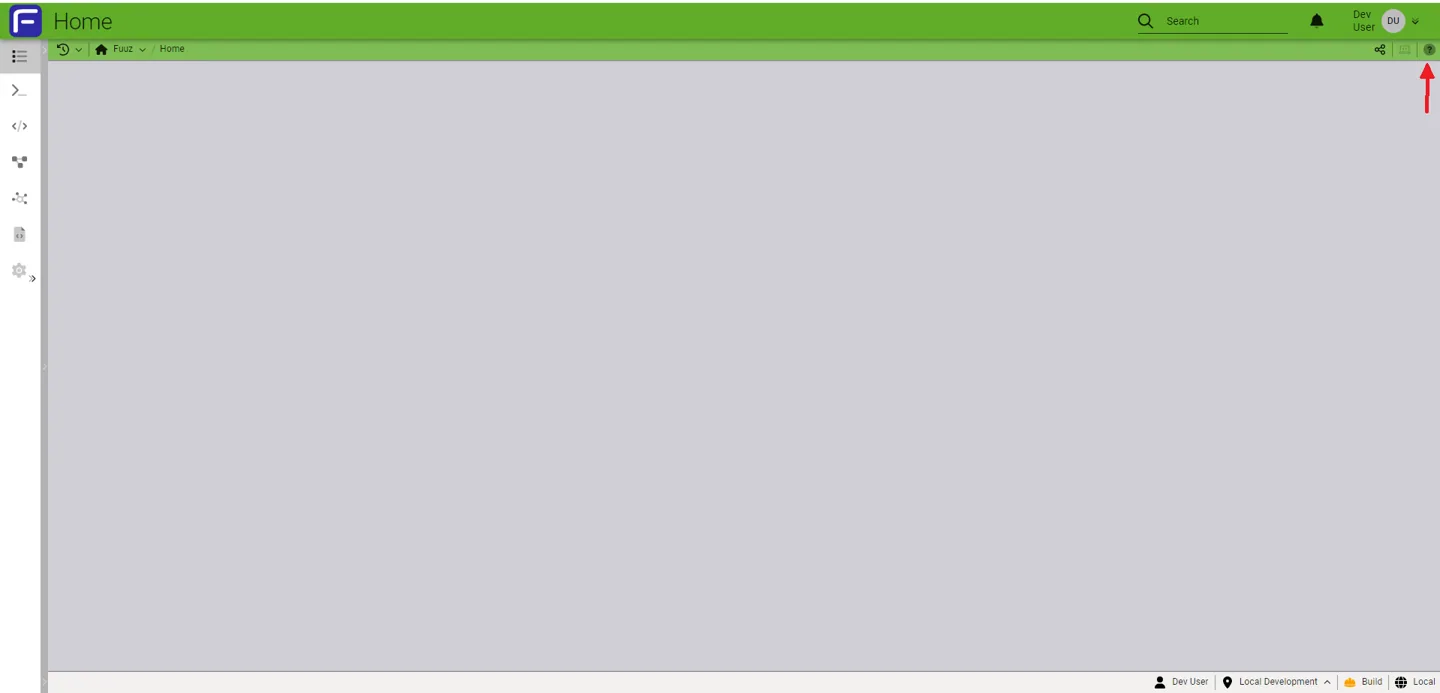
Where Field-Level Help Comes From
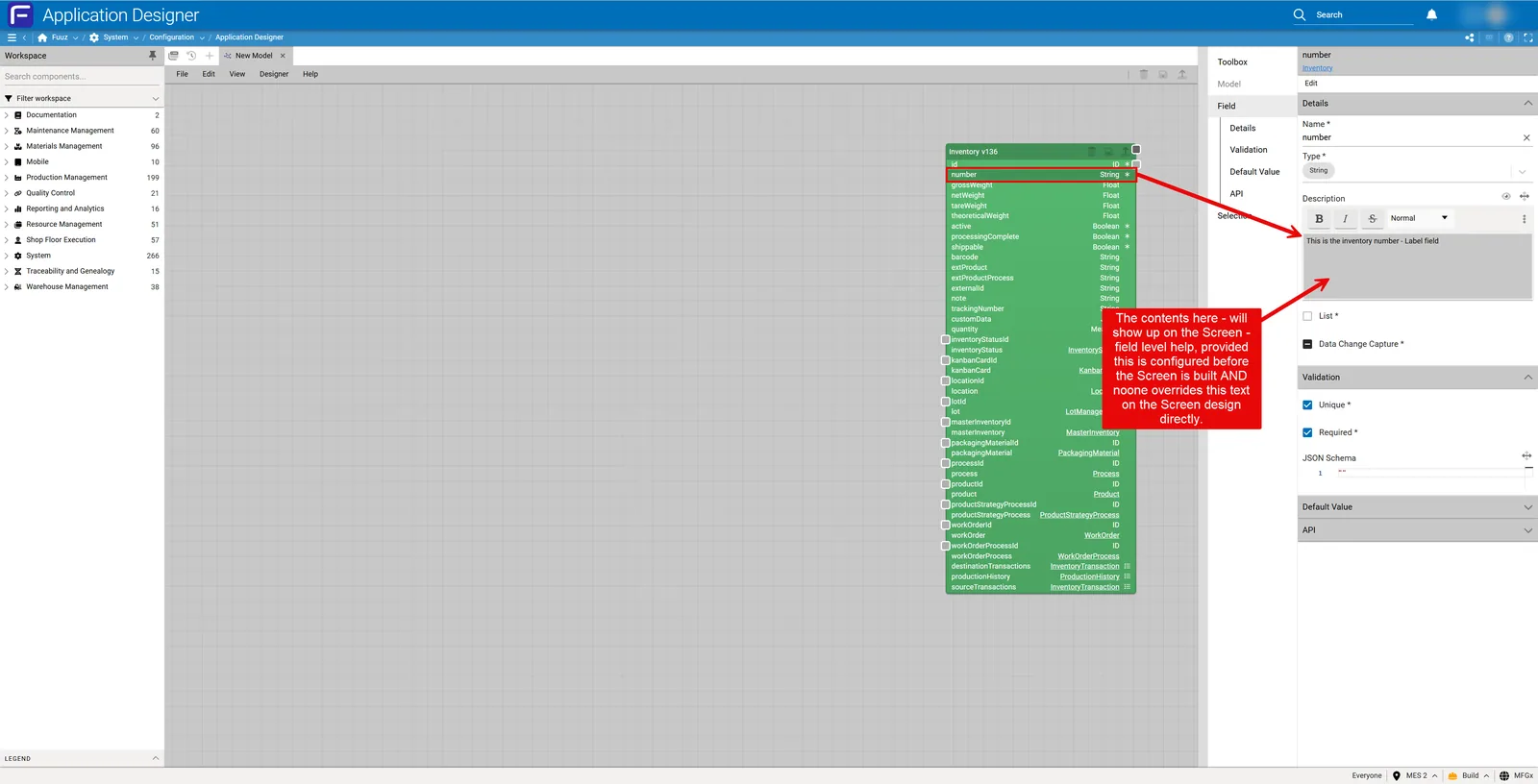
- Data Model / Schema: Builders add descriptions to entities and fields. These roll down automatically to screens.
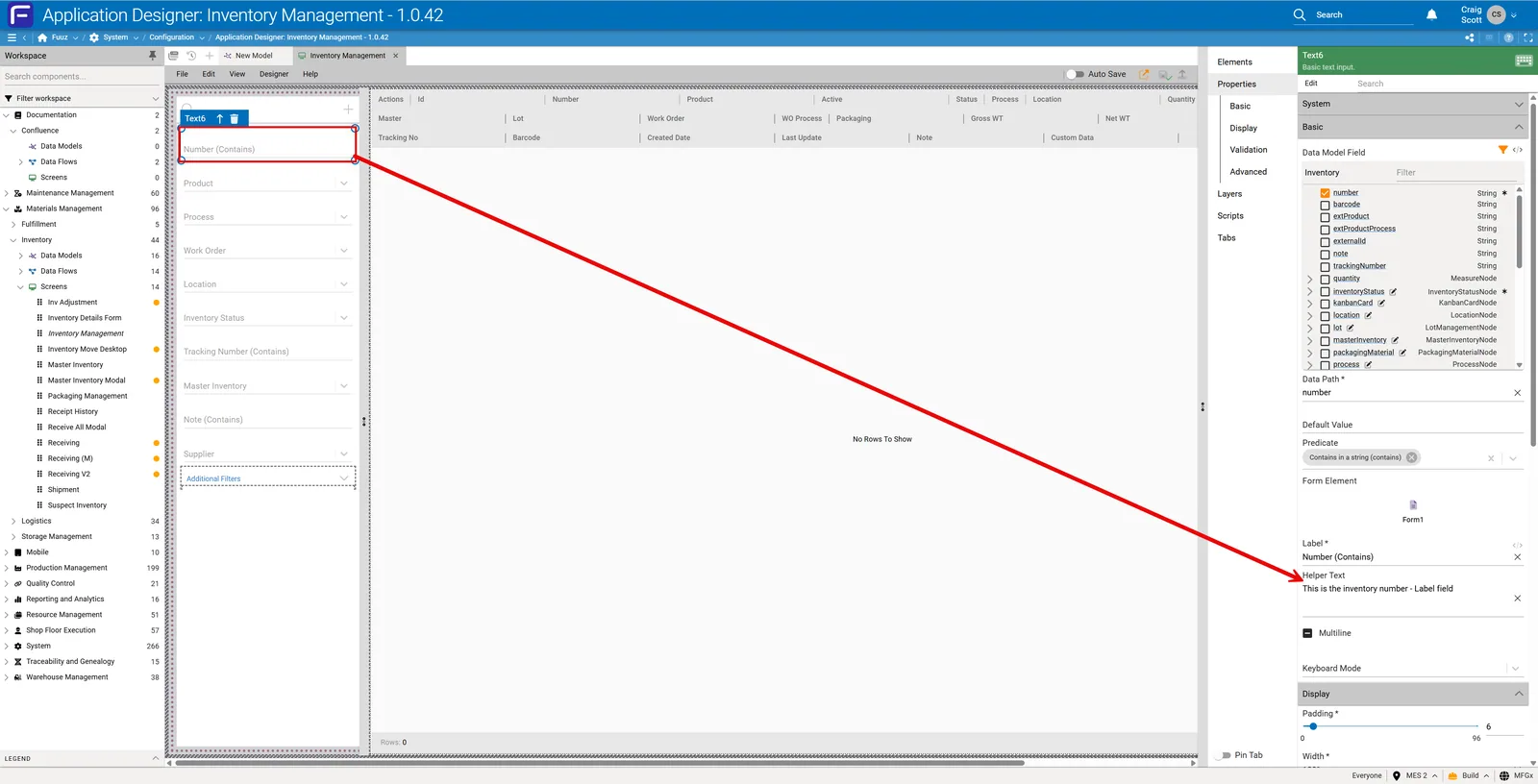
- Screen-Level Overrides: Designers can select a field in the screen definition and set a custom description that supersedes the model description.
- Auto-Population: When a screen is generated or updated, field descriptions are auto-populated from the data model unless an override is present.
Who Controls Field-Level Help
- App Builders: Define default help in data models.
- Screen Designers: Override help per field on screens.
- Administrators: In Fuuz, you control what displays in help for your application screens (with appropriate permissions)—edit the screen definition, update the field description, then save and deploy.
Important: If an admin/developer field lacks proper help, submit a support ticket so the platform team can update system-level descriptions.
Enable Field-Level Help in the UI
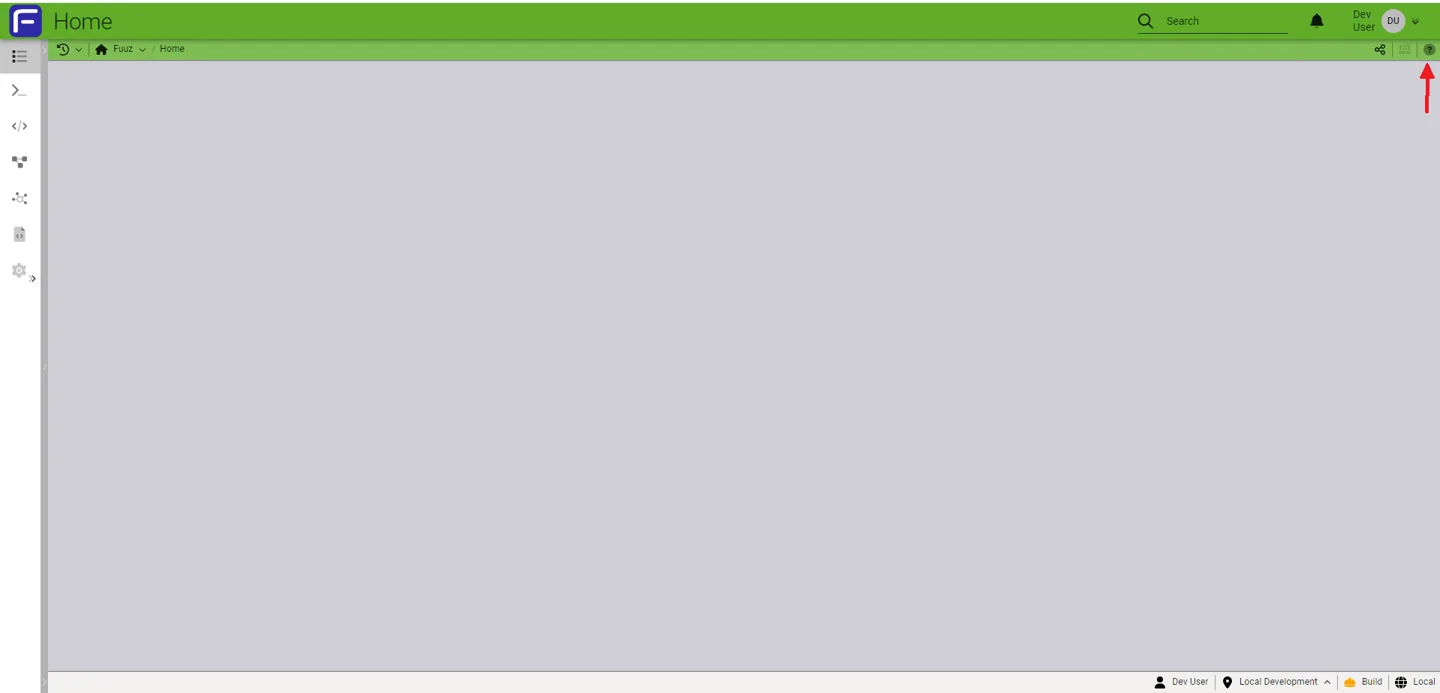
- Navigate to the top-right corner of any screen.
- Click the “?” Help icon to enable Field-Level Help.
- While enabled, sections will display a “?” near them. Hover to reveal contextual help for the section or specific fields.
Note: On custom screens, the footer can show screen version and deploy date while help is enabled, aiding support and audit.
Editing Field-Level Help (Screen Override)
- Open the Screen Definition in the designer.
- Select the field you want to update.
- Update the Description for that field (this becomes the field-level help tooltip).
- Save the screen and Deploy.
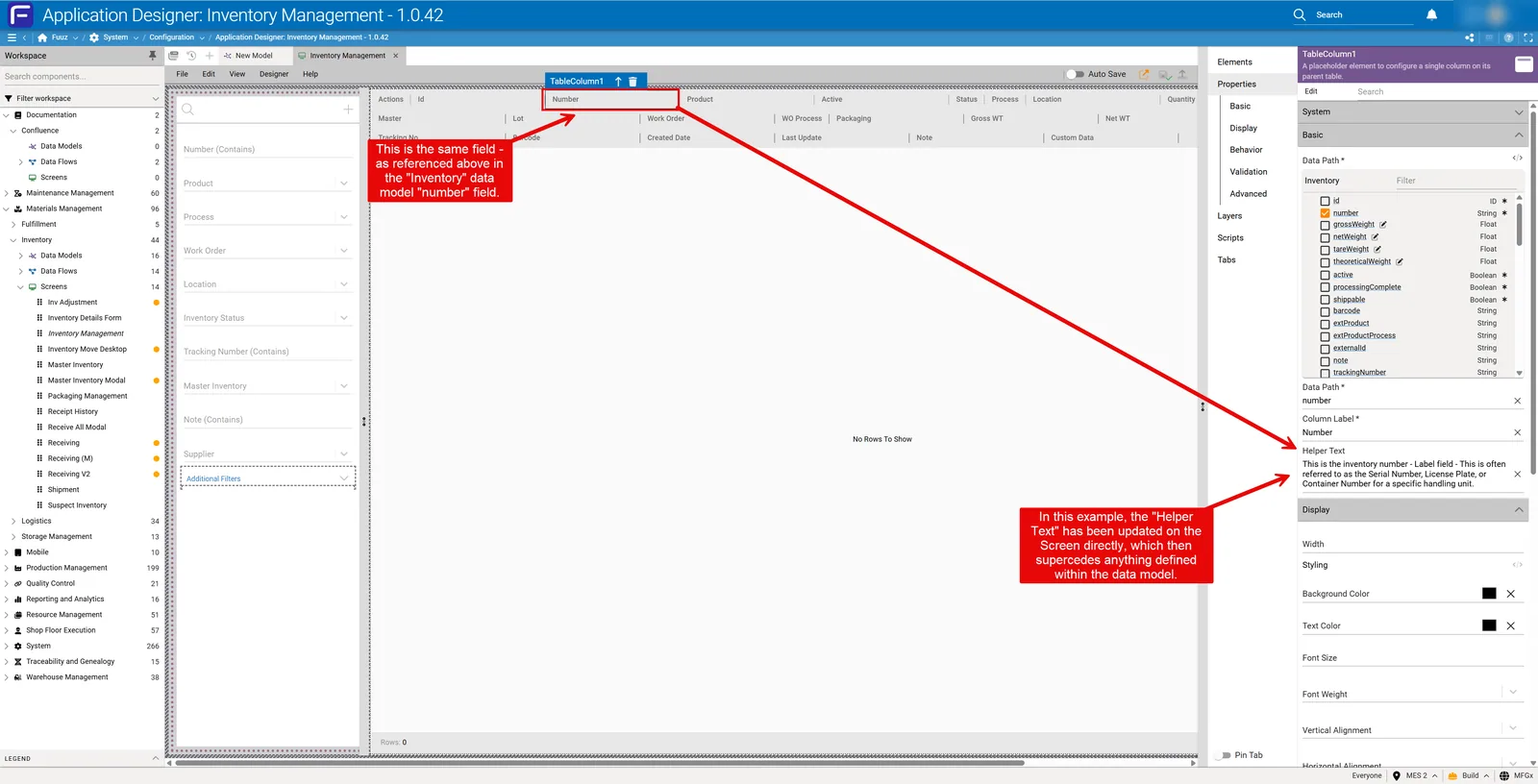
The Column itself and other related fields, do not always have to share the same field level descriptions - This provides for maximum flexibility in building your applications - providing more context to the user - for example, Filter inputs, may provide slightly different context to a field, than the column representing the data from the query.
Mobile Screens & Alternatives
On certain Mobile-type screens, the help icon may not appear. Consider alternative methods to deliver help content:
- Text Elements: Add subtitles or inline instructional text.
- Actions with Confirmations/Notifications: Provide guidance via confirmation dialogs or info notifications.
- Section Headers: Include concise usage notes in headers.
Tip: Keep mobile help brief and scannable—use short phrases and clear icons.
Permissions & Governance
- Editing field help requires appropriate designer/admin permissions.
- Customers have direct control over their field level help properties, contact your Fuuz system administrator if you feel something needs updating.
- End-user visibility respects role-based access and tenant isolation in the Fuuz mesh.
- Use support tickets to request updates to platform-level (system) fields, these would be things like Roles, Users, Policies, Designers, Etc.
Revision History
| Version | Date | Editor | Description |
|---|
| 1.0 | 2025-12-23 | Craig Scott | Initial Release |
Fuuz Knowledge Base • © 2025 Fuuz